Tag: Google

  • Create Google+ Fan Page for your Website or Blog

    The wait is over now, as Google has used their trump card by launching Google+ Pages for Business. Yes, you can now create Google+ Pages for your websites, blogs, local business, brands and etcetera. Creating a Google+ Fan Page is, quite similar to a Facebook Fan Page, that you just need to login to your profile and get started. Not that easy ? Or doesn’t make sense to you ? Not a problem, you can simply follow rest of the article. 😉

    google-plus-pagesIn the article, we will learn how to create Google+ page for your blog or website. For your ease, I have divided this article into three easy steps, that is, Getting Started, Setup Info and Publish & Share.

    Getting Started: Create Google+ Page

    Let us get started with the creation of your first Google+ Page, follow the quick steps below:

    • Login to your Google+ Profile.
    • On the right pane look for Create a Google+ Page and click on the link or you can simply click here.
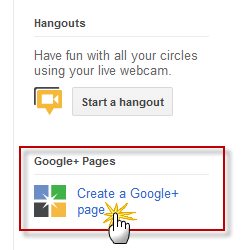
    create new google plus page
    Create new google plus page
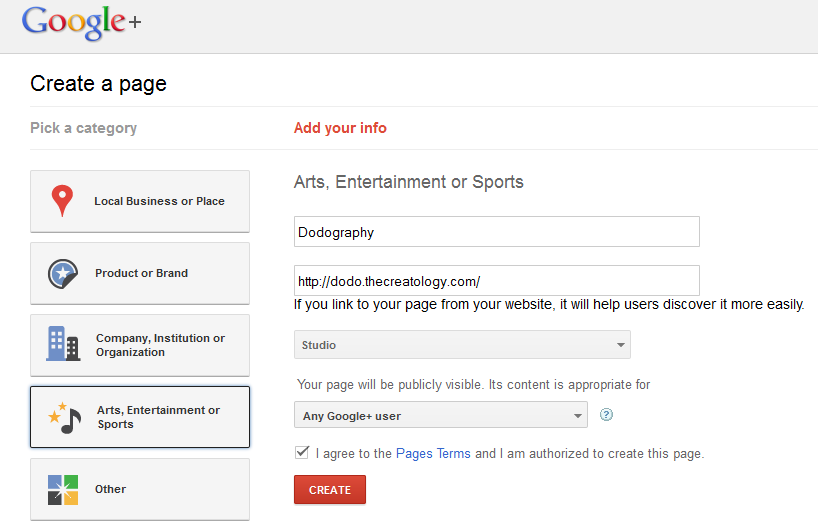
    • After clicking the link, you will be redirected to a page similar to screenshot below:
    setup new google page
    Screen 1: Create a page
    • Enter the required details, for instance Name of the Page, Category, Website Link and privacy. Privacy is beneficial if you want to make your page private or limit page scope to people who connect the circle. Once done, click the red CREATE button and your page will be created.
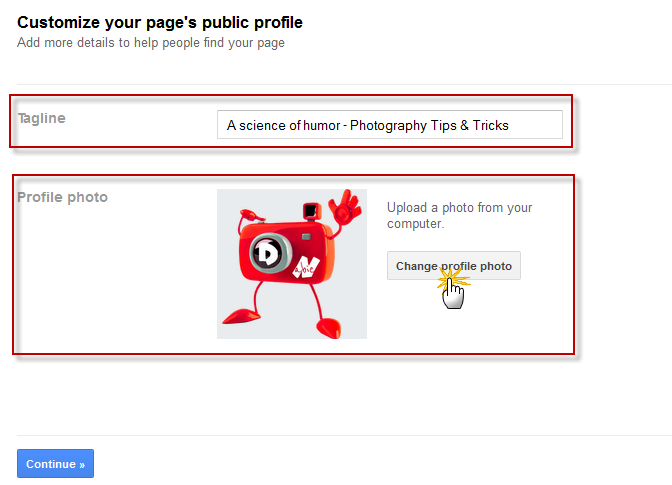
    • In next screen, you will be prompted to add a tagline and add image to Google Page, just like in the screenshot below:
    customize google page
    Screen 2: Customize Google Page
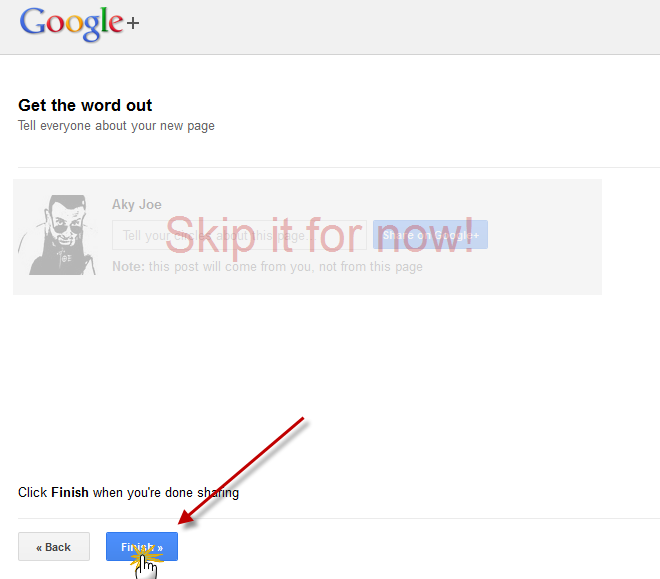
    • Once done, click Continue Button to save changes and move to next screen. In the next screen, Google will ask you to publish this page, but I recommend you to skip this step as it will share incomplete page to your fans. Click the Finish Button to complete Getting Started step. (refer to screenshot below)
    save google page changes
    Screen 3: Share Google Page

    Setup Info: Configure Google+ Page

    So now that you have created new Google Fan Page for website, we will have to setup few things before we publish or share it with your fans. Below are quick steps to setup profile of Google Fan Page:

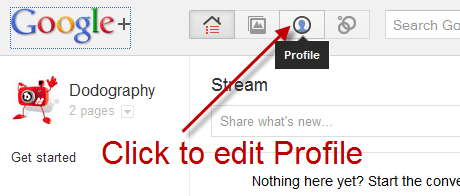
    • On the home screen, click the profile button as shown in the screenshot below.
    edit profile google fan page
    Edit Google Page profile
    • On the profile page, click the About Tab and press blue Edit Profile Button on top right.
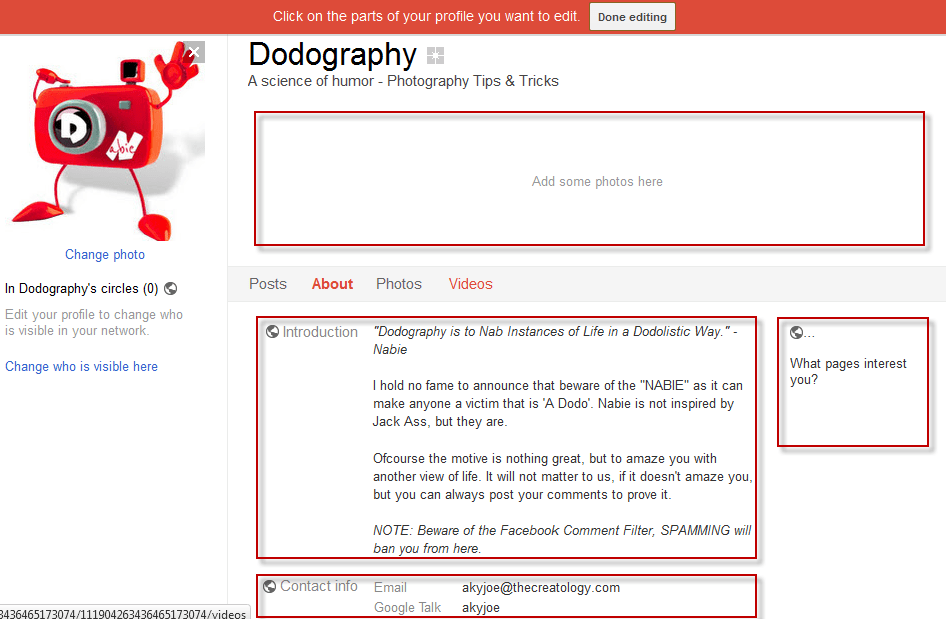
    • In the edit profile screen, you can change profile picture, add description, custom link on right pane and so on. (refer to the screenshot below)
    google fan page description
    Add profile information
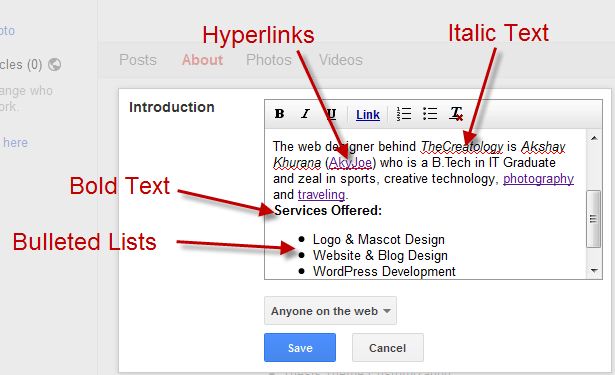
    • In Google+ Fan Page description has rich text editor, which also allows you to insert links, format text for bold, italics & underline, and bulleted & numbered list items. (refer to the screenshot below)
    format google page description
    Format Profile Description with Rich Text Editor

    Google Fan Page looks good ? Don’t miss to use rich text editor to format your description.

    • Once done, click the Save button and also the red top bar Done Editing button, when you finish editing the profile.

    Publish & Share Google+ Page with Friends

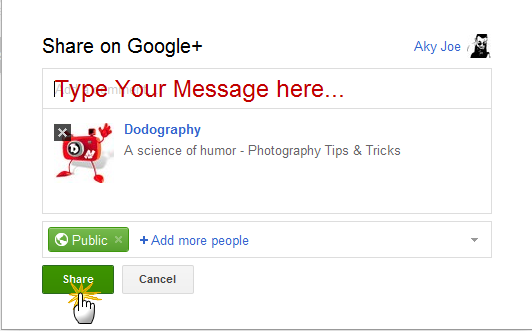
    Ready with your Google+ Fan Page ‘eh ? If so, then without any further delay we should promote the Google+ Fan Page with your friends. In the profile page itself hit the green Share your page Button, which you will see right below the profile picture. On clicking the green button, a window will open similar to screenshot below.
    share google fan page with friends
    Share Google Page with your friends

    In the share window, type your message, set the privacy level and hit the Share Button. Done ? GREAT! You have now successfully shared Google Page with your friends and with this we come to the end of this tutorial.

    Did you like Google+ Fan Page for your Blog ? Let us know by posting a comment below and you can also add TheCreatology on Google+.
  • Google +1 button Update for Faster Page Load Time

    Something which reflects in using a Google Product is its performance. Google offers a lot of webmaster tools, which allows you to track page load time such as by using Google Analytics Code in WordPress. But launch of Google +1 Like button was not that effective, rather it couldn’t perform well in terms of speed and efficiency. If you have a set of Social media count buttons on website, Google +1 button is the last one to load. Wake up Google, you are not one of the Lazy asses. 😛

    google plus one button update

    Well, finally we have an update from Google, The Faster +1 Button. The following article is about the new Google +1 button update and why it loads 3 times faster now.

    Google Plus One Button Update

    After getting feedback and a lot of complaints such as, +1 button takes long time to load, Google released this update for plus one button. Google claims that they have improved +1 button code and now it will load 3 times faster than the old +1 button.

    How New Google Plus Button Loads Faster ?

    new plus one button update
    New Plus One Button Update

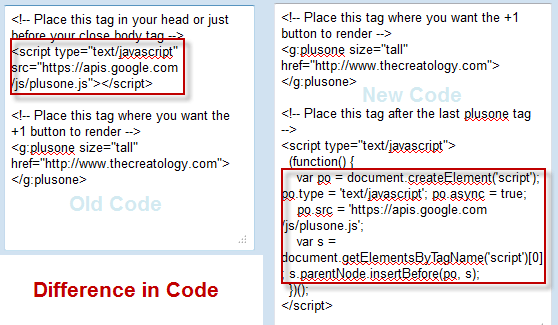
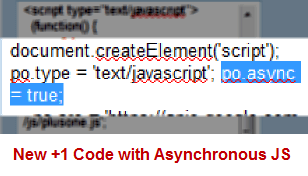
    When a page is loaded on browser, JavaScript loads itself synchronously and causing page load delays. But if we use Asynchronous JavaScript, also knows as AJAX, which lets browser to download JS file, while in parallel the page continues to load on browser and we don’t experience delays. Google has also introduced asynchronous snippet as improvement in new code and claims 3 times faster speed. You may refer the screenshot below which shows you the difference between old +1 button code and new +1 button code.

    difference between new plus code and old code
    Difference between New plus code and old code

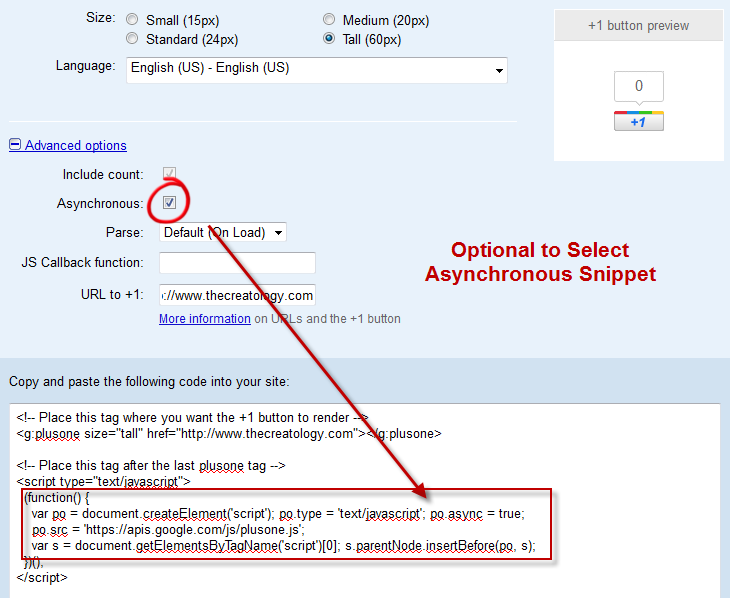
    The above screenshot explains the difference of old code and the new +1 code with Asynchronous Snippet. Google Plus has a configuration tool which allows you to select between old code and new code. Refer to the screenshot below.

    configuration tool google plus one button
    Configuration tool google plus one button

    Once you grab your code from the configuration tool, check out below how to add new plus one button in WordPress.

    Add fast Google +1 button in WordPress

    Procedure to add new +1 button is similar but somehow if you missed it, you can read it here. Below is Google like button code for WordPress which you can add it in Single.php file.

    Make sure you take full backup of single.php file using FTP before modifying it.

    [php]
    <g:plusone></g:plusone>
    <script type="text/javascript">
    (function() {
    var po = document.createElement(‘script’); po.type = ‘text/javascript’; po.async = true;
    po.src = ‘https://apis.google.com/js/plusone.js’;
    var s = document.getElementsByTagName(‘script’)[0]; s.parentNode.insertBefore(po, s);
    })();
    </script>
    [/php]

    Once you have added the code, check load time of Google +1 button on your website. Do let us know your feedback about your experience with new Google Plus Button, by posting a comment below.

    With this we come to the end of this article and I hope you and your folks will enjoy faster browsing experience with Google +1 button Update.

  • How to add Google Like button in Thesis Theme WordPress ?

    You must be aware of latest development by Google, that is New GLike Button for social media. Somehow, if you missed the story, you may read my article on New Google Like button for website. There are a lot of plugins which are already out to add Google like button in WordPress Blog. But, for people like who rarely depend on such plugins, will surely find this article, interesting. In the following article we will learn to add Google Like button in Thesis Theme WordPress.

    But before we go ahead with the tutorial, I recommend you to update Thesis Theme. Don’t know how to do that ? Well, it is simple, just refer to article Safely upgrade to latest version Thesis 1.8 ? If you don’t have Thesis Theme Copy then you can also Download Thesis Theme.

    Google Like Button for Thesis Theme

    google-like-button-on-thesis theme
    Add Google Like Button On Thesis Theme

    When we talk of the custom coding, there are four variations of Google Like button developed to fit-in every layout of website. Google Like button in Thesis Theme can be added using thesis-hooks, the overriding functions. To show GLike button in single post, simply add  below code snippet in the custom_functions.php.

    NOTE: Make sure you take full backup of custom_functions.php file using FTP before modifying it or you can also refer to the article about how to safely edit custom_functions.php

    [php]

    function joe_adds_glike_btn ()  {
    if (is_single()) { ?>
    <div style="float:right;">
    <script type="text/javascript" src="https://apis.google.com/js/plusone.js"></script>
    <g:plusone></g:plusone>
    </div>
    <div style="clear:both;"></div>
    <?php
    }}
    add_action(‘thesis_hook_before_headline’,’joe_adds_glike_btn’);

    [/php]

    We’re Done

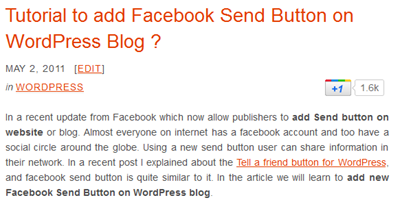
    Once you have added above code in custom functions, you can now refresh your post page, where you will see Google like button in single post similar to screenshot below:

    Google-like-button-on-thesis theme
    Google Like button in Single Post

    For any social media button, I really like this placement and believe me it is effective. Now that we have added Google Like button in Thesis Theme, we are done with the tutorial. If you have any query or further assistance is required, post your feedback as comment below.

  • Tutorial to add Google +1 Like button on WordPress Blog ?

    After the launch of Twitter Follow button for website, it was Google who came up with their +1 Like button on social media. Google like button helps your online contacts, friends to find the best stuff when they Google search for some stuff. Its being said that Google like button will be in good competition with Facebook Like button in the coming times.

    How +1 Google Button Works ?

    Google Like button
    Google Like button

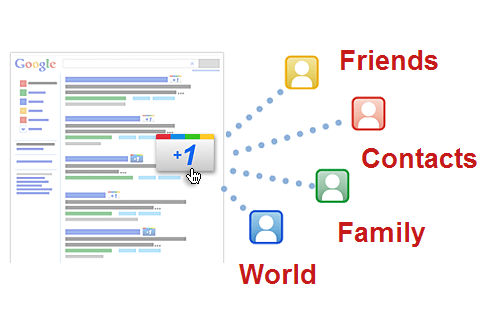
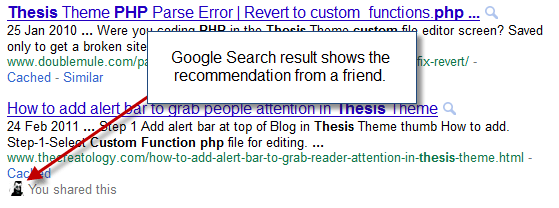
    As I mentioned above, Google +1 button is a recommend button and it works more like a Vote button. When you click Google +1 button on website, it add recommend that particular page on Google Search Results. When any of your Google contact or a friend searches for relevant article, Google displays that article, with your vote and a small photo in search result, just like in screenshot below:

    Google like button Working
    Google Search Results

    Google Like Button Code for Website

    In WordPress, blog placement for Google like button on single post is effective, as usually a visitor will only share it after going through the post. There are 4 different types of Google Like button developed to fit best on your website. Below is the Google like button code for WordPress to add Google +1 Like Button on single post and you can add the code in single.php file.

    Make sure you take full backup of single.php file using FTP before modifying it.

    [php]

    &lt;script type=&quot;text/javascript&quot; src=&quot;https://apis.google.com/js/plusone.js&quot;&gt;&lt;/script&gt;
    &lt;g:plusone&gt;&lt;/g:plusone&gt;

    [/php]

    If the above code doesn’t fit in your theme layout, you can play around with 4 different set of buttons, click here to know more.

    We’re Done!

    Once you have updated the code, save single.php file and upload it on server. Now you can refresh any single post on website, it will look something like in the screenshot below:

    Google Like button preview
    Google Like button in Single Post

    Isn’t it looking cool ? Welcome, now that we have learned how to add new Google Like Button on Website. Let us know your opinions about the Launch of New Google Button in Social Media, by posting a comment below.

    If you have any query or further assistance is required, you can post a comment as your feedback.