Tag: twitter

  • Quick-n-Easy way to Create Twitter Background – Part 1 [Design Layout]

    You must be thinking why am I writing this article, when Mashable already has explained about Twitter Backgrounds 2.5 years back. Well, reply to this thought, is this article in which you will learn Quick way to create custom Twitter Background. If you are tired of changing or have spent a lot of bucks in getting a Custom Twitter Background, then this article is for you.

    Twitter-Custom-Background-TheCreatology

    Last December 2011, Twitter changed its User Interface layout for the second time. Well, it happened for good, as Twitter adapted new html5 features. It sure is surprising for Tweeple (people who tweet), whereas annoying for few, who paid so much to get Custom Twitter Background done and it needs rework again.

    Don’t worry, I have a tutorial for you below which will help you to create twitter background easily. The tutorial is divided into three parts: Basic Requirements, Prepare Theme & Design Twitter Background Layout.

    Basic Requirements

    Here is a list of items you need, to create custom Twitter background:

    • Image Editor (eg. Photoshop)
    • Internet Browser with screenshot plugin (optional)
    • Cool Fonts to Impress (optional)

    Prepare Theme

    This is an important part of the tutorial, where we will prepare and collect information to design custom twitter page. To do so, lets go through few points below:

    • Expression: The page should reflect Who You Are? a blogger, a photographer or a biker. What You Like? a Apple iPhone or a Ducati 848. It should reflect your interest and help people to know more about you.
    • Branding: The social branding conforms to have your bio, photo or avatar and contact information.
    • Show Time: After all its your page, so give it a shot. Of-course use your mad skills here. 😉

    Design Twitter Background Layout

    Now that we know what we want in our theme, lets start with the layout design. Check out easy steps below:

    Create Latest Twitter Layout. Best way to find out the latest twitter background layout is itself twitter, check how…

    • Set your monitor resolution for the most optimized version, For Instance, in this tutorial we will be using 1366px X 768px screen resolution which also is commonly used resolution.
    • Once done, open your twitter page in any browser and Press “Prnt Scrn” on your keyboard. In case if you have a screenshot plugin installed in your browser then quickly take a rough screenshot of the visible area of your twitter page.
    • Next, open Adobe Photoshop and paste/import the screenshot file, just as in the image below.
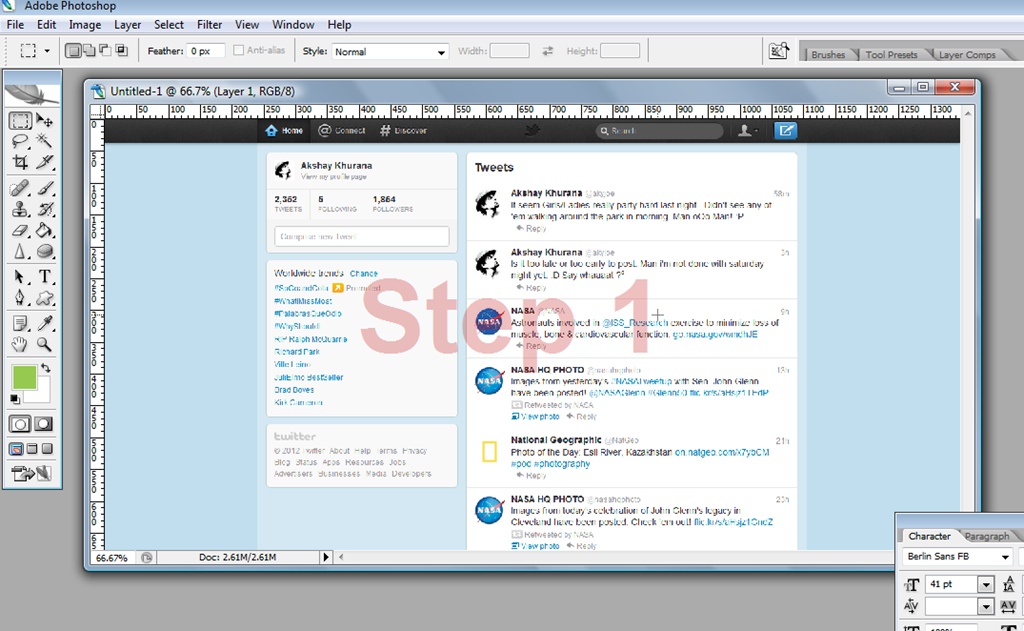
    Create-Twitter-New-Layout-Step1
    Step 1 – Latest Twitter Screenshot
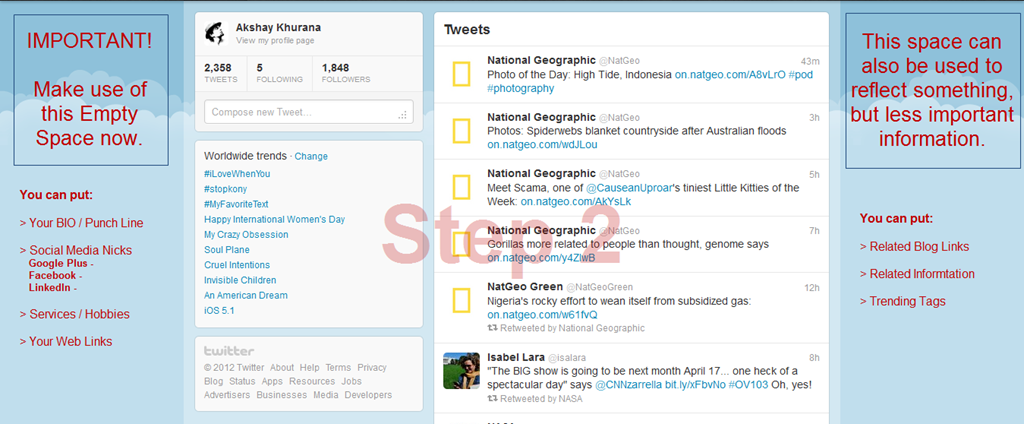
    • Now that you can easily make out in the screenshot above, usable area which is in blue color background as shown in the screenshot below.
    Create Twitter New Layout-Step2
    Step 2 – Prepare Twitter Theme
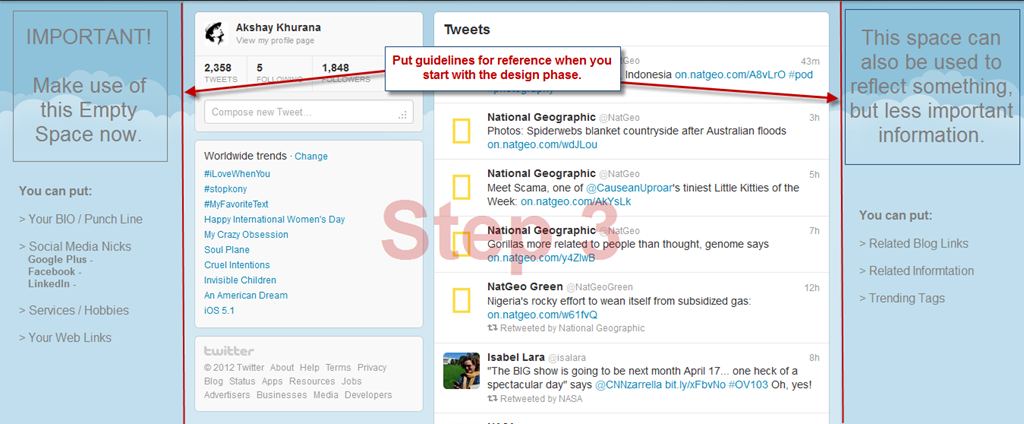
    • Next step is to setup guidelines, which will be a reference, when we will start with the design phase in tutorial [Part 2]. (Refer the screenshot below)
    Create Twitter New Layout-Step3
    Step 3 – Setup Guidelines for Design Phase
    • Save the PSD file, once you are done with setup of guidelines for new twitter background.
    • Take a break, for the work accomplished, Yes I am Serious we are done!

    Now wasn’t that easy of a tutorial, just with hit of “PrntScrn” key and here we got latest twitter layout ready. Well now that we are all set with new twitter background layout and we shall proceed for the design phase. Leave your comments, incase you have any feedback, queries or doubt in your head.

    PS. > Design Phase Article Link will be available shortly here. (Keep in touch via twitter or subscribe to our blog)


  • Twitter launches New Follow Button for Website

    Twitter is doing everything to keep itself in competition with Facebook. Just like the Facebook Like Button, Twitter has launched New Follow Button for Website. Using the new follow button on website, it will directly follow the twitter account and instead going to the twitter profile and then clicking Follow Button. Check out the screenshot showing Britney Spears’ Website using New Twitter Follow Button.

    britney-spears-website-using-follow-button
    Britney Spears Website using Twitter button

    Especially for the publishers, new Twitter Follow button on blog will increase more number of Followers than the retweet button, as it’s just click –a –way. 😉 I think Twitter button will be more efficient and powerful than a Facebook Like Button. If you are looking forward to add new twitter button on website, you can configure it right here.

    Do share your opinions, about the launch of new twitter button, by posting a comment below. 🙂

  • How to add Twitter @Anywhere Hovercard on WordPress Blog ?

    Keeping itself active in Social Media World, Twitter has its development kit ready for your WordPress Blog. Just like the facebook like button, twitter now allows to integrate their features on WordPress website. The feature is known as @Anywhere, and can be implemented using a few lines of JavaScript Code.

    anywhere twitter hovercard for wordpress
    @Anywhere Twitter Features

    In the article, we will learn to implement @Anywhere feature and add twitter hovercard on WordPress blog. I should not make you wait, just follow the simple steps below:

    Step1: Register Twitter Application

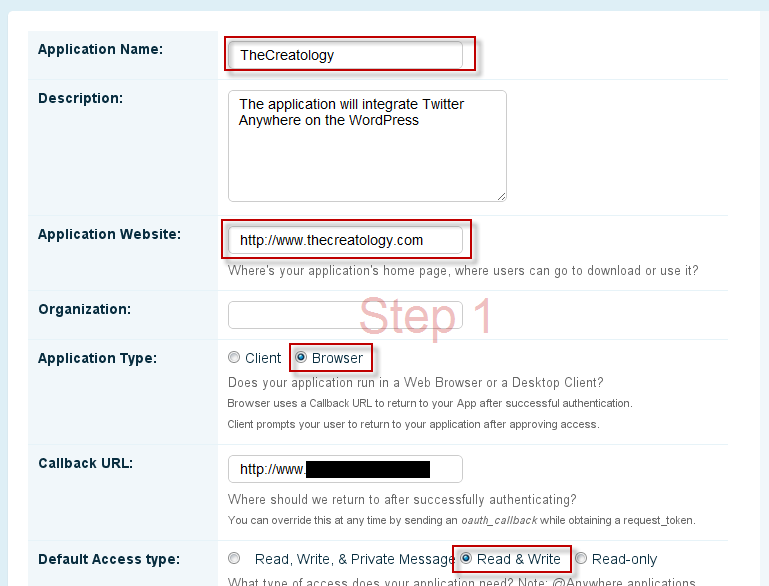
    In order to integrate @anywhere feature on website, you will be required to register an application. On register an @Anywhere application page you will have to fill-in details for Name of the Application, Website URL etc. You can also refer to the screenshot below:

    step1-create application
    Step1: Register an Application

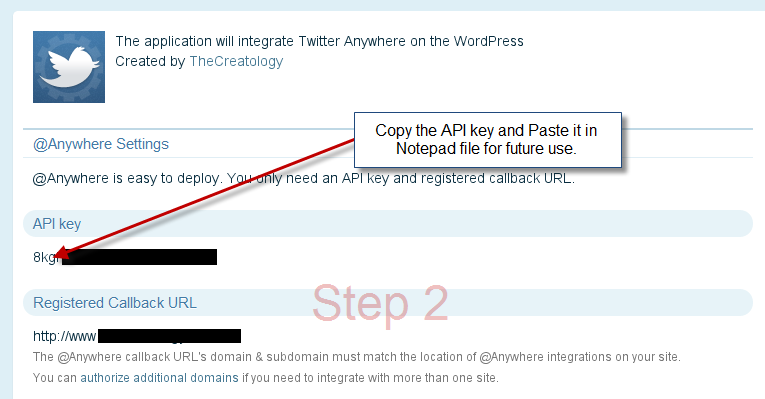
    Submit the Application by clicking Register Application button, and further it will be redirected to the application page. In this page, you will find all details about the Application like API key and Registered Callback URL, similar to the screenshot below.

    step2-get api key
    Step2: Get Twitter API key

    Keep the API key of twitter application handy, as we will be using it in Step2.

    Step2: Adding @Anywhere in WordPress

    To add @Anywhere feature in WordPress blog, twitter provides a Javascript code which should be placed in HEAD Tag in header.php file. Incase you are using Thesis Theme then you can add the code using Thesis Site Options. (If you are concerned about Page Load time, then you can also add code right before the closing of BODY Tag in footer.php file.)

    Below is the twitter @anywhere code snippet, which you can add it in your Custom Theme or Thesis WordPress theme. Make sure you take backup of Header.php or Footer.php before adding the code snippet.

    [php]

    <script src="http://platform.twitter.com/anywhere.js?id=YOUR-API-KEY-GOES-HERE&v=1"></script>
    <script type="text/javascript">
    twttr.anywhere(function (T) {
    T.hovercards({ expanded: true });
    });
    </script>

    [/php]

    For Thesis Theme you and paste the above code in Site Options under “Stat and Tracking Scripts”.

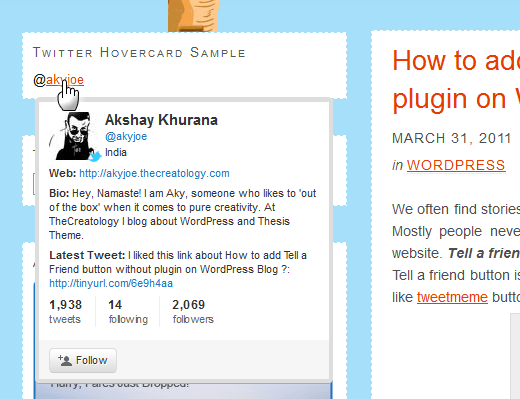
    Once you have added the code, it will enable Twitter username Auto linking and Hovercard feature on your website, that is, it will auto link Twitter usernames anywhere on website, to their twitter profiles. For instance, you can add Text Widget and put twitter username  with “@” symbol just like this “@akyjoe”. Once done, refresh the website and you will find something similar to the screenshot below:

    Twitter Hovercard Demo
    Demo: @Anywhere Hovercard Feature

    We’re done

    @Anywhere Hovercard feature can be effective, if there is a twitter feed on your website. As twitter feed will contain usernames which will be auto linked and will display twitter profile by Hovercard feature.

    What do you think about @Anywhere Hovercard feature ? You can share your opinions here by posting a comment below.

    If you have any query or further assistance is required, post comment as your feedback.