Tag: wordpress core

  • WordPress 5.5 Updates with Sitemap, Speed, Security & New Block Editor Patterns

    WordPress 5.5 Updates with Sitemap, Speed, Security & New Block Editor Patterns

    WordPress 5.5 updates released yesterday, 11th August 2020, is in the honour of Billy Eckstine. This updates acknowledges the 4Ss, that is Simple, Speed, Security & Search. Loading speed and cyber security are the major factors that concerns most of us when we think of launching a WordPress site. But this WordPress update 5.5 could be a game changer. Yes, a well optimised WordPress website does not require expensive server resources or premium website hosting like Siteground.

    WordPress 5.5 Features

    PageSpeed Optimisation with Lazy Load

    50-70% of a page size depends upon the media like images, videos or fonts. The WordPress update takes care of image using the lazy load. When the viewport paints in the browser, the lazy feature loads the image. This feature is already available in Jetpack Plugin, but WordPress claims to have it added by default in the self-hosted solution. Very caring of Automatic!

    Inbuilt Sitemaps for SEO

    WordPress finally adds in-built Sitemaps to help a website appear in Search engines, the moment you publish them. It’s funny to believe that after a decade, finally WordPress has a default XML Sitemap that helps the search engine crawlers to discover posts and pages on the website.

    Automatic Updates for WordPress Themes & Plugins
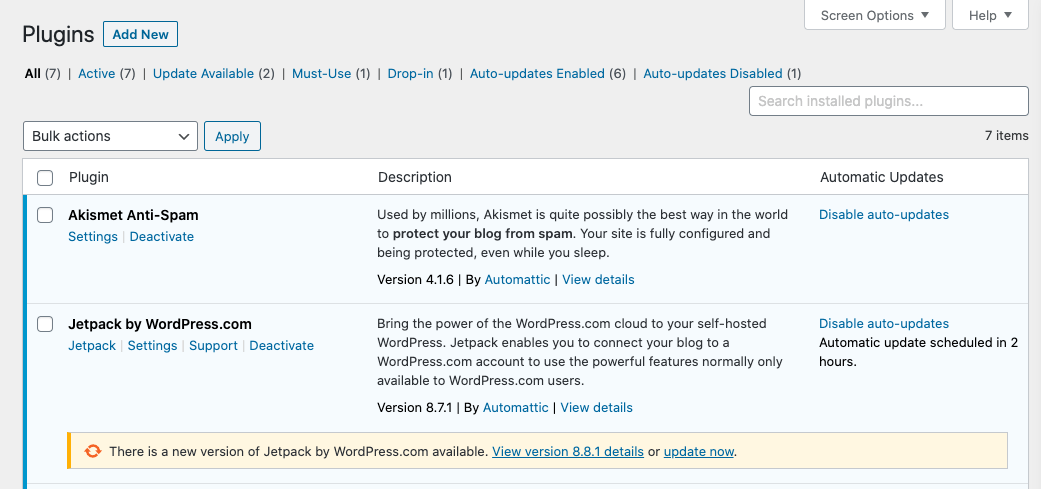
    WordPress 5.5 Update | Auto Update Plugins
    WordPress 5.5 Features Auto Update Plugins

    WordPress 5.5 feature adds a new column in plugin list, as Automatic Updates. So, with a press of a button to enable auto-updates, schedules a cron job after 2 hours. If you’re already using this feature from WordPress.com Manage Sites, then the same setting should apply in the dashboard.

    New Block Editor with Patterns
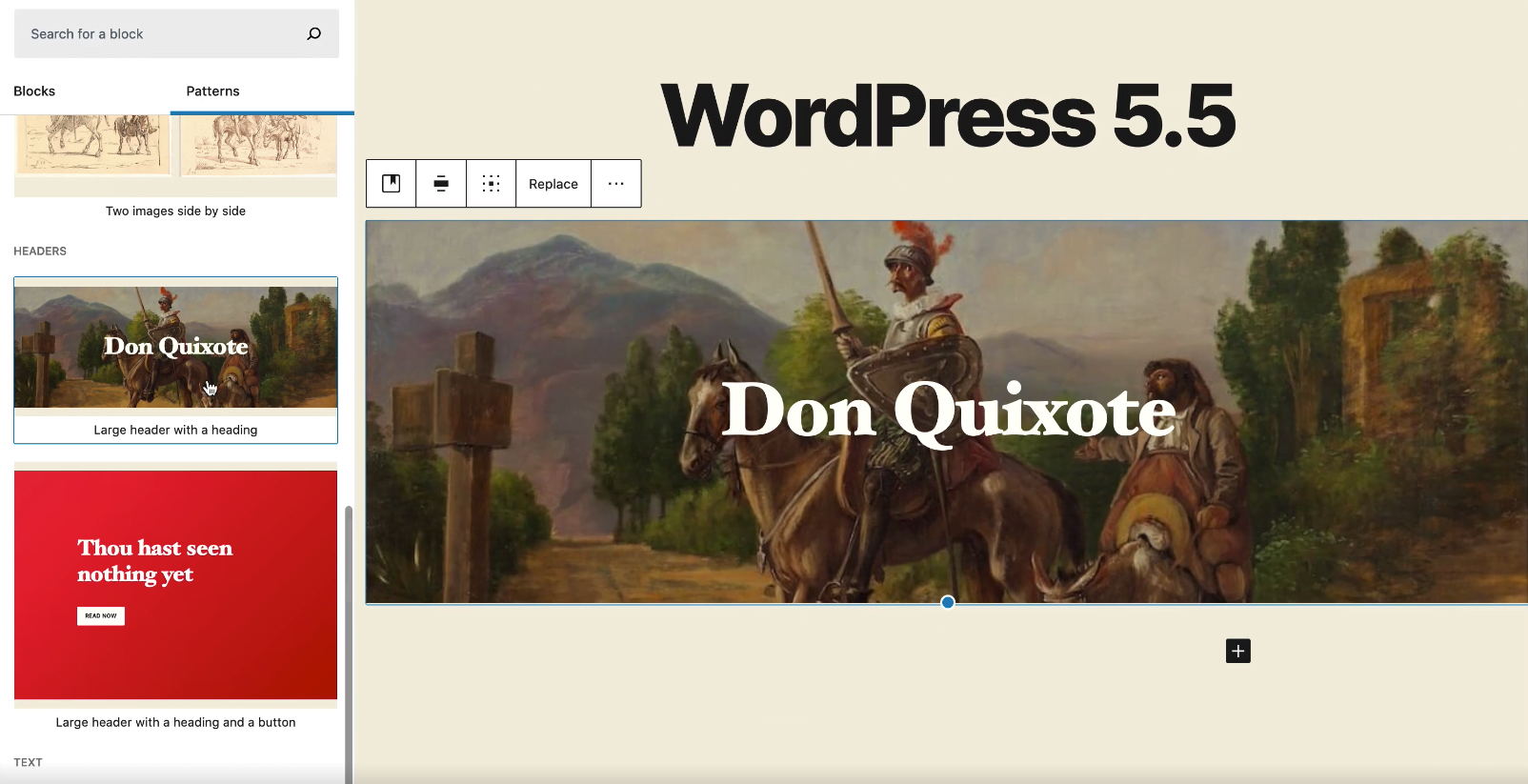
    WordPress 5.5 Block Editor Patterns

    A new block directory is available on the left top corner. New block editor patterns are comprises of useful and trending layouts for your webpage. For instance, a pattern called “Large Header with a heading” adds a full width image along with a heading. Therefore, such patterns reduces block handling complexity and increases productivity. WordPress wants 100% focus on the content not blocks. 😉

    New Image Compare Block

    A new block Image Compare Block, which is neat way to compare before | after images using a slider.

    Quickly Add Block in Post Editor
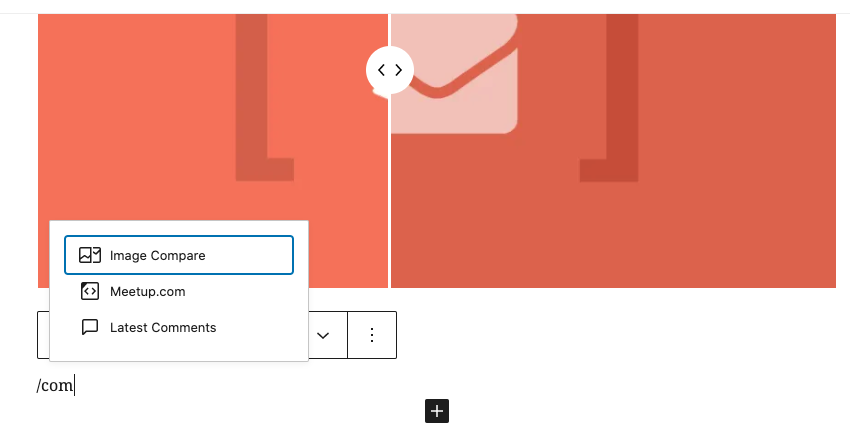
    Shortcut to Quickly Add Block

    Type forward slash “/” in an empty block, which further opens a list of available block to add. Just made it simpler!

    Edit Inline Image Block

    WordPress update adds inline image editing features. That means you can crop or edit the image without leaving the post editor interface in dashboard. Saves a lot of steps and increase productivity without compromising the quality.

    Features for Developers

    • Server-side registered blocks in the REST API
    • Dashicons Library updated with 39 Block Icons and 29 other icons
    • Passing data to template files
    • PHPMailer library updated to 6.1.6
    • And read more here

    Is Upgrading to WordPress version 5.5 Safe?


    WordPress 5.5 acknowledges to improve page speed score for performance, better user interface and visibility to rank on search engines. It is absolutely a stable release, so you can upgrade from WordPress 5.x to 5.5 fearlessly.

    Do let us know, in case you find any bugs when upgrading to WordPress 5.5 by posting a comment below.

  • WordPress 3.6 Version “Oscar” Launched for Power Users

    WordPress 3.6 Version “Oscar” Launched for Power Users

    A much awaited version of WordPress 3.6 “Oscar” is finally out of the jingle box. It is a stable release, especially for the Power Users, with a mobile responsive theme Twenty Thirteen and Revision History Engine. WordPress also claims to save post revision history, for each post-type, over 150 years only if you can survive up to that. LOL!

    Oscar WordPress 3.6 Version
    WordPress 3.6 Version “Oscar”

    Why WordPress 3.6 Oscar ?

    According to WP-Team, the version 3.6 is named after a great Jazz Pianist from Canada, Oscar Peterson.

    Features for Blogger / User

    There are no hidden features in WordPress 3.6, but here is a quick view below:

    • New Twenty Thirteen theme: To advance your level of Blogging, a new mobile optimized theme included is awesome. Twenty thirteen theme is a responsive and HTML5 friendly.
    • Revision History Engine: Revisions History Engine reconstructed to maximize its benefits for power bloggers. You can easily compare WordPress post revisions with a timeline slider.
    • WP-Embed Music shortcode: Easily embed music over Spotify & Rdio with new short-codes

    .

  • WP-HTML5 Media Player: A new html5 media player introduced for better cross browser stability and for your audio/video embeds.
  • WP-Menu New UI: New admin menu UI, lets you select the menu from drop down list and manage it. This is quite simple and much organized than the conventional tabbed one.
  • Features for Developers

    • New filters included for better extensibility.
    • External libraries updated  like jQuery, jQuery UI, Backbone etc.
    • Improved HTML5 markup for default comment forms, search forms and comment lists.
    • New Media API included to extract ID3 tags from music and video files.

    There are many more uncovered features in this version, important for your website or your client’s project development. So, stay tuned for more articles on WordPress 3.6 development.

    Is Upgrading to WP 3.6 Safe?

    WordPress 3.6 is a stable release, hence upgrading to WordPress 3.6 is absolutely safe. If you’re cooking something beyond the recipes of WordPress, then you might experience tasteless & sour layouts. 😛

    Did you update WordPress, yet? If Yes, how is the experience so far? If No, what are you wondering about WordPress 3.6? Do let us know by posting a comment below.

  • Add Multiple Image Upload Button using WordPress Uploader in Theme

    WordPress core development is real learning and challenging especially when needed for an internal or a client project. I came across to this requirement of adding Media Upload Button in Metabox, while working on a client’s project. Hereby sharing my first Core WordPress Development Tutorial  to Add Multiple Image Upload Button using WordPress Uploader in Theme.

    Use Default WordPress Uploader

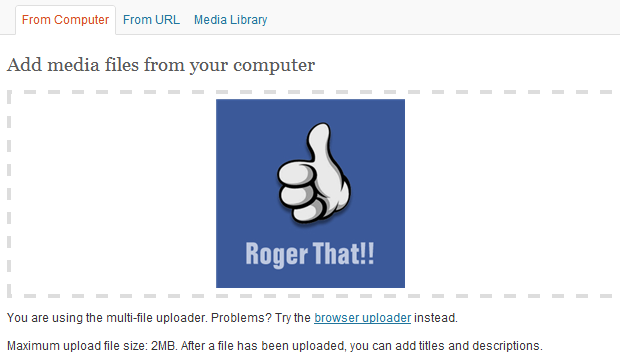
    WordPress Media Upload Box
    WordPress Media Upload Box

    No doubt, WordPress has an awesome media upload thickbox, in which you can even drag-drop images. In this tutorial we will use default WordPress Uploader to insert link in Metabox. For your ease, I have divided this article into three steps: 1) Multiple Image Upload Button Code, 2) Custom Uploader jQuery Code & 3) Call WordPress Media Upload Function.

    Here we go:

    Step1: Multiple Image Upload Button Code

    It is though easy to implement the code if you are familiar with WordPress Basics. No worries, if you are a beginner, just add below code snippet in functions.php or  custom_function.php file if you are using Thesis Theme.

    NOTE: Make sure you take full backup of functions.php file or custom_functions.php file using FTP before modifying the original file or you can also refer to the article about how to safely edit custom_functions.php.

    [php]

    <div style="margin:10px;">
    <label style="float:left; margin: 5px 5px 0 0;">Image 1:</label>
    <input type="text" id="image_1" name="image_1" value="" style="width: 550px; float:left; margin:0 5px;"/>
    <input id="_btn" class="upload_image_button" type="button" value="Upload Image" />
    </div>
    <div style="margin:10px;">
    <label style="float:left; margin: 5px 5px 0 0;">Image 2:</label>
    <input type="text" id="image_2" name="image_2" value="" style="width: 550px; float:left; margin:0 5px;"/>
    <input id="_btn" class="upload_image_button" type="button" value="Upload Image" />
    </div>
    <div style="margin:10px;">
    <label style="float:left; margin: 5px 5px 0 0;">Image 3:</label>
    <input type="text" id="image_3" name="image_3" value="" style="width: 550px; float:left; margin:0 5px;"/>
    <input id="_btn" class="upload_image_button" type="button" value="Upload Image" />
    </div>

    [/php]

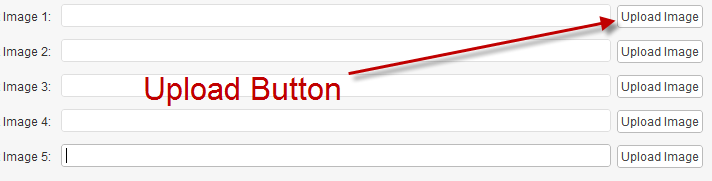
    After adding multiple upload image buttons, save the file and you will see something similar to screenshot below:

    Multiple Image Upload Buttons
    Multiple Image Upload Buttons

    Step2: Custom Uploader jQuery Code

    Now that our HTML part is ready, its time to do some action. Create a new JS file custom_uploader.js and insert the below code snippet in it.

    [php]

    jQuery(document).ready(function() {
    var formfield;
    jQuery(‘.upload_image_button’).click(function() {
    jQuery(‘html’).addClass(‘Image’);
    formfield = jQuery(this).prev().attr(‘name’);
    tb_show(”, ‘media-upload.php?type=image&amp;TB_iframe=true’);
    return false;
    });
    window.original_send_to_editor = window.send_to_editor;
    window.send_to_editor = function(html){
    if (formfield) {
    fileurl = jQuery(‘img’,html).attr(‘src’);
    jQuery(‘#’+formfield).val(fileurl);
    tb_remove();
    jQuery(‘html’).removeClass(‘Image’);
    } else {
    window.original_send_to_editor(html);
    }
    };
    });

    [/php]

    Above code will invokes the WordPress Uploader function, so make sure you copy the code very precisely.

    Step3: Call WordPress Media Upload Function

    Action time, as we will trigger Media Upload Button function en-queuing some default scripts. So, copy/paste the code in functions.php or  custom_function.php file, in case if its Thesis Theme.

    NOTE: Make sure you take full backup of functions.php file or custom_functions.php file using FTP before modifying the original file or you can also refer to the article about how to safely edit custom_functions.php.

    [php]
    function joe_admin_scripts() {
    wp_enqueue_script(‘media-upload’);
    wp_enqueue_script(‘thickbox’);
    wp_register_script(‘my-upload’, ###ADD JAVASCRIPT LOCATION HERE###/custom_uploader.js’, array(‘jquery’,’media-upload’,’thickbox’));
    wp_enqueue_script(‘my-upload’);
    }
    function my_admin_styles() {
    wp_enqueue_style(‘thickbox’);
    }
    add_action(‘admin_print_scripts’, ‘joe_admin_scripts’);
    add_action(‘admin_print_styles’, ‘joe_admin_styles’);
    [/php]

    Above code will get Media Upload Box Stylesheet and jQuery files. Don’t forget to insert the location of custom_uploader.js file which we created in Step 2 in line number 4.

    Once done, try inserting/uploading files by clicking respective upload buttons use insert into post to fill input field with and you will find similar to screenshot below:

    Image Upload Button Demo
    Image Upload Button Demo

    We’re Done

    I hope it wasn’t drain bamaging! Lol!  Its your time to do some action and make the most of this cool development, as you can add Multiple Image Upload Buttons in Gallery Themes or Portfolio Themes.

    Any queries for further assistance, kindly use the comment box below for your feedback.