Tag: thesis theme

  • Hands on Thesis 2: Head Editor, Skin Editor, Boxes & Packages

    Thesis 2.0 theme is unique and highly inflammable interactive. I say this, ’cause of its navigation menu covers every bit of your WordPress template. But, guess what? There is no proper Thesis 2 documentation available/ready yet, so end-user is not aware of theme capabilities.

    Hands on Thesis 2 is a series of articles and requests from potential clients who are eager to handle new Thesis Theme. This tutorial explains about Thesis Head Editor, Skin Editor, Boxes & Packages which will help you build even better websites. I strongly recommend this article to people, who are new to Thesis 2.0 theme.

    Thesis 2 Navigation Menu
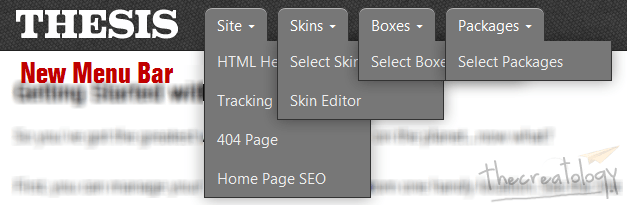
    New Thesis 2 Menu Bar
    New Thesis 2 Navigation Menu

    The new Thesis 2 navigation menu consists of 4 major items, that is Head Editor, Skin Editor, Boxes and Packages. Let’s learn about these in detail, below:

    Website HTML Head Editor

    HTML Head editor lets you manage < head > output of the website. HTML Head section is responsible for Website SEO, Page loading & other web analysis.
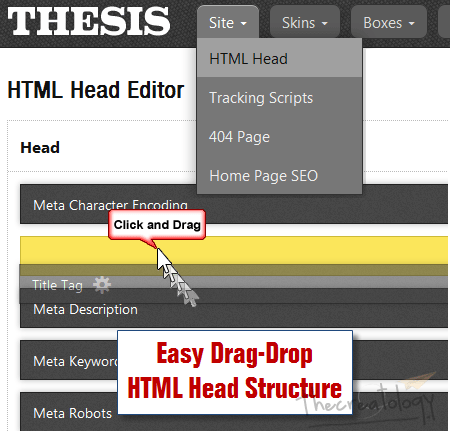
    Thesis html Head Editor
    Thesis HTML Head Editor

    Thesis HTML Head Editor lets you manage, the following:

    • Add / Upload Favicon
    • Set RSS feed link
    • Webmaster Site Vertification
    • Google Rel Authorship
    • Embed Header Scripts

    Thesis 2 Skin Editor

    Skin editor is the most important, Ajax-Driven component of Thesis 2. New Thesis framework works on Parent-Child architecture where we work upon child themes, also known as skins. Skin editor lets you manage core WordPress templates, like index.php, single.php, archive.php etc. with drag-drop feature. You can now customize a WordPress website without writing any PHP code.
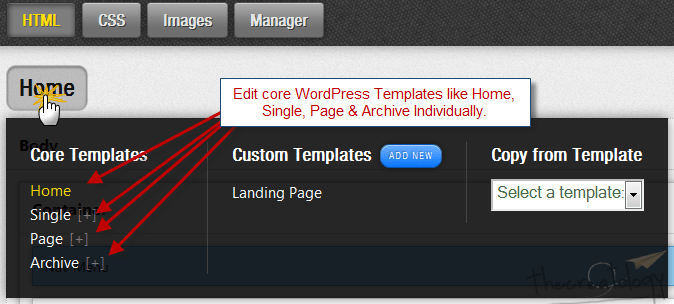
    Thesis Skin Editor Part 1
    Skin Editor: Edit Core Templates from WP-Admin

    On any selected template, for instance Home, drag-drop boxes in Skin editor to create HTML structure of website. Drag-drop what? Arrrh! I know Skin editor is a bit tricky to grab in one-go. But, if you understand this, then things will be really handy.

    Check out the info-graphic, explaining about Thesis Skin Editor – HTML Markup Structure, below:
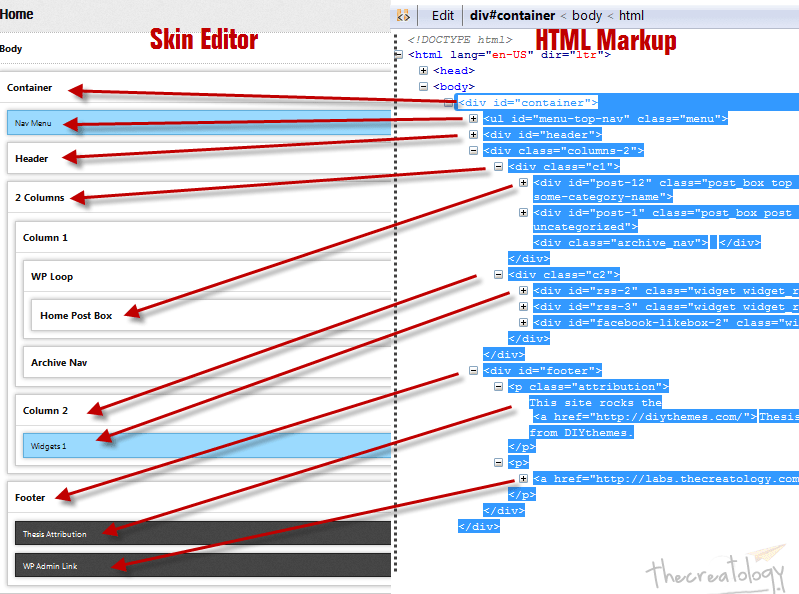
    Thesis Skin Editor Working Part 2
    Thesis Skin Editor – HTML Markup Structure

    In the above image, left pane shows the hierarchy of boxes in skin editor, where right pane shows HTML output generated by Thesis (view from firebug). Moreover, arrow points to a respective box in Skin editor, which is responsible for its HTML output.

    To understand better, you should play around with default Thesis Classic skin which loads automatically when you install Thesis 2.

    Thesis 2 Amazing Boxes

    Thesis theme can extended by means of small modules, called boxes. Thesis Box functions like a plugin which can be reused anywhere in the website with drag-drop ease.

    For instance, we have uploaded a Disqus Comment Thesis Box in the example below:
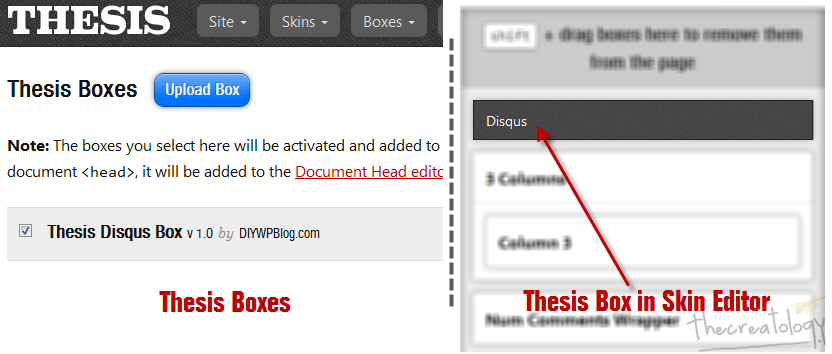
    Thesis Amazing Disqus Comment Box
    Thesis Disqus Comment Box

    If we upload or select a box, it automatically gets added in Template editor. In this example, Disqus Comment box designed is for use in single template and hence it appears as a black-box in the skin editor’s sidebar. This is also a bug fix for Thesis 2 + Disqus Comment System.

    Thesis CSS Packages

    Packages, works similar to Boxes, are modules which help you to style font-family, width, height, background, color etc. Basically, Thesis boxes are PHP modules, where Thesis Packages are CSS modules. To be frank, Thesis Packages are required for advanced level blog development and multiple WordPress sites.

    There are many other features in Thesis 2 which will be covered in Hands on Thesis 2 series of articles, so keep in touch via Twitter, Facebook or RSS updates.

    That’s all folks!

    For any query or further help required post your feedback as comments below.

  • New Thesis Update Service: Upgrade Old Thesis 1.x to New Thesis 2.x Theme

    Good News, TheCreatology now adds Upgrade to Thesis 2.0 in the service list, especially for people afraid of updating thesis. Using this service you will be able to restore previous Thesis 1.x design in new Thesis 2.x environment.

    But, before that you should understand why a WordPress website needs Thesis 2 update.

    Thesis 2 Theme Benefits

    No doubt thesis theme has always been a killer WordPress theme. Read below to know why you should upgrade to thesis 2:

    • Code Optimization: Each HTML,PHP & CSS code is efficiently complied and optimized for faster page loading.
    • No FTP: Design and customize skins using Thesis Skin editor.
    • No Coding: Ease of Dragging HTML structure & Built-in CSS Packages.
    • Doggie style: Missieur (Chris’s dog), tips you about SEO, broken links & 404 error pages.

    Wanna Upgrade to Thesis 2.0 Theme?

    It is a tricky process to update old thesis 1.x, but our team is ready to take that challenge. To get started:

    Upgrade to Thesis 2.0
    Upgrade to Thesis 2.0
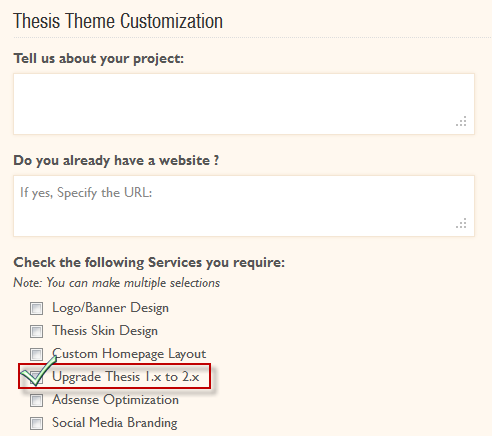
    • Select Customize Thesis image in yellow box and a Thesis Customization form will appear.
    • Fill in the required details and services you wish to select.
    • If you want to upgrade your old thesis theme, then select “Upgrade Thesis 1.x to 2.x” option and press Submit.
    Upgrade to Thesis 2 Service
    Upgrade to Thesis 2 Service
    • On receiving your inquiry and depending upon the requirement, it shall take us at least 6-18 hours to revert back.

    Why Hire TheCreatology?

    • We understand your concerns and high risks involved in the upgrade process.
    • Our team is testing Thesis 2.0 since day 1 and every project adds a new experience.
    • We are getting familiar to its new architecture and environment.
    • Till date, we have crafted 3 projects using Thesis 2 which will be added in our portfolio shortly.

    So, if you want to upgrade Thesis 2 without any pain, then consider us working on it.

    Confused? Feel free to Consult Us

    If you have questions then direct them to us by using contact form below or email on help [at] thecreatology [.] com

  • Hands on Thesis 2: How to Get Started with New Thesis Theme 2.0?

    Thesis 2 theme on WordPress blog will drive you & me crazy. Yes, it has newly constructed engine and thrilling dynamics which will make you feel like riding a 1000 cc super-bike. So, much power man!

    I like the fact that Thesis 2.0 no longer support hooks and filters, as it is hard to remember all of them at once.

    How to Install Thesis 2 on WordPress
    How to Install Thesis 2 on WordPress

    Hands on Thesis 2 is a series of articles and also request from my potential clients who wish to experience new Thesis Theme. This article explains How to Get Started with New Thesis Theme for WordPress in easy steps below.

    Download New Thesis Theme

    We have already covered this in our previous article. Click here to read, if you missed it somehow.

    Get Started with New Thesis 2

    If you are new to Thesis Theme then your journey will be amazing. Whereas, if you choose to upgrade old Thesis theme to Thesis 2, then you should consider my suggestions below.

    Do Not Install Thesis 2, if

    • Thesis 1.x theme designed using custom skin, then DO NOT INSTALL!
    • Thesis website developed using Open Hook plugin, then DO NOT INSTALL!
    • You like mountains but not hiking, then DO NOT INSTALL!

    Are you confused? Well, reverting back to old Thesis 1.x from Thesis 2.0 is absolutely normal.

    Install Thesis 2.0 Theme

    Now that you are logically ready, lets kick-start your Thesis 2.0 journey. Follow quick steps to install Thesis 2:

    • Navigate to Dashboard > Appearances > Themes.
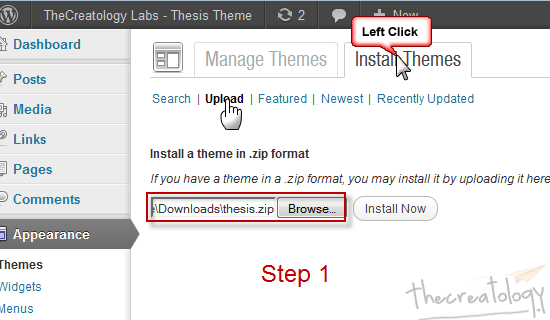
    • Select Install Themes Tab and click on Upload text link visible in blue just like in screenshot below.
    Step1-Upload Thesis 2 Theme
    Step1: Upload Thesis 2 Theme
    • On hitting Install Now button, will take you to theme activation status screen. You can either click to activate theme or choose to do it later.
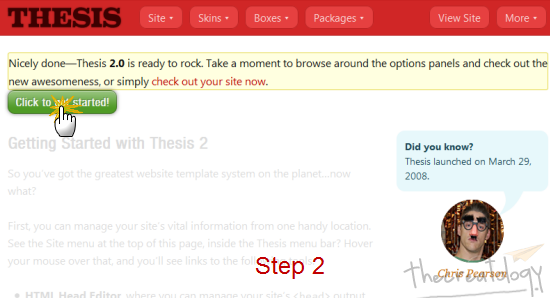
    • On activating Thesis 2, you will see a welcome page with greeting message. This page is personally designed for Chris Pearson and Missieur (his dog). 😛
    Step2- Thesis 2 Welcome Page Get Started
    Step2- Thesis 2 Welcome Page Get Started
    • Click green Get Started Button as soon as you activate thesis theme, else your website will show nothing but a white blank template.
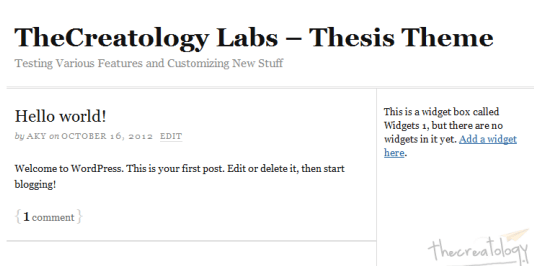
    • Once done, refresh your website and you will see something similar to screenshot below.
    Thesis Theme with Classic Skin
    Thesis Theme with Classic Skin
    • Tada…here it is, the new Thesis Theme loaded with classic skin.

    What’s Amazing about Thesis 2?

    New Thesis looks similar to older one, but is 10 times powerful in terms of flexibility and extensibility. Check out something amazing about Thesis 2.0, especially for lazy bloggers:

    • Design skins and customize from WordPress admin panel. No FTP!
    • Ease by Drag-drop HTML structure. No Coding!
    • Built-in CSS Packages. No Coding!
    • Missieur (Chris’s dog) tips about SEO, broken links & 404 error pages. The doggie style!

    There are many other features in Thesis 2 which will be covered in Hands on Thesis 2 series of articles, so keep in touch via Twitter, Facebook or RSS updates.

    That’s all folks!

    For any query or further help required post your feedback as comments below.
  • Thesis 2.0 – Killer WordPress Theme Updates – Available for Download

    Its been a good morning so far, especially when you wake up with cool updates. One was my sister giving birth to a girl child and other coming from Chris Pearson, giving birth to Thesis 2.

    Phew, long time for Thesis fans ‘eh? Well your wait is over as Thesis 2.0 is available for download now.

    thesis-2-theme-download
    Download Thesis 2 Now!

    How to Download Thesis 2.0?

    No big deal seriously, but this blog is not just limited to geeks. Check below to get new Thesis theme update:

    • Login to DIYThemes.com using the credentials provided to you after purchase.
    • Next screen will be the Download Thesis page. Alternative, you can use the top navigation.
    • In the Downloads Page you will find two links, one for a Thesis Switcher Plugin and other to Download Thesis 2. (refer to screenshot)
    thesis-2-download-steps
    Steps to Download Thesis 2
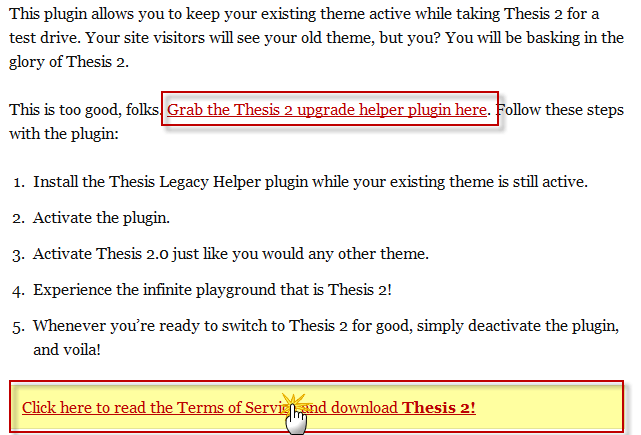
    • As mentioned, Switcher Plugin will help you preview new thesis theme, whereas your visitors will see the old theme. (Recommended).
    • Thesis 2 download comes with new set of terms & conditions and you have no choice but to accept it like an old Microsoft Windows screen. 😛
    • Accept TOS and Thesis 2 file downloading will start. (file size: 414kb; file type: .ZIP)

    Upgrade Thesis 1.x to Thesis 2

    We are still testing the new version of Thesis and a link to upgrade thesis 2 will appear here shortly.

    That’s all folks!

    What are you waiting for? Go and get new Thesis 2 power! Of course, you can come back here to share your views about Thesis 2.0 by posting a comment below.

  • Upgrade Thesis Theme to Kill WordPress 3.4 Image Caption Bug

    Upgrade Thesis Theme to Kill WordPress 3.4 Image Caption Bug

    Few days back, I mentioned about Image Caption Problem with WordPress 3.4 upgrade and about release of Thesis 1.8.5. Well, Chris Pearson, is a man of his words and has released a Bug Fix Version of Thesis Theme. According to Chris, this version has not only fixed image captions but has also resolved Multisite Installation bugs.

    Thesis 1-8-5 bug fix release
    Get Thesis Theme 1.8.5

    I figured that out myself, after upgrading to latest version of thesis theme and found all images boxes aligned properly, way they were before upgrading to WordPress 3.4. I did check the post markup, and it was neat, where all image captions were properly wrapped inside the div tags. Check out the screenshot for the same:

    Image Captions Fixed WordPress 3-4
    Image Captions Fixed (Click to Zoom)

    How to Upgrade Thesis Theme

    It’s recommended to keep your Thesis Theme updated to have maximum efficiency from your one-time investment. Follow this easy tutorial to Upgrade Thesis Theme.

    Thesis 1.8.5 Release Notes

    Check out, official release notes for Thesis 1.8.5, here.

    That’s it, ‘eh?

    Yes! Upgrading to Thesis Theme 1.8.5 will certainly resolve, image caption issue and all other problems with WordPress 3.4, hopefully.

    If you still have problems with Thesis or WordPress 3.4, then you can share them with us, by posting a comment below.

  • Image Caption Box Alignment Problem after WordPress 3.4 Update [With Thesis Fix]

    Images not aligning properly in article after upgrading to WordPress 3.4 ? If Not, then you are lucky and can skip this post. If Yes, then it is because of a recent WordPress 3.4 update which came out  few days back. Even, I got aware of this issue after posting an article earlier today, where I found all images aligned to left automatically with a broken caption box.

    Image Alignment in WordPress 3-4

    Though WordPress 3.4 Update has some nice improvements, but it has affected a lot of WordPress themes and frameworks. Here is what WordPress 3.4 Codex for image caption shortcode states… (important for developers)

    Change the image caption shortcode format to {caption shortcode}{anchor tag}{image tag}caption text + html{close anchor tag}{close caption shortcode} that way HTML tags in captions are better supported and the shortcode wouldn’t break when using the wrong quotes.

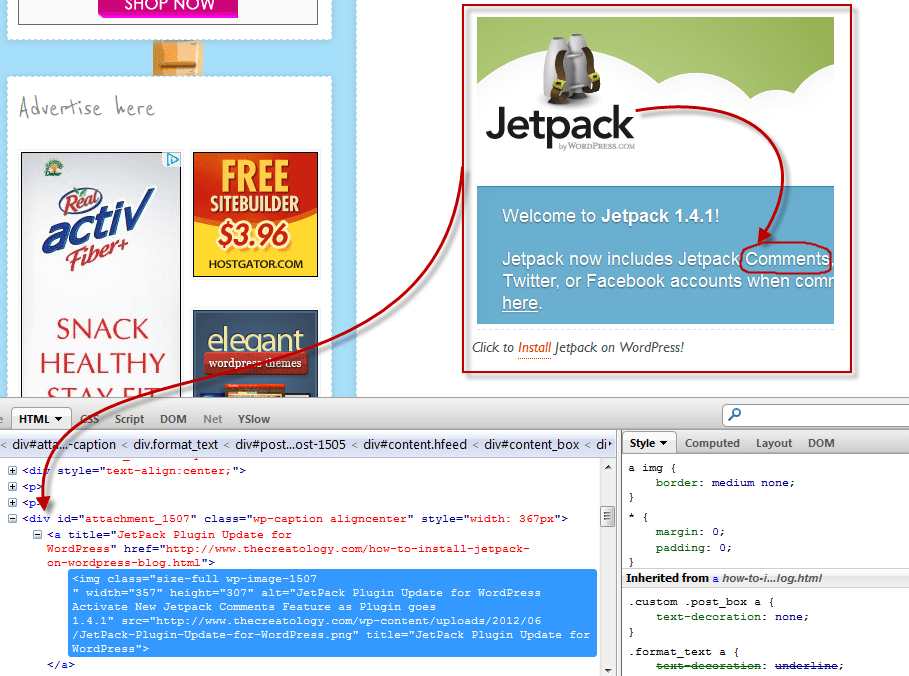
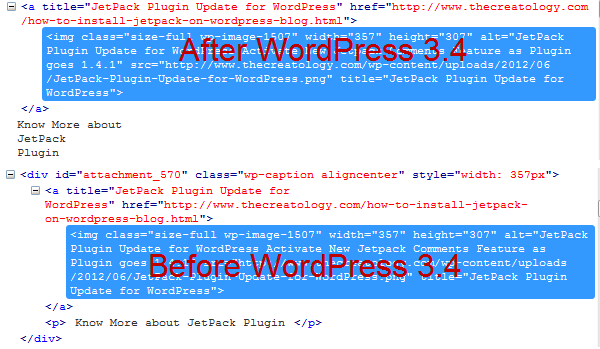
    When I saw markup in firebug, of a recently posted article after upgrading to WordPress 3.4, I found that image caption shortcode didn’t generate the div tag to form caption box. Check out the screenshot below:

    Markup Difference in WP 3-4
    Markup Difference in WordPress 3.4 Version

    Got the difference? Yes, the div tag is missing in after WordPress 3.4 clipping and hence breaking image caption box.

    How to fix Image Caption Issue

    There hasn’t been a proper solution to overcome image caption box issue, but you can:

    • Makes changes in Theme CSS file,
    • Manually add caption html tags or
    • Avoid usage of image caption shortcode

    Thesis Theme Users – Update to Thesis 1.8.5

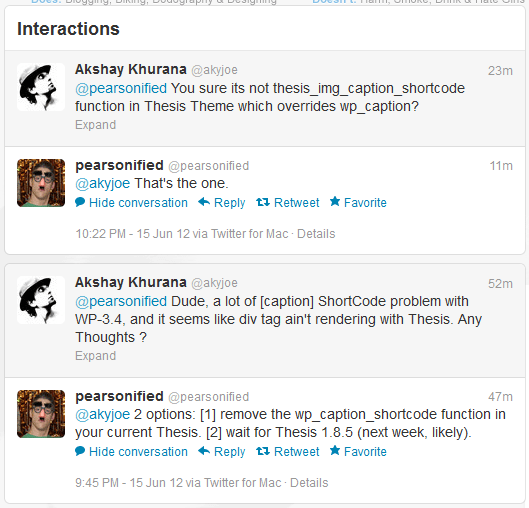
    An update for Thesis Theme will be available for its users by next week, as said by Chris Pearson. He has also suggested 2 options for Thesis users which you can check out in a Conversation with Chris on Twitter, in screenshot below:

    chat with chris thesis owner
    Interaction with Chris for Thesis Update

    I chose to wait for Thesis 1.8.5, as it’s not recommended to mess with Thesis core files.

    Thesis 1.8.5 is Available now ?

    Yes, new version of Thesis Theme is available for download now. Click here or the image below saying Thesis 1.8.5

    Thesis 1-8-5 bug fix release
    Get Thesis Theme 1.8.5

    (Post Updated on 19/06/2012)

    Whats next ?

    Have a similar problem with Image Caption Box Alignment after WordPress 3.4 Update ? Ask your theme developer now, for a fix. Whereas if you have a proper solution to it, then share it with us here, by posting a comment below.

  • Update Timthumb.php File in WordPress Theme Vulnerable to Hackers

    I am wondering why there is no update from DIY Themes about new version of Thesis Theme as timthumb file is making Thesis Theme Websites vulnerable to hackers. It has been reported that certain version of Timthumb script http://code.google.com/p/timthumb/issues/detail?id=212 holds security hole and Thesis Theme uses Timthumb.php file for re-sizing an image. I have no clue when new Thesis version will arrive, hence being on safer side why don’t we just update Timthumb file manually. 😉

    timthumb-hacked
    Timthumb file prone to hackers

    Therefore this vulnerability may also exist in your WordPress Theme or a Thesis Theme. For people who have followed this article How to auto generate thumbnail in Thesis Theme without Plugin, I strongly recommend you to update timthumb.php file, before a hacker ruins your morning, or make your sleepless nights.

    In this article, you will learn how to update TimThumb file in WordPress Theme.

    Step 1: Get Latest Timthumb.php for WordPress

    As mentioned about the security flaws with the timthumb.php, so our first step will be to get the latest version thumb file. You can download Timthumb.php source code from here. Another option, is to copy entire source code and edit existing Timthumb.php file. Move on to the next step which is to find timthumb file location.

    Step 2: How to find Timthumb file location ?

    As mentioned above about timthumb.php, which is a script used by developers to resize post images / slider images, so it can be found within the Theme/Plugin Directory. Depending upon various plugin and theme developers, name of the file can be either thumb.php or timthumb.php.

    For Thesis users, location of timthumb file in thesis theme is wp-content/thesis_18/lib/scripts/thumb.php

    Step 3: Why wait, replace new timthumb file asap!

    If you know the location of timthumb.php file, without any further delays, just  replace timthumb with its newer version and upload it on server using ftp. Once done, take a breather and relax! What next ?

    Did you check  other web directories ?

    timthumb-update-we are not done yet
    Analyse all web directories

    Well, I just told you to relax but we are not done yet. Make sure that you have not skipped any inactive themes directory or plugins, as this vulnerability applies to each timthumb file, regardless of whether it is active or executed by the server. I recommend you to delete all inactive themes and update existing ones to the latest versions.

    Phew! And with this you have saved your valuable asset from being hacked, but not until next time. 😛

    If you have any query or further assistance required then you can leave your comments below.
  • How to reduce page load time of blog using Thesis WordPress Theme ?

    Wesite Load Time is Annoying
    Wesite Load Time is Annoying

    Is your blog using Thesis Theme, takes a lot of time while loading a page or homepage ? If you are not sure, then you can check page load time for your website page using Pingdom Tools. These tools helps you in analyzing resources that are causing page loading. Usually Images and JavaScript are the major factor behind page load time on Website or on Blog.

    How to Optimize Image ?

    Pingdom Tools test will help you create a list of Images which are causing page load time and then you can use Smush It tool by Yahoo! to optimize images on website.

    How to Optimize JavaScript ?

    There are many JavaScript compression tools available online, which reduces the JavaScript code size. One of the tools, which I prefer is JavaScript Compressor. This tool till help you reduce the size of your JavaScript code, by truncating spaces and other used lines. But in case JavaScript is causing the delay in page loading, then it is a major concern as JavaScript is declared in the Head Section which loads before the body, hence causing delay. But if you are using Thesis WordPress Theme then you don’t have to worry about it. In this article, we will learn about how you can reduce load time using Thesis Theme.

    Before we proceed with the tutorial, I want to make sure that you are using latest version of thesis, if not then you can refer to article and Safely upgrade to latest version Thesis 1.8

    Thesis Theme has an advanced control panel featuring a lot of options to optimize SEO, typography and layout design. I have already mentioned the Design Options in an article Ease with Thesis WordPress Theme Design options panel. We will use design options to embed code in footer which will reduce page load time.

    How to add Script using Thesis Options ?

    I have seen many bloggers using JavaScript in head section, and even which is not mandatory. For instance, many people add stats-tracking code or other third party media codes in head section and causes delay in page loading.

    add script using thesis options
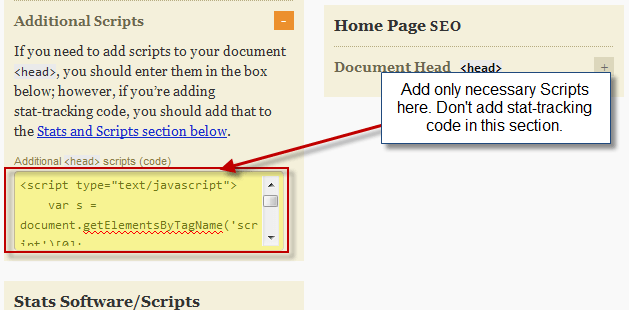
    Additional Scripts: Thesis Site Options

    In order to overcome page loading issues, simply add the code after footer section. Here is a simple procedure to move scripts from head section to footer section (If there is no code in head section, then you can simply skip this procedure):

    • Login to WordPress Admin panel and navigate to Thesis > Site Options.
    • Click on the Additional Scripts to expand.
    • Copy the unnecessary JavaScript code on Clip Board or on a Notepad for safer side.
    • Click Big Green Save Button.
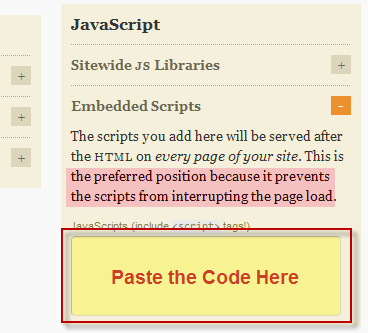
    • Now, navigate to Thesis > Design Options and expand JavaScripts.
    • Paste the code in the text area, you can refer to the screenshot below.

    add script thesis design options
    JavaScripts: Thesis Design Options

    • Now click Big Green Save Button and you are done.

    Refresh the site, and test it out using the Pingdom Tools again. Let us know your page load time after using this tutorial, by posting a comment below.

    Page load time should not be more than 10-15 seconds, as accordingly to Google terms, your website can be black listed. But you can surely optimize website using thesis, and I hope this tutorial get productive for you. If you have any query or further assistance is required, you can simply post a comment below as your feedback.

  • How to add alert bar to grab reader attention in Thesis Theme

    It is a normal Human tendency, that we read a blog from top to bottom as with our interest, which means anything placed at top of the website will grab reader attention. For publishers it is very important to grab reader’s attention at the top of the website, by placing an advertisement or add alertbox at top.

    alert grab people attention
    Illustration – Alert

    Thesis WordPress Theme is enriched with content management capabilities, and a best SEO theme. Thesis doesn’t come with top headline bar or ads slot but allows to add them for your blog. If you don’t have a copy of Thesis Theme then you can download thesis theme here.  If you are using an old version of Thesis Theme then I recommend you to safely upgrade thesis theme.

    In this article, we will learn to add alert bar at top of blog to grab reader attention in thesis theme.

    How to grab reader attention ?

    We will add a solid color headline alert bar at the top, where you can write anything and making it eye catchy by playing with colors. If a line or phrase is interesting like “20% off on WordPress Hosting + Free Blog Setup ”, will increase CTR or will increase clicks on blog.

    How to add alert bar in thesis ?

    We are using a simple and smart concept here and the analogy behind is by registering alert bar widget in wordpress and adding it before header. You can follow the procedure below to add alert bar in thesis theme:

    • Login to Dashboard Admin of WordPress blog.
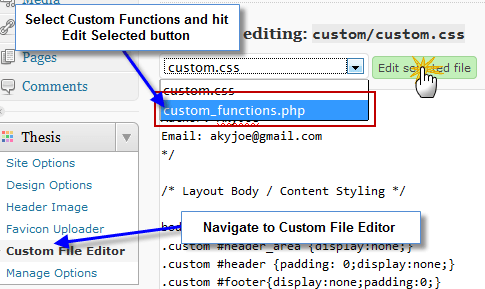
    • Navigate to Thesis > Custom File Editor and select custom_functions.php in drop-down list and click edit selected file.

    Step-1-Add alert bar at top of Blog in Thesis Theme
    Step-1-Select Custom Function php file for editing.

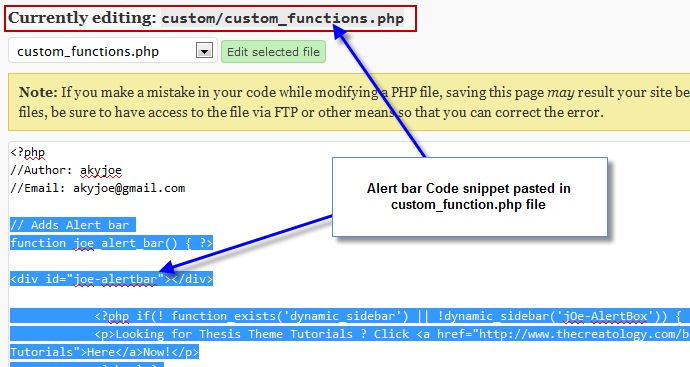
    • In custom_functions.php file editor, copy-paste the below code snippet very carefully.

    Step-2-Add alert bar at top of Blog in Thesis Theme
    Step-2-Add code snippet in custom functions file

    Make sure you take full backup of custom_functions.php file using FTP before modifying it.


    Code:

    [php]
    // Adds Alert bar
    function joe_alert_bar() { ?>
    <div id="joe-alertbar">
    <?php if(! function_exists(‘dynamic_sidebar’) || !dynamic_sidebar(‘jOe-AlertBox’)) { ?>
    <p>Looking for Thesis Theme Tutorials ? Click <a href="http://www.thecreatology.com/blog" target="_blank" title="Thesis Tutorials">Here</a>Now!</p>
    <?php } ?>
    </div>
    <?php }
    add_action(‘thesis_hook_before_html’,’joe_alert_bar’);
    register_sidebar(array(‘name’=>’jOe-AlertBox’, ‘before_title’=>”, ‘after_title’=>”));

    [/php]

    • Now that we can added the alert bar, but you will find it broken or beyond the layout. To fix, we will have to style alert bar using CSS code.
    • Navigate to Thesis > Custom File Editor, select custom.css file and copy paste the below code snippet very carefully in Custom.CSS file.

    Code:

    [css]

    #joe-alertbar{
    background:#333; /*Change Background Color of Alert-Bar*/
    color:#fff; /* Change Text Color of Alert-Bar*/
    margin: 0 auto 5px;
    text-align:center;
    padding:5px 0;
    font-size:14px;
    border-bottom:3px solid #fff;
    }
    #joe-alertbar a{
    font-size:14px;
    color: #f60; /* Change Link Text Color of Alert-Bar*/
    }
    #joe-alertbar li.widget, #joe-alertbar li.widget p{
    margin:0;
    font-size:14px;
    }
    [/css]

    • Above code will style alert bar for background color and text color. I have commented few lines in above code snippet, where you can change color of alert bar and font color matching your theme.
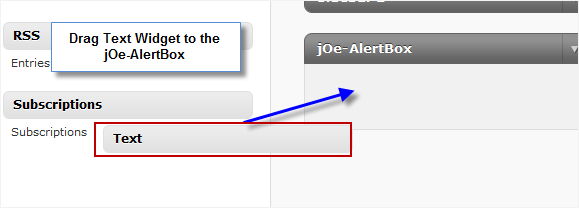
    • Once we are done with installation of Alert bar, we move ahead to display some text and see how it goes live on our website. Since we have registered a sidebar named as jOe-AlertBox, so navigate to Appearance > Widgets.
    • Now drag a “Text Widget” to the newly created “jOe-AlertBox” just like in the below screenshot.

    Step-3-Add alert bar at top of Blog in Thesis Theme
    Step-3-Add Text Widget to alert box

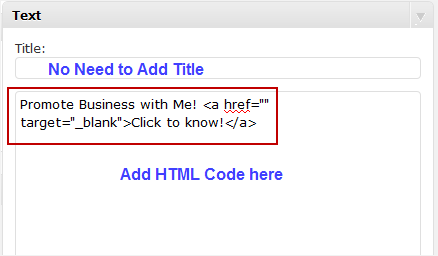
    • In the text widget, add any html code or a text which is to be displayed on the alert bar. (Refer to the screenshot below) Make sure to restrict the text in single line and word limit should not exceed 30-35, else it will look congested.

    Step-4-Add alert bar at top of Blog in Thesis Theme
    Step-4-Add text in text widget to display on alert box

    • Once done with the text, click on the save button below text area and now refresh the website, it will look something like this below.

    Add alert bar at top of Blog in Thesis Theme
    Demo of alert box on website

    Alert bar has many possibilities to grab people’s attention. You can use alert to announce new products or discount coupons, featured post or may be a favorite quote of Sir Albert Einstein. Let us know how you used the alert bar at top by posting a comment below.

    If you have any query or further assistance is required, you can post comment as your feedback.

  • How to safely upgrade to latest version Thesis 1.8 ?

    Latest version of Thesis WordPress theme was launched last year, which enhanced Design Options for flexibility in content management. In my recent post, I explained the Ease with Thesis WordPress Theme Design options panel, which you will find it in the latest version of Thesis theme.

    Though upgrading to Thesis 1.8 is a click-a-way work, but sometimes a bit of lag can ruin a website or blog for functionality or SEO, which costs you an extra overhead. In this tutorial, I will guide you through about how to safely upgrade to Thesis 1.8 ?

    Below is the procedure to upgrade thesis theme:

    Step 1: Download latest Thesis 1.8

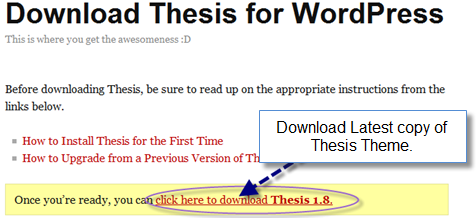
    Thesis 1.8 version is available at DIY Theme Thesis admin area, where you can download the latest copy of Thesis Theme. Once you login to the admin area, you can click “Download Thesis for WordPress” and you will be redirected to the download page. On the download page, click to “download Thesis 1.8” and save the file to your computer, when prompted. You can also refer to the screenshot below:

    admin-area-upgrade-to-thesis-18
    Download Thesis 1.8 Version

    After saving  the file, open it and cross check the Zip archive for CRC errors, which usually occurs when transferring files from internet.

    Step 2: Backup Database and Settings

    To stay at safer side, I suggest you to always backup your website’s database while making any updates or modifications in WordPress backend. You can simply use WordPress Export Tool (Dashboard Admin > Tools > Export) to download all Posts, Pages, Categories etc. in a XML file to your computer.

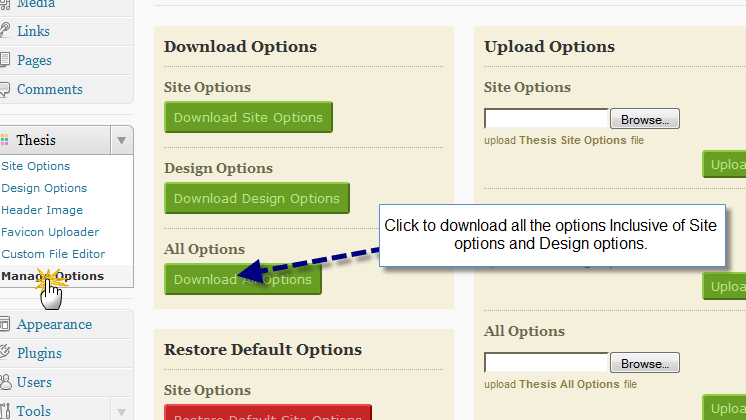
    Though Thesis retains its options comprising Site Options and Design Options, after upgrading to Thesis 1.8, but you can backup them as well by using the Thesis Download Options (Dashboard Admin > Thesis > Manage Options) and save them to your computer. You can also refer to screenshot below:

    backup-thesis-upgrade-to-thesis-18
    Backup Thesis Options

    Step 3: Backup Custom Folder

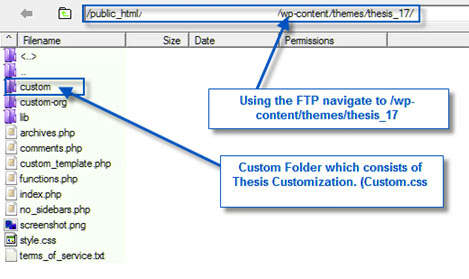
    Once your are done with backup of database, another important step is to backup Custom folder Thesis theme. Custom folder contains all of the customization related to styling and functionality of the blog. In order to take backup of custom folder, login to your ftp client and navigate to path /public_html/wp-content/themes/thesis_17/ and further download the custom folder to your computer. Below screenshot shows the location of custom folder under thesis theme.

    custom-folder-upgrade-to-th
    Backup Custom Folder Thesis Theme

    Step 4: Installing Thesis 1.8

    After taking the backup of database, thesis settings and custom folder, we move on to install latest Thesis version. As I have already explained in my Tutorial to Install Thesis Theme on a WordPress Blog in 3 steps, so you always go through the article and come back here.

    After you have installed thesis theme, you can now restore the custom folder of old Thesis theme downloaded in Step 3. In order to restore it, login to your ftp client and navigate to path /public_html/wp-content/themes/thesis_18/ and add the custom folder in the current directory.

    Once done with uploading the custom folder, you can check out your blog/website now, which is powered with latest version of Thesis theme. And with this we also come to the end of our tutorial, if you have any query or further assistance is required, you can post your comments as your feedback, or you can use the Thesis Theme Services for the upgrading Thesis for you.