Tag: Social Media

  • Talk That Travels: Turning Followers into Genuine Conversations

    Talk That Travels: Turning Followers into Genuine Conversations

    Two businesses post the identical announcement on the same morning. Business A gets forty likes and silence. Business B gets twelve comments, three shares, and a customer asking where to buy. Same product, same platform, same day.

    The difference is not luck. Talk That Travels, the fourth pillar of Digital Intent, explains exactly what separates them.

    What Business A Gets Wrong

    Business A treats social media as a billboard. It announces, it promotes, it waits for likes to accumulate. However, followers do not pay bills. Conversations do, and a billboard has never once started a conversation.

    What Business B Does Differently

    Business B asks real questions instead of announcing products. It responds to every comment with something specific, not a generic “thanks!”. It shares the occasional behind-the-scenes moment instead of only polished output. Furthermore, it features customers publicly, showing it listens rather than broadcasts.

    None of this requires a bigger budget. It requires a different intention behind each post.

    Why Algorithms Reward Business B Anyway

    Platform algorithms increasingly favour content that generates comments and shares over content that merely gets seen. Consequently, Business B’s engagement is not just good practice, it directly improves visibility too, creating a compounding advantage over Business A’s silence.

    Measuring What Actually Matters

    Business B stopped tracking follower counts months ago. Instead, it tracks comments, shares, and direct messages: the metrics that reflect genuine relationship rather than passive visibility.

    A post with fifty thoughtful comments delivers more business value than one with five thousand silent views. Business A is still waiting to learn that.

    Becoming Business B

    Commit to responding within hours, not days. Allocate time weekly purely for engagement, separate from content creation itself.

    This pillar completes the visibility work begun in Content That Connects. Together, they transform passive followers into an active, invested community, the kind Business A is still trying to buy with likes.

  • Digital Intent vs Digital Presence: Why Businesses Need a Design Revolution

    Digital Intent vs Digital Presence: Why Businesses Need a Design Revolution

    Most businesses today have a website and post on social media—they’re present online. But building digital presence for business without purpose is like shouting into a crowded room. Nobody’s truly listening.

    Digital presence strategy business transforms your online footprint from a static placeholder into a dynamic business asset through strategic clarity and purposeful design.

    Understanding Digital Presence vs Digital Intent

    The difference is not subtle—it’s the gap between background noise and meaningful conversation.

    Digital Presence means you exist online:

    • You have a website that’s live
    • You post occasionally on social platforms
    • You appear in search results
    • You maintain basic online visibility

    Digital Intent means you operate strategically:

    • Every design element serves a clear purpose
    • Content solves problems before asking for sales
    • User experience drives every decision
    • Outcomes are measured against business goals

    Visual Noise Dilemma in Contemporary Web Design – A Barrier to Effective Digital Presence Strategy Business

    The digital marketplace faces a unique challenge: visual complexity has become the default language of business. Websites overflow with competing animations, cluttered interfaces drown users in options, and messaging prioritises visual effects over clear functionality.

    Therefore, tendency towards overload can detract from usability, hinder user focus, and prioritise superficial appeal at the expense of intuitive, efficient experiences. Let’s look at the few examples below:

    Example 1: The Restaurant Website – Applying Digital Intent to Building Digital Presence for Business

    Digital Presence Approach: Homepage features rotating banner images, background music, animated menu cards, five pop-ups (newsletter, offers, locations, app download, feedback), and buried contact information.

    Digital Intent Approach: Clean homepage with your location, today’s opening hours, one-click menu access, and prominent reservation button. So, every element answers the question: “What does a hungry person need right now?”

    Example 2: The Professional Services Firm – Strengthening Digital Presence Strategy Business

    Digital Presence Approach: Generic stock photos, lengthy “About Us” corporate history, industry jargon throughout, and unclear service descriptions spread across multiple pages.

    Digital Intent Approach: Client problem statements as headlines, specific outcomes you deliver, case study summaries with measurable results, and clear next steps for engagement.

    Why Digital Presence Fails: Three Critical Mistakess in Building Digital Presence for Business

    Confusing Activity with Strategy

    Posting content daily without a clear strategic purpose does not strengthen your brand; it depletes your time, energy, and resources. A single, well-considered piece of content that directly addresses a genuine customer challenge or need will deliver far greater value than seven days of generic, unfocused updates.

    Mistaking Decoration for Communication

    Visual complexity should never be mistaken for sophistication. When a manufacturing company’s website employs parallax scrolling, animated infographics, looping video backgrounds, and numerous decorative effects—yet visitors cannot quickly discern what products are offered or what the business actually does—ornamentation has overtaken effective communication.

    Prioritising Impression Over Connection

    Designing primarily to impress peers or win design awards, rather than to serve user needs, results in aesthetically impressive websites that fail to convert. A website is not a showcase for creative portfolios; it is a functional business asset whose primary role is to facilitate understanding, trust, and commercial outcomes.

    The Design Revolution: Form Follows Function in Your Digital Presence Strategy Business

    The principle that revolutionised physical design a century ago offers the solution: every element must serve a clear purpose.

    This means:

    • Clean, uncluttered interfaces that respect user attention
    • Typography and layout that enhance readability
    • Colour choices that communicate meaning, not just aesthetic preference
    • Whitespace that allows content to breathe
    • Navigation that prioritises user goals over organisational structure

    Digital Intent in Practice: The Six Pillars of Building Digital Presence for Business

    Moving from passive presence to active intent requires foundation-building with a strong digital presence strategy business:

    Online presence strategy: 6 Pillars of Digital Intent

    Read article: Six Pillars of Digital Intent: Building an Online Presence Strategy That Lasts

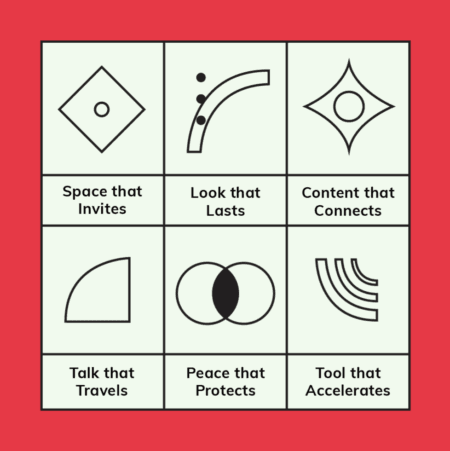
    Space That Invites: Websites designed with user experience as the top priority—fast, intuitive, and mobile-responsive.

    Look That Lasts: Visual identities rooted in enduring principles rather than fleeting trends, creating recognition through consistency.

    Peace That Protects: Robust security measures that safeguard both your business and customer trust.

    Tool That Accelerates: AI automation, in essence that handles repetitive tasks, freeing your team to focus on strategic, creative work.

    Building Your Online Presence Strategy – Mastering Digital Presence Strategy Business

    The businesses that will dominate this year won’t have the most sophisticated designs or largest social followings. They undeniably will be the ones brave enough to simplify while building digital presence for business..

    Start by asking: Can a first-time visitor understand what you do and why it matters within 10 seconds?

    If not, begin stripping away the unnecessary. Remove decorative elements that do n’t serve user needs. Clarify your messaging. Ensure every design choice enhances understanding rather than creates friction.

    Although the digital design revolution India needs isn’t about adopting new trends—it’s rediscovering timeless principles of clarity, purpose, and genuine connection in building digital presence for business..

    The future belongs to brands clear enough to be understood and purposeful enough to be remembered through an effective digital presence strategy business.

    Over the coming months, for this purpose we shall explore each of these six pillars in depth, providing practical frameworks for transforming your digital presence into digital intent. Because in 2026, being simply present online is no longer enough.

  • Six Pillars of Digital Intent: Building an Online Presence Strategy That Lasts

    Six Pillars of Digital Intent: Building an Online Presence Strategy That Lasts

    In today’s digital landscape of endless scrolling and algorithm-driven content, successful brands are not the loudest—they are the clearest. As we move through 2026, businesses must shift from simply being present online to operating with genuine Digital Intent—developing an online presence strategy demands that goes beyond visibility to create meaningful impact.

    India is currently at a unique crossroads and being world’s most populous nation with a rapidly digitising economy, yet we face significant challenges in digital literacy, linguistic diversity and “clutter culture” in app design. Therefore, bringing clarity is not just an “aesthetic choice”—it is a functional necessity.

    A Return to Purposeful Design

    Much like the early 20th-century revolution that stripped away ornamental excess in favour of functional beauty, today’s digital landscape—particularly in India—desperately needs a similar transformation. We are witnessing an overload of decorative elements, cluttered interfaces, and messaging that prioritises flash over function.

    The answer lies in embracing form following function: designing with intention, where every element serves a purpose. This philosophy champions:

    • Clean, uncluttered interfaces that respect the user’s attention
    • Typography and layout that enhance readability rather than distract
    • Colour palettes that communicate meaning, not just aesthetic preference
    • Geometric simplicity that creates visual harmony

    In the Indian digital market especially, where businesses often compete through visual excess, adopting this stripped-back, purposeful approach creates immediate differentiation and sophistication. This online presence strategy requires—one rooted in clarity over complexity—sets forward-thinking businesses apart.

    The Six Pillars of Digital Intent Strategy

    At TheCreatology, we have identified six foundational pillars that transform a basic online presence into a dynamic, high-performing digital asset.

    1. Space That Invites: Web Fundamentals

    Digital Intent presence strategy: Space  that Invites, Web Fundamentals

    Your website serves as your digital headquarters. To convert visitors into customers, it must deliver:

    • Fast-loading and intuitive to navigate
    • Mobile-responsive across all devices
    • Designed with user experience (UX) as the top priority
    • Built on principles of clarity and functional beauty
    • A space where visitors feel immediately at ease

    Key takeaway: User experience (UX) isn’t optional—it’s the foundation of digital success.

    2. Look That Lasts: Branding & Identity

    Digital Intent strategy: Look tha Lasts, Branding & Identity

    Whilst trends come and go, authentic brand identity remains constant. Focus on:

    • Creating a cohesive visual language rooted in purpose, not decoration
    • Choosing design elements that remain relevant beyond current fashions
    • Embracing minimalism: using fewer elements with greater impact
    • Building recognition through consistency rather than constant reinvention

    Key takeaway: Invest in identity, not just imagery.

    3. Content That Connects

    Digital Intent strategy: Content that Connects

    Effective content goes beyond search engine optimisation. Your messaging should:

    • Address real human needs and pain points
    • Provide value before asking for anything in return
    • Communicate with clarity and directness
    • Solve problems through education and insight
    • Build trust through authenticity and relevance

    4. Talk That Travels: Social Media Engagement

    Online presence strategy: Talk that Travels, Social Media Engagement

    Social media engagement is your growth engine. Rather than simply broadcasting, aim to:

    • Spark meaningful conversations with your audience
    • Respond thoughtfully to comments and questions
    • Share content that invites interaction and discussion
    • Build relationships, not just follower counts

    5. Peace That Protects: Digital Safety & Security

    Online presence strategy: Peace that Protects, Digital Safety & Security

    In an increasingly volatile digital environment, protecting your business and customers is paramount:

    • Implement robust data protection measures
    • Regularly update security protocols
    • Treat user privacy as a fundamental responsibility
    • Demonstrate your commitment to safeguarding trust

    Key takeaway: Protection builds lasting credibility.

    6. Tools That Accelerate: Artificial Intelligence

    Online presence strategy: Tool that Accelerates, Artificial Intelligence

    Artificial Intelligence is not about replacing human connection—it’s about enhancing it:

    • Automate repetitive tasks like content scheduling and data analysis
    • Free up time for strategic thinking and creative work
    • Maintain consistent output without risking burnout
    • Focus your energy on what truly matters: Genuine Engagement

    Key takeaway: Automate the mundane to amplify the meaningful.

    The Indian Digital Revolution: Less Is More

    Indian businesses face a unique challenge: standing out in a marketplace where visual complexity has become the norm. The revolutionary online presence strategy 2026 calls for involves:

    • Stripping away the unnecessary: Remove decorative elements that don’t serve user needs
    • Prioritising clarity: Ensure every design choice enhances understanding
    • Unifying form and function: Create beauty through purposeful design
    • Embracing whitespace: Allow content room to breathe and communicate effectively

    This shift from ornamental to functional design does not mean sterile or boring—it means intentional, powerful, and memorable.

    Staying Active on Social Media Improve Online Presence

    Maintaining an active social presence need not be overwhelming. The key is delivering consistent value through:

    • AI-powered content planning: Use intelligent tools to schedule and optimise posts
    • Quality over quantity: Share less frequently but with greater purpose
    • Automated workflows: Streamline routine tasks whilst preserving your authentic voice
    • Strategic engagement: Allocate saved time to meaningful interactions with your community
    • Clear, purposeful messaging: Cut through the noise with direct communication

    Your 2026 Action Plan

    The path forward is refreshingly straightforward: Be Simple. Be Good.

    • Eliminate unnecessary complexity from your digital presence
    • Design with purpose: every element should serve a function
    • Protect your digital assets and customer data rigorously
    • Leverage AI to amplify your authentic voice
    • Focus on clarity, consistency, and genuine connection
    Online presence strategy: 6 Pillars of Digital Intent

    By building your online presence on these six foundational pillars—guided by principles of functional design and purposeful communication—you transform your digital footprint from a static placeholder into a dynamic asset that works continuously for your business.

  • Add Social Share Count Buttons in Thesis Theme Teaser without Plugin

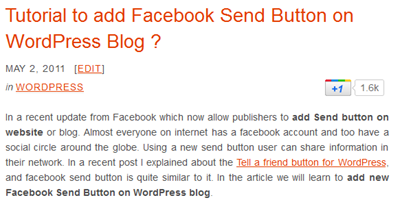
    Share Count buttons are tires on website, giving its content a smooth ride around the world. If don’t have social share buttons yet on your WordPress Blog, then I strongly recommend you to have them right away. Best way to add social button is either on the Article Landing Page or on the Blog Summary Page which we also call them as post teasers. Check out the screenshot below showing share button on teaser post.

    teaser-share-count-buttons
    Share Button in Thesis Theme Teaser

    I have already written an article about Social Media share buttons for WordPress. If you haven’t read it, then you can check it out here. There are also plugin available for adding share count buttons, but if you are Thesis Theme owner then its far easier and no plugin dependency, ofcourse.

    Here is a quick tutorial which will help you to add share count buttons in without plugin in Thesis Theme.

    Step 1: Update Theme Theme

    Before we begin with the article, I recommend you to safely upgrade thesis theme, whereas if you don’t have a copy of Thesis Theme then you can download thesis theme here. Move to next step, if you already have updated Thesis Theme Version.

    Step 2: Share Button Code

    Already decided which all Share button to add in blog summary page ? If not, then you can visit the link below to do so:

    Social Share Button Code for WordPress Blog

    In this example, we will add Facebook Like button and Twitter Share Button in Thesis Teaser. If you have selected button codes, then move to Step 3.

    Step 3: Add Share Button in Thesis Teaser

    All set for the action, below code will add social button in thesis teaser, copy-paste the code snippet in the custom_functions.php file.

    Make sure you take full backup of custom_functions.php file using FTP before modifying it.

    [php]

    /*
    Code: Share Buttons in Thesis Teaser
    Author: Aky Joe
    URL: cms.thecreatology.com/
    */
    function share_button_joe(){?>
    <?php if(!is_single() || !is_page()){?>
    <div class="share-button">
    <div data-href="<?php the_permalink(); ?>" data-send="false" data-layout="button_count" data-width="100" data-show-faces="false" data-action="like" data-font="verdana"></div>
    <a href="https://twitter.com/share" data-url="<?php the_permalink(); ?>" data-via="thecreatology" data-related="akyjoe">Tweet</a>
    </div>
    <?php }}
    add_action('thesis_hook_after_teaser','share_button_joe');

    function footer_scripts_joe(){ ?>
    <div id="fb-root"></div>
    <script>(function(d, s, id) {
    var js, fjs = d.getElementsByTagName(s)[0];
    if (d.getElementById(id)) return;
    js = d.createElement(s); js.id = id;
    js.src = "//connect.facebook.net/en_GB/all.js#xfbml=1&appId=390363454310194";
    fjs.parentNode.insertBefore(js, fjs);
    }(document, 'script', 'facebook-jssdk'));</script>
    <script>!function(d,s,id){var js,fjs=d.getElementsByTagName(s)[0];if(!d.getElementById(id)){js=d.createElement(s);js.id=id;js.src="//platform.twitter.com/widgets.js";fjs.parentNode.insertBefore(js,fjs);}}(document,"script","twitter-wjs");</script>
    <?php }
    add_action('thesis_hook_after_html','footer_scripts_joe');

    [/php]

    Note: Make sure you replace @thecreatology with your twitter account.

    Function name share_buttons_joe() embeds share buttons in Thesis Teaser whereas the function name footer_scripts_joe() are html5 scripts for share buttons.

    In case you have your own list of share buttons, then simply put the code between the div container class tag share-button.

    We’re Done

    Once done updating custom_functions.php file, refresh your blog page to see the effect. You can also see demo site below.

    Demo Site: Lets Create Something New

    With this we come to end of this quick tutorial to add social share count buttons in Thesis Theme without Plugin. If you have any query, then post your feedback as comments below.

  • Design a Creative Facebook Business Cover page with Exact Dimensions [Updated]

    Facebook updated it’s Business Page Cover dimensions and they are 828 X 351 pixels.

    Last year December, Facebook Timeline was announced/launched for its users. Facebook Timeline organizes your profile just like a vertical scrapbook. It displays, a reverse chronological order of your statuses, photos, videos and links posted by you or tagged by your friends. I really like this feature overruling the thought, a lot of people not liking it. Duh! A change would do you good! 🙂

    design facebook business cover page
    Draw Facebook Cover Page

    Few days back, Facebook updated Timeline feature on Business Page as well, which actually made me think of this article. Well, creating a Facebook cover is no Big Deal if you upload a sunset, a pet or bunch of gorillas. Such casual and lazy efforts looks good on Personal Pages but talking of a business page, you might have to screw keep pets, nature and folks aside. Yes, to impress facebook page fans, you will have to draw some straight lines. Mmmm… we have an objective here to design Facebook business cover page precisely.

    Lets quickly summarize this article for better understanding. The article has been divided into three parts: Basic Requirement, Set Cover Page Layout and Design Business Cover Page. And here we go…

    Basic Requirement

    Here is a list of items you need, to design Facebook Cover Page:

    • Image Editor (We will be using Photoshop in this tutorial)
    • Business Page Theme (Business Website, Graphic Banner or Company Logo)
    • Cool Fonts (optional)

    Set Facebook Cover Page Layout

    In this step,  we will prepare Cover Page Layout to match exact dimension and it is recommended for Best results. Follow a simple procedure below:

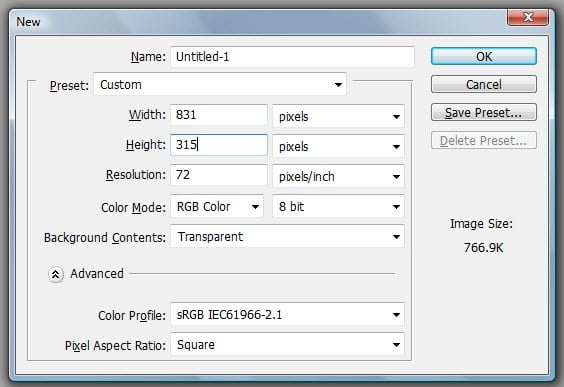
    • Open image editor and Create a New PhotoShop Document with Width: 851 pixels and Height: 315 pixels. For Facebook cover page exact dimensions refer to screenshot below.

    Set Facebook Cover Page Layout
    Set Facebook Cover Page Layout

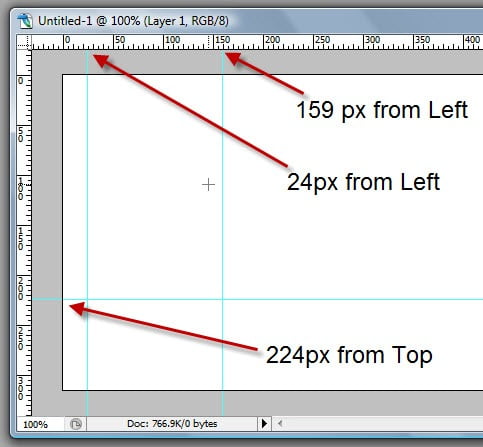
    • Cover page requires three guidelines for accurate layout. Set first guideline at 24 pixels from Left, set the second guideline at 159 pixels from Left and set the third guideline at 224 pixels from Top. (Refer to screenshot below)

    Set Guidelines Cover Page Layout
    Set Guidelines Cover Page Layout

    • Save the Document and we are all set with the Cover Page Layout.

    Design Facebook Business Cover Page

    We are just a step away from your Awesome Business Page Design. Are you ready with your Theme ? If not, then give it a thought or you can also refer our article to Create Twitter Background. Once ready with Business Theme, with no further delay lets go ahead with Facebook Cover Page design.

    1. PLACE THEME ELEMENTS – BE CREATIVE

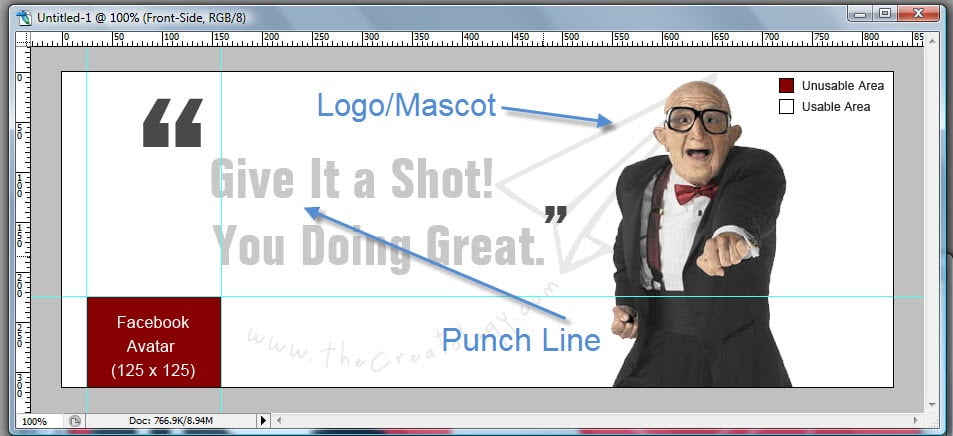
    Depending upon our Business place elements, like banner, slogan, punch line, logo or services in the Cover page. Feel free to express your creativity in this step, don’t forget to refer screenshot for usable and unusable area.

    Place Facebook Cover Elements
    Place Facebook Cover Elements

    2. FACEBOOK AVATAR SIZE

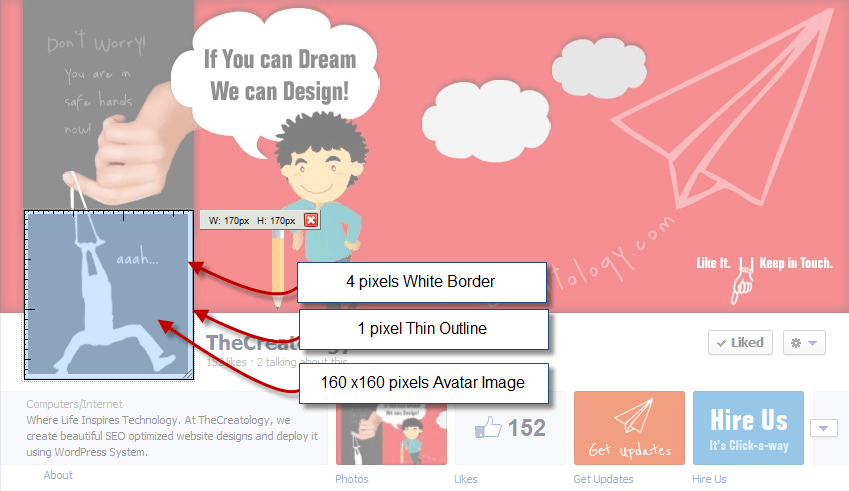
    Facebook avatar, so called Profile Picture is also part of Facebook Cover page. Facebook Avatar Image size is 160 x 160 pixels along with 4 pixels white border and dark 1 pixel outline around, making the Avatar Image Box as 170 x 170 pixels. (Refer to the screenshot)

    Facebook Avatar Image Sizes
    Facebook Avatar Image Sizes

    Already done with above two steps ? Yes: Bravo, No: Keep Working! Designing is a never ending activity and should never stop, until you are done.

    You can see a Demo TheCreatology Facebook Page.

    Wasn’t It fun?

    I am sure it was, but its your time to express now and think with creative mind. What do you think about this article ?

    Share it with friends, if it was helpful! Any doubts, use the comment box below. 😉

    Why this update?

    This post is updated with new Facebook Fan Page Cover Size and Dimensions, as Facebook changed Cover page dimensions.

    Published on: Apr 07, 2012
    Revised on: Aug 03, 2012
    Revised on: Aug 17, 2016

  • Quick-n-Easy way to Create Twitter Background – Part 1 [Design Layout]

    You must be thinking why am I writing this article, when Mashable already has explained about Twitter Backgrounds 2.5 years back. Well, reply to this thought, is this article in which you will learn Quick way to create custom Twitter Background. If you are tired of changing or have spent a lot of bucks in getting a Custom Twitter Background, then this article is for you.

    Twitter-Custom-Background-TheCreatology

    Last December 2011, Twitter changed its User Interface layout for the second time. Well, it happened for good, as Twitter adapted new html5 features. It sure is surprising for Tweeple (people who tweet), whereas annoying for few, who paid so much to get Custom Twitter Background done and it needs rework again.

    Don’t worry, I have a tutorial for you below which will help you to create twitter background easily. The tutorial is divided into three parts: Basic Requirements, Prepare Theme & Design Twitter Background Layout.

    Basic Requirements

    Here is a list of items you need, to create custom Twitter background:

    • Image Editor (eg. Photoshop)
    • Internet Browser with screenshot plugin (optional)
    • Cool Fonts to Impress (optional)

    Prepare Theme

    This is an important part of the tutorial, where we will prepare and collect information to design custom twitter page. To do so, lets go through few points below:

    • Expression: The page should reflect Who You Are? a blogger, a photographer or a biker. What You Like? a Apple iPhone or a Ducati 848. It should reflect your interest and help people to know more about you.
    • Branding: The social branding conforms to have your bio, photo or avatar and contact information.
    • Show Time: After all its your page, so give it a shot. Of-course use your mad skills here. 😉

    Design Twitter Background Layout

    Now that we know what we want in our theme, lets start with the layout design. Check out easy steps below:

    Create Latest Twitter Layout. Best way to find out the latest twitter background layout is itself twitter, check how…

    • Set your monitor resolution for the most optimized version, For Instance, in this tutorial we will be using 1366px X 768px screen resolution which also is commonly used resolution.
    • Once done, open your twitter page in any browser and Press “Prnt Scrn” on your keyboard. In case if you have a screenshot plugin installed in your browser then quickly take a rough screenshot of the visible area of your twitter page.
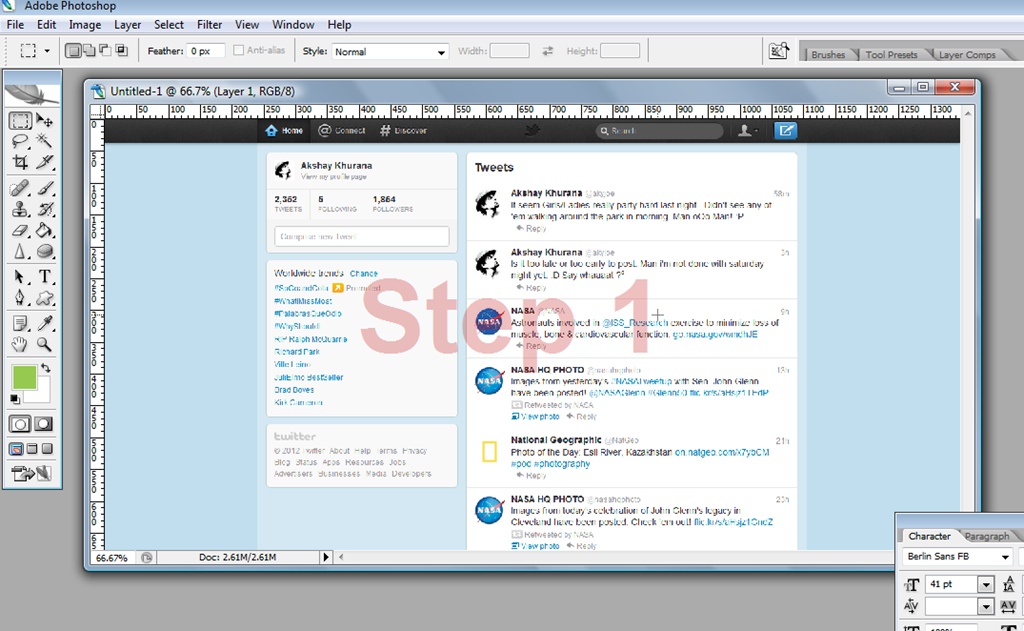
    • Next, open Adobe Photoshop and paste/import the screenshot file, just as in the image below.

    Create-Twitter-New-Layout-Step1
    Step 1 – Latest Twitter Screenshot

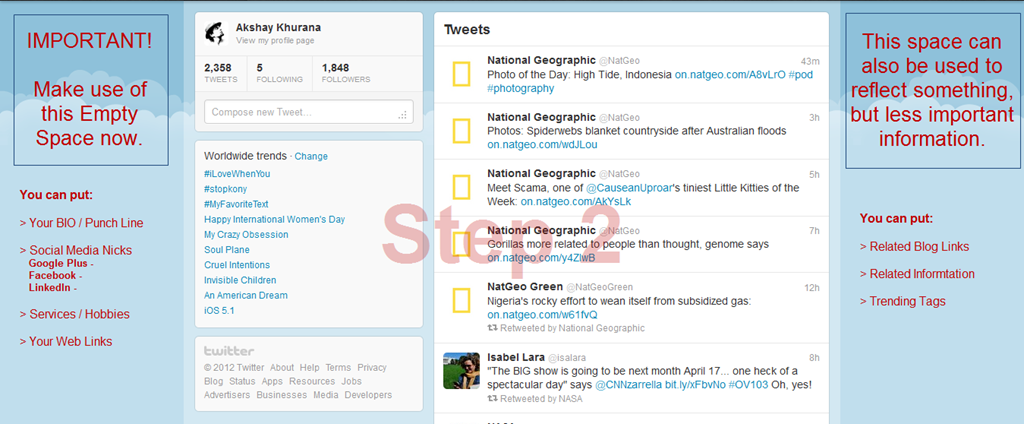
    • Now that you can easily make out in the screenshot above, usable area which is in blue color background as shown in the screenshot below.

    Create Twitter New Layout-Step2
    Step 2 – Prepare Twitter Theme

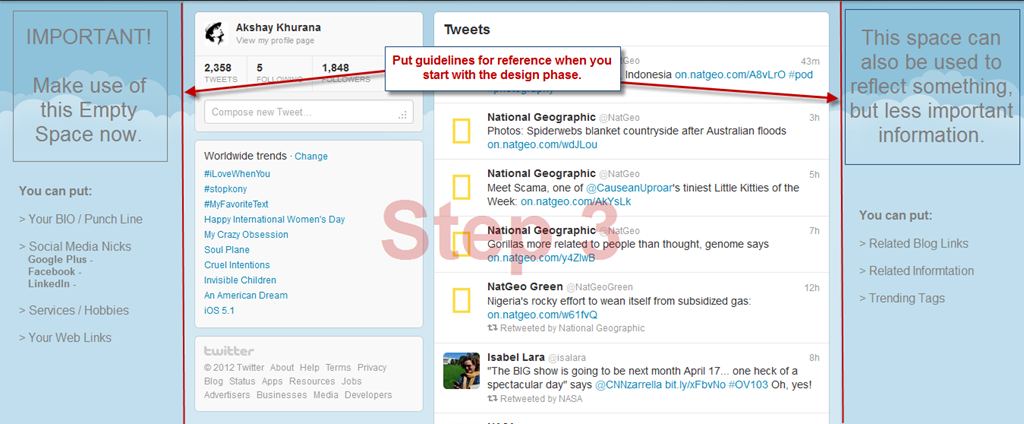
    • Next step is to setup guidelines, which will be a reference, when we will start with the design phase in tutorial [Part 2]. (Refer the screenshot below)

    Create Twitter New Layout-Step3
    Step 3 – Setup Guidelines for Design Phase

    • Save the PSD file, once you are done with setup of guidelines for new twitter background.
    • Take a break, for the work accomplished, Yes I am Serious we are done!

    Now wasn’t that easy of a tutorial, just with hit of “PrntScrn” key and here we got latest twitter layout ready. Well now that we are all set with new twitter background layout and we shall proceed for the design phase. Leave your comments, incase you have any feedback, queries or doubt in your head.

    PS. > Design Phase Article Link will be available shortly here. (Keep in touch via twitter or subscribe to our blog)

  • Google +1 button Update for Faster Page Load Time

    Something which reflects in using a Google Product is its performance. Google offers a lot of webmaster tools, which allows you to track page load time such as by using Google Analytics Code in WordPress. But launch of Google +1 Like button was not that effective, rather it couldn’t perform well in terms of speed and efficiency. If you have a set of Social media count buttons on website, Google +1 button is the last one to load. Wake up Google, you are not one of the Lazy asses. 😛

    google plus one button update

    Well, finally we have an update from Google, The Faster +1 Button. The following article is about the new Google +1 button update and why it loads 3 times faster now.

    Google Plus One Button Update

    After getting feedback and a lot of complaints such as, +1 button takes long time to load, Google released this update for plus one button. Google claims that they have improved +1 button code and now it will load 3 times faster than the old +1 button.

    How New Google Plus Button Loads Faster ?

    new plus one button update
    New Plus One Button Update

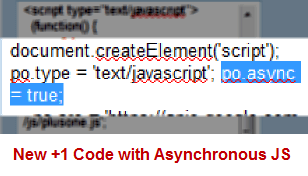
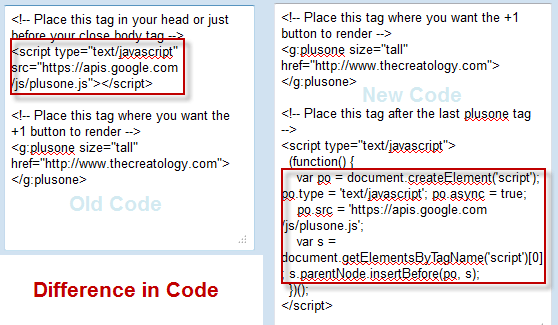
    When a page is loaded on browser, JavaScript loads itself synchronously and causing page load delays. But if we use Asynchronous JavaScript, also knows as AJAX, which lets browser to download JS file, while in parallel the page continues to load on browser and we don’t experience delays. Google has also introduced asynchronous snippet as improvement in new code and claims 3 times faster speed. You may refer the screenshot below which shows you the difference between old +1 button code and new +1 button code.

    difference between new plus code and old code
    Difference between New plus code and old code

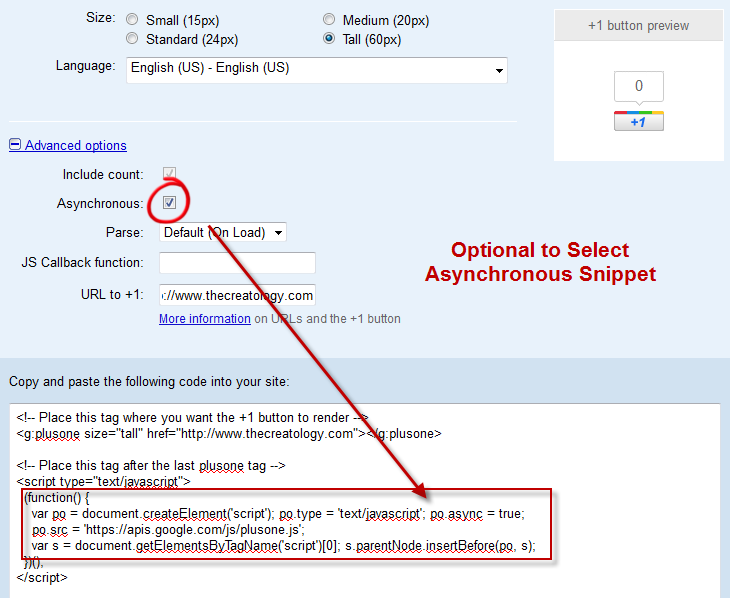
    The above screenshot explains the difference of old code and the new +1 code with Asynchronous Snippet. Google Plus has a configuration tool which allows you to select between old code and new code. Refer to the screenshot below.

    configuration tool google plus one button
    Configuration tool google plus one button

    Once you grab your code from the configuration tool, check out below how to add new plus one button in WordPress.

    Add fast Google +1 button in WordPress

    Procedure to add new +1 button is similar but somehow if you missed it, you can read it here. Below is Google like button code for WordPress which you can add it in Single.php file.

    Make sure you take full backup of single.php file using FTP before modifying it.

    [php]
    <g:plusone></g:plusone>
    <script type="text/javascript">
    (function() {
    var po = document.createElement(‘script’); po.type = ‘text/javascript’; po.async = true;
    po.src = ‘https://apis.google.com/js/plusone.js’;
    var s = document.getElementsByTagName(‘script’)[0]; s.parentNode.insertBefore(po, s);
    })();
    </script>
    [/php]

    Once you have added the code, check load time of Google +1 button on your website. Do let us know your feedback about your experience with new Google Plus Button, by posting a comment below.

    With this we come to the end of this article and I hope you and your folks will enjoy faster browsing experience with Google +1 button Update.

  • How to add Social Media Share Count Buttons in WordPress Blog ?

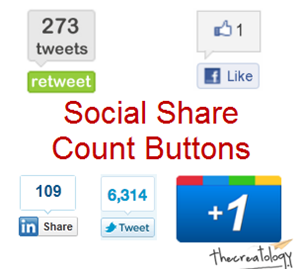
    If you are looking forward to boost blog traffic then make sure that you have Social media buttons on your blog. When we talk about the Web2.0, social media buttons have been replaced by the new share count buttons trending Facebook Like Button, Tweetmeme, Twitter Share button and etcetera. In this article, we will learn to add different social media button in WordPress.

    social-share-count-button
    Social Share Count Button for WordPress

    Different Social Share Buttons

    As mentioned above, social share buttons on website is like a car with wheels, and you cannot move ahead without them. I have already covered some Social media buttons in my previous articles, whereas if you have missed any then you can find them below:

    Share Button Codes for WordPress

    For ease of access I have complied all social share button codes in this article so that you can simple add share count button in WordPress Website.

    Make sure you take full backup of single.php file using FTP before modifying it.

    Retweet Button

    [php]
    <script type="text/javascript">
    tweetmeme_source = ‘thecreatology’;
    </script>
    <script type="text/javascript" src="http://tweetmeme.com/i/scripts/button.js"></script>
    [/php]

    Above code is for the Retweet Button, make sure to change the tweetmeme_source @thecreatology with your twitter handle. To see more options you may refer the original post How to Add ReTweet Button in WordPress Blog.

    Official Twitter Button

    [php]
    <a href="http://twitter.com/share" data-url="<?php the_permalink(); ?>" data-count="vertical" data-via="thecreatology" data-related="Aky Joe:He is Cool!">Tweet</a>
    <script type="text/javascript" src="http://platform.twitter.com/widgets.js"></script>
    [/php]

    Above code is for the Official Twitter Button, make sure to change the data-via @thecreatology & data-related with your twitter handle. To see more options you may refer the original post How to Add Official Twitter Button in WordPress Blog.

    Facebook Like Button

    [php]
    <iframe src="http://www.facebook.com/plugins/like.php?href=<?php echo urlencode(get_permalink($post->ID)); ?>&amp;layout=standard&amp;show_faces=false&amp;width=450&amp;action=like&amp;colorscheme=light" scrolling="no" frameborder="0" allowTransparency="true" style="border:none; overflow:hidden; width:450px; height:60px;"></iframe>
    [/php]

    Above code will add Facebook Like Button, make sure that you add the code in WordPress Post Loop. There are also different layouts to configure Facebook Like Button, which you can find in the original post How to Add facebook Like button in Website.

    LinkedIn Share Button

    [php]
    <script type="text/javascript" src="http://platform.linkedin.com/in.js"></script>
    <script type="in/share" data-url="<?php the_permalink(); ?>" data-counter="right"></script>
    [/php]

    Above code will add LinkedIn Button, make sure that you add the code in WordPress Post Loop. There are also different layouts to configure Linked Button, which you can find in the original post How to Add LinkedIn Share Button in WordPress Blog.

    Google Like +1 Button

    [php]
    <script type="text/javascript" src="https://apis.google.com/js/plusone.js"></script>
    <g:plusone></g:plusone>
    [/php]

    Above code will add Google Like Button, make sure that you add the code in WordPress Post Loop. Google Plugin button can be configured in three ways, for which you can refer to the original post How to Add Google +1 Like Button in WordPress Blog.

    Is that it ?

    Well yes, these were some popular social count buttons which I shared above, for a WordPress blog. If you think I missed any other share button, then you can share with us by posting a comment below, respecting the fact that Sharing is Caring. 😉

  • How to add Google Like button in Thesis Theme WordPress ?

    You must be aware of latest development by Google, that is New GLike Button for social media. Somehow, if you missed the story, you may read my article on New Google Like button for website. There are a lot of plugins which are already out to add Google like button in WordPress Blog. But, for people like who rarely depend on such plugins, will surely find this article, interesting. In the following article we will learn to add Google Like button in Thesis Theme WordPress.

    But before we go ahead with the tutorial, I recommend you to update Thesis Theme. Don’t know how to do that ? Well, it is simple, just refer to article Safely upgrade to latest version Thesis 1.8 ? If you don’t have Thesis Theme Copy then you can also Download Thesis Theme.

    Google Like Button for Thesis Theme

    google-like-button-on-thesis theme
    Add Google Like Button On Thesis Theme

    When we talk of the custom coding, there are four variations of Google Like button developed to fit-in every layout of website. Google Like button in Thesis Theme can be added using thesis-hooks, the overriding functions. To show GLike button in single post, simply add  below code snippet in the custom_functions.php.

    NOTE: Make sure you take full backup of custom_functions.php file using FTP before modifying it or you can also refer to the article about how to safely edit custom_functions.php

    [php]

    function joe_adds_glike_btn ()  {
    if (is_single()) { ?>
    <div style="float:right;">
    <script type="text/javascript" src="https://apis.google.com/js/plusone.js"></script>
    <g:plusone></g:plusone>
    </div>
    <div style="clear:both;"></div>
    <?php
    }}
    add_action(‘thesis_hook_before_headline’,’joe_adds_glike_btn’);

    [/php]

    We’re Done

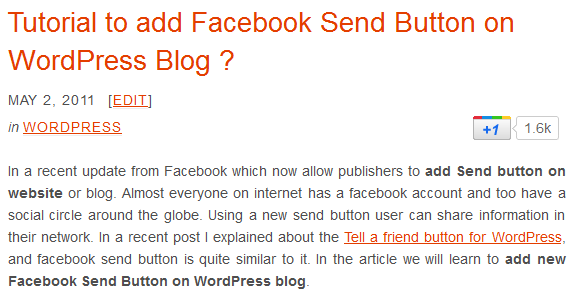
    Once you have added above code in custom functions, you can now refresh your post page, where you will see Google like button in single post similar to screenshot below:

    Google-like-button-on-thesis theme
    Google Like button in Single Post

    For any social media button, I really like this placement and believe me it is effective. Now that we have added Google Like button in Thesis Theme, we are done with the tutorial. If you have any query or further assistance is required, post your feedback as comment below.

  • Tutorial to add Google +1 Like button on WordPress Blog ?

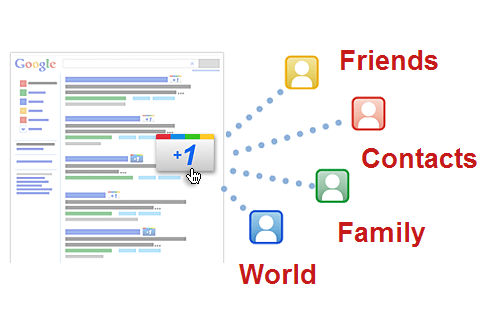
    After the launch of Twitter Follow button for website, it was Google who came up with their +1 Like button on social media. Google like button helps your online contacts, friends to find the best stuff when they Google search for some stuff. Its being said that Google like button will be in good competition with Facebook Like button in the coming times.

    How +1 Google Button Works ?

    Google Like button
    Google Like button

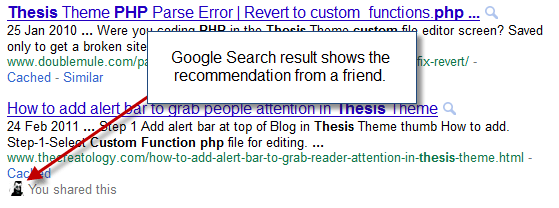
    As I mentioned above, Google +1 button is a recommend button and it works more like a Vote button. When you click Google +1 button on website, it add recommend that particular page on Google Search Results. When any of your Google contact or a friend searches for relevant article, Google displays that article, with your vote and a small photo in search result, just like in screenshot below:

    Google like button Working
    Google Search Results

    Google Like Button Code for Website

    In WordPress, blog placement for Google like button on single post is effective, as usually a visitor will only share it after going through the post. There are 4 different types of Google Like button developed to fit best on your website. Below is the Google like button code for WordPress to add Google +1 Like Button on single post and you can add the code in single.php file.

    Make sure you take full backup of single.php file using FTP before modifying it.

    [php]

    &lt;script type=&quot;text/javascript&quot; src=&quot;https://apis.google.com/js/plusone.js&quot;&gt;&lt;/script&gt;
    &lt;g:plusone&gt;&lt;/g:plusone&gt;

    [/php]

    If the above code doesn’t fit in your theme layout, you can play around with 4 different set of buttons, click here to know more.

    We’re Done!

    Once you have updated the code, save single.php file and upload it on server. Now you can refresh any single post on website, it will look something like in the screenshot below:

    Google Like button preview
    Google Like button in Single Post

    Isn’t it looking cool ? Welcome, now that we have learned how to add new Google Like Button on Website. Let us know your opinions about the Launch of New Google Button in Social Media, by posting a comment below.

    If you have any query or further assistance is required, you can post a comment as your feedback.