Tag: Social Media

  • How to add Official Twitter Button Count on WordPress Blog ?

    Twitter announced an official share button, which works same as a Tweetmeme button, but it is developed by twitter. You can see the screenshot below with different types of twitter button shapes to fit best for your layout. As mentioned above twitter button is similar to  Tweetmeme button which I explained in Tutorial to add Twitter Share Retweet Button on WordPress Blog.
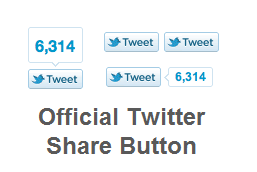
    Official Twitter Button Count
    New Twitter Share

    The new twitter button features to have better customization and in addition to it includes account recommendation. For instance if you have two different twitter handles, you can customize new twitter button in a way, a vistor can share post using one handle, and recommend with the another handle.

    In this tutorial, we will learn to add new twitter button on wordpress blog.

    Step 1: Configure twitter button

    Go to Twitter Button Page and configure the twitter button for size, url and twitter handle. (Refer to the screenshot below)
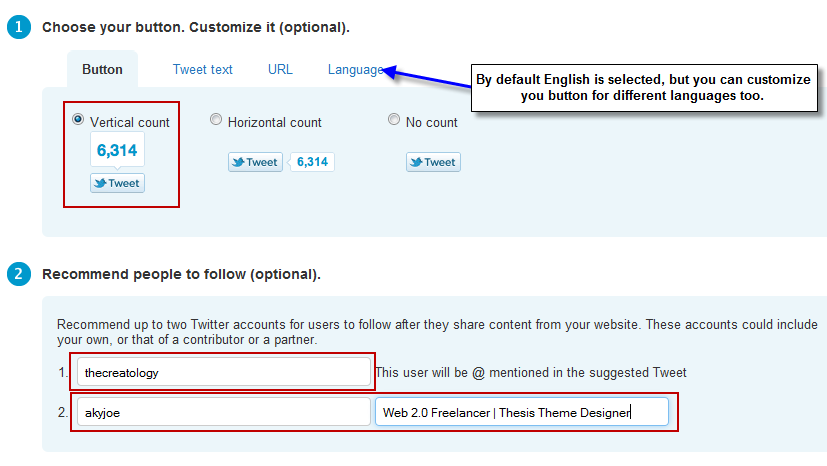
    Configure Official Twitter Button Count
    Customize Twitter button

    Step 2: Get Twitter Button Code

    Once you are done with the configuration of twitter button, scroll down and get twitter button code for your blog integration. (Refer to screenshot below)
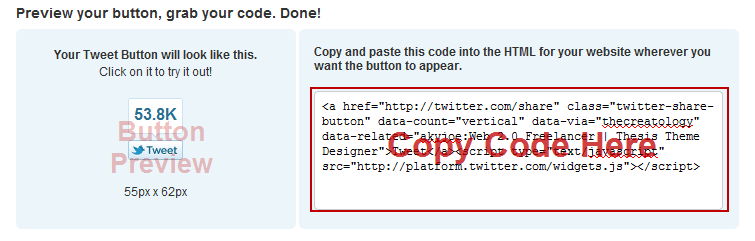
    get official twitter button code
    Twitter Button Code

    You can also copy the code below directly into theme file, and make sure you change the twitter handles. Here is the code below:

    [php]
    <a href="http://twitter.com/share" data-url="<?php the_permalink(); ?>" data-count="vertical" data-via="thecreatology" data-related="Aky Joe:He is Cool!">Tweet</a>
    <script type="text/javascript" src="http://platform.twitter.com/widgets.js"></script>
    [/php]

    Make sure you take backup before editing the code.

    Now that you have the twitter button code, add twitter code in single.php or custom_fucntions.php in case of Thesis Theme. Use any FTP client and upload file on server. Refresh website to see the effect.

    With this we are done adding new twitter button on blog, and come to the end of the tutorial. A lot of people have already switched with new twitter button, I hope this tutorial will be easy for you. If you have any query or need assistance post comment, as your feedback, I will get back to you asap!

  • Tutorial to add Twitter Share Retweet Button on WordPress Blog

    Twitter has been statistically growing with social media market, and allowing bloggers to share article on twitter. I believe adding social share buttons on blog is as vital as oxygen and water for survival. I’m sure you must have seen a popular blogs with share count buttons, and if you haven’t then you are certainly missing something on your blog.

    add-retweet-button-for-wordpress
    Retweet Button for WordPress Blog

    After reading an article or post on blog, if visitor finds it interesting can share it on social media like twitter, facebook etc… For an effective placement of share button, a retweet button should be placed before the post page. In this article, we will learn to add retweet button on wordpress Blog.

    Choose your Retweet Button!

    There are two types of retweet button depending upon the size, one is large retweet button and other one is compact retweet button. You can choose the button which fits best for your layout of the website. Desired Code for the both buttons are as under:

    Add large retweet button:

    [php]
    <script type="text/javascript">
    tweetmeme_source = ‘thecreatology’;
    </script>
    <script type="text/javascript" src="http://tweetmeme.com/i/scripts/button.js"></script>
    [/php]

    Add compact reweet button:

    [php]
    <script type=’text/javascript’>
    tweetmeme_style = "compact";
    tweetmeme_source = ‘thecreatology’;
    </script>
    <script type="text/javascript" src="http://tweetmeme.com/i/scripts/button.js"></script>
    [/php]

    In the above code make sure you change tweetmeme_source with your twitter username or twitter handle. You can add the above code snippet in your Theme file, for instance for post page you can add the above code by editing single.php file.

    I’m sure retweeting will give your blog a great exposure which will increase visits and hits on your blog. If you have any query or need further assistance, you can post comment below as your feedback.