Twitter is doing everything to keep itself in competition with Facebook. Just like the Facebook Like Button, Twitter has launched New Follow Button for Website. Using the new follow button on website, it will directly follow the twitter account and instead going to the twitter profile and then clicking Follow Button. Check out the screenshot showing Britney Spears’ Website using New Twitter Follow Button.
Britney Spears Website using Twitter button
Especially for the publishers, new Twitter Follow button on blog will increase more number of Followers than the retweet button, as it’s just click –a –way. 😉 I think Twitter button will be more efficient and powerful than a Facebook Like Button. If you are looking forward to add new twitter button on website, you can configure it right here.
Do share your opinions, about the launch of new twitter button, by posting a comment below. 🙂
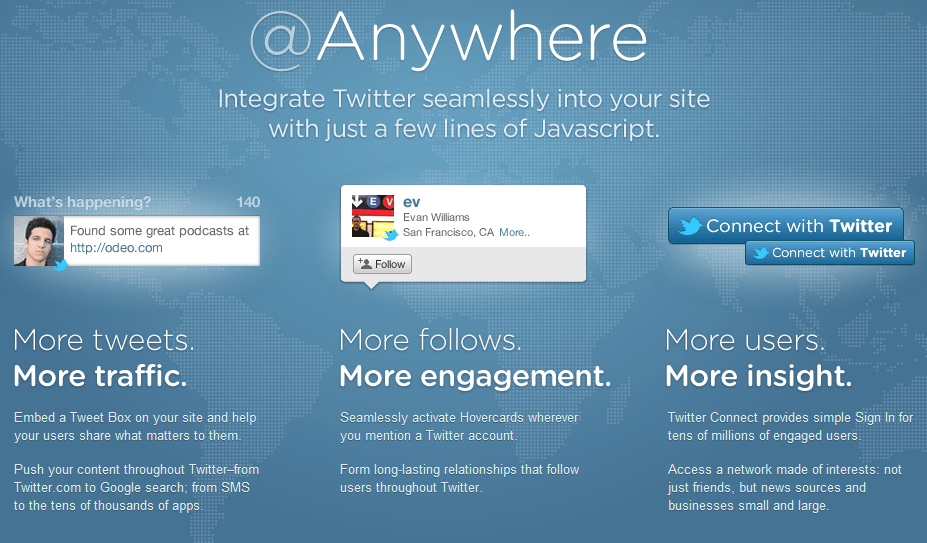
Keeping itself active in Social Media World, Twitter has its development kit ready for your WordPress Blog. Just like the facebook like button, twitter now allows to integrate their features on WordPress website. The feature is known as @Anywhere, and can be implemented using a few lines of JavaScript Code.
@Anywhere Twitter Features
In the article, we will learn to implement @Anywhere feature and add twitter hovercard on WordPress blog. I should not make you wait, just follow the simple steps below:
Step1: Register Twitter Application
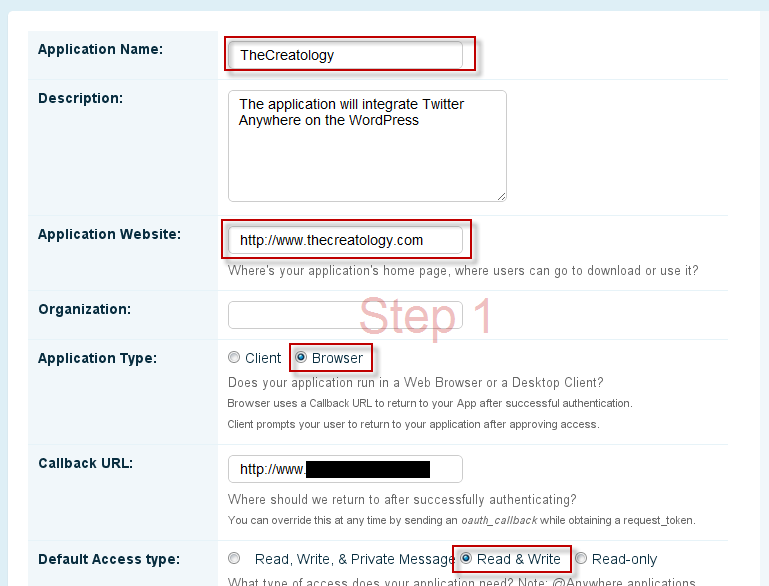
In order to integrate @anywhere feature on website, you will be required to register an application. On register an @Anywhere application page you will have to fill-in details for Name of the Application, Website URL etc. You can also refer to the screenshot below:
Step1: Register an Application
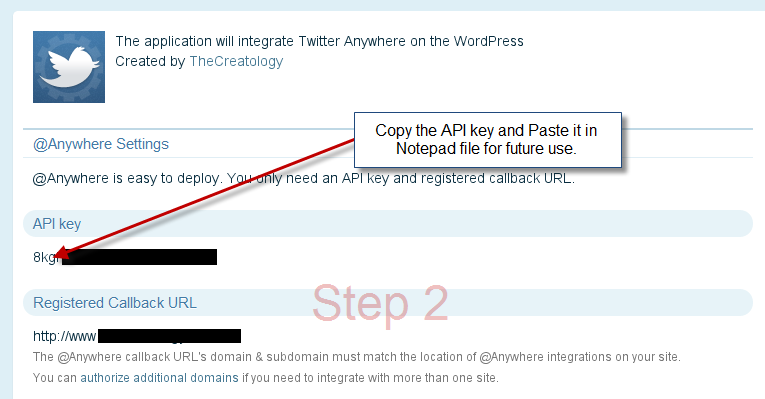
Submit the Application by clicking Register Application button, and further it will be redirected to the application page. In this page, you will find all details about the Application like API key and Registered Callback URL, similar to the screenshot below.
Step2: Get Twitter API key
Keep the API key of twitter application handy, as we will be using it in Step2.
Step2: Adding @Anywhere in WordPress
To add @Anywhere feature in WordPress blog, twitter provides a Javascript code which should be placed in HEAD Tag in header.php file. Incase you are using Thesis Theme then you can add the code using Thesis Site Options. (If you are concerned about Page Load time, then you can also add code right before the closing of BODY Tag in footer.php file.)
Below is the twitter @anywhere code snippet, which you can add it in your Custom Theme or Thesis WordPress theme. Make sure you take backup of Header.php or Footer.php before adding the code snippet.
For Thesis Theme you and paste the above code in Site Options under “Stat and Tracking Scripts”.
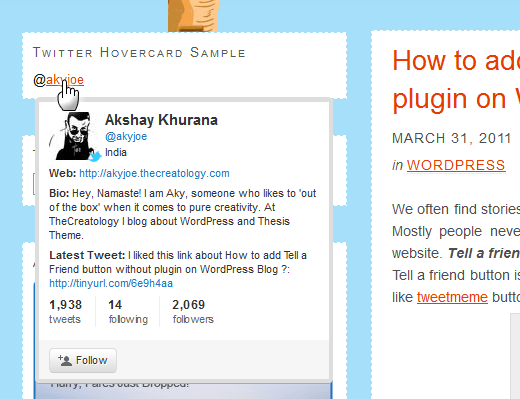
Once you have added the code, it will enable Twitter username Auto linking and Hovercard feature on your website, that is, it will auto link Twitter usernames anywhere on website, to their twitter profiles. For instance, you can add Text Widget and put twitter username with “@” symbol just like this “@akyjoe”. Once done, refresh the website and you will find something similar to the screenshot below:
Demo: @Anywhere Hovercard Feature
We’re done
@Anywhere Hovercard feature can be effective, if there is a twitter feed on your website. As twitter feed will contain usernames which will be auto linked and will display twitter profile by Hovercard feature.
What do you think about @Anywhere Hovercard feature ? You can share your opinions here by posting a comment below.
If you have any query or further assistance is required, post comment as your feedback.
You must be aware of latest development from Facebook, that is New Send Button. The Send button allows user to directly share favorite link with friend/s on Email. Recently I explained in the article to add Facebook Send button on WordPress Blog. In the following article we will learn to add Facebook Send Button in Thesis WordPress Theme.
Facebook Send Button for Thesis Theme
Add Send Button on Thesis
As we all know about Thesis Theme and its content management with SEO capabilities. Though it is a raw wordpress theme, allowing endless customization for wordpress blog. If you don’t have a copy of Thesis Theme then you can download thesis theme here. If you are using an old version of Thesis Theme then I recommend you to safely upgrade thesis theme.
Standalone Send Button in Single Post
As we all know that Thesis customization is done using thesis hooks which are the overriding functions. To show send button in single post, copy-paste the code snippet in the custom_functions.php.
Make sure you take full backup of custom_functions.php file using FTP before modifying it.
As mentioned in article add Facebook Send button on WordPress Blog standalone placement for Facebook send button is not that effective. Below is the code to add like with send button in thesis, copy-paste the code snippet in the custom_functions.php.
Make sure you take full backup of custom_functions.php file using FTP before modifying it.
Once we have added the code, now you can refresh any single page entry and you will find it similar to screenshot below:
Facebook Send Button Demo on Single Post
You can now test the new facebook send button on your Thesis Theme, like playing with different hooks in Thesis Theme and let us know your opinion, which placement is effective for facebook send button, by posting a comment below.
In a recent update from Facebook which now allow publishers to add Send button on website or blog. Almost everyone on internet has a facebook account and too have a social circle around the globe. Using a new send button user can share information in their network. In a recent post I explained about the Tell a friend button for WordPress, and facebook send button is quite similar to it. In the article we will learn to add new Facebook Send Button on WordPress blog.
Facebook Send button for WordPress
How Facebook Send Button Works ?
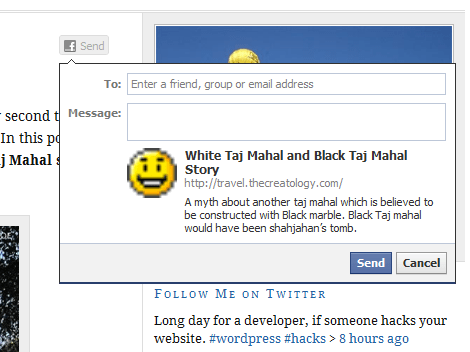
The new facebook send button allows users to share your content with their friend using an email to any email address or inbox them on Facebook. A user can also mention the name of the Group and post the URL on the group wall.
Facebook Send Button Code
In WordPress blog, effective placement for send button is on single post, as usually a visitor will only share it after go through the post. Below is the send button code for WordPress to add facebook send button on single post and you can add the code in single.php file.
Make sure you take full backup of single.php file using FTP before modifying it.
No it is not. The above code snippet will just add Send button on your WordPress blog, but so far I believe this method will not be that effective, as Stand Alone Send button will be less prominent. But, if we combine and add a Facebook Like Button with Send Button and it will increase your Like Counter as well. Below is the code snippet to add facebook send and like button together, and you can add the code in single.php file.
Make sure you take full backup of single.php file using FTP before modifying it.
Now, the above code will add Like button followed by new send button. I hope facebook send button will be effective for visitors and sharing information around their networks will be flexible now. Let us know about this new development from facebook by posting a comment below.
If you have any query or require further assistance, you can post comment as your feedback.
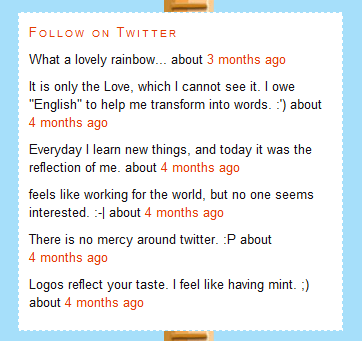
If are you on twitter, then you can display latest tweets on WordPress Blog. By adding twitter feed in Website, visitors can keep track of your latest tweets and one-click to follow you on twitter.
Twitter Stream Illustration
A latest plugin by automatic JetPack features to add twitter stream in sidebar with ease. In the article we will learn how to add twitter feed in WordPress using Jetpack plugin. Below is a simple stepwise procedure:
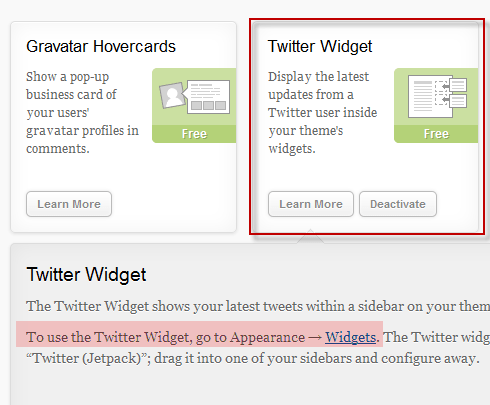
When Jetpack plugin is installed and configured, by default it activates Twitter Widget which can be configured by Navigating to Appearance > Widgets, as you can see in the screenshot below.
Twitter Widget Jetpack dashboard
Step 3: Show Tweets on Blog
In order to display latest tweets on sidebar, follow the procedure below to add twitter widget:
Navigate to Appearance > Widgets.
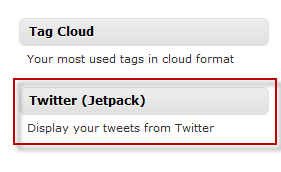
Find Twitter (Jetpack) widget in the list and Drag it to sidebar.
Twitter Jetpack Widget
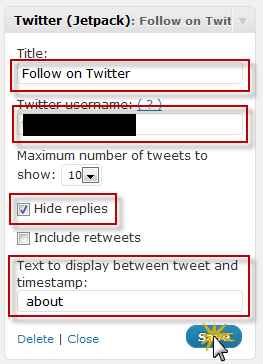
Now configure twitter jetpack settings for title, twitter name, number of tweets to show etc. Refer to screenshot below:
Twitter Widget Settings
Once done with the settings, click on Save button.
We are Done!
As we are done with installation and configuration, now its time to see things live in action. Refresh the website and you will find twitter stream in sidebar similar to the screenshot below.
Twitter Stream Live on Sidebar
Here we come to the end of this tutorial, where we learned to add twitter feed in WordPress blog. If you have any query or any assistance is required, feel free to post comment as your feedback.
We often find stories and interesting articles online which are worth sharing with friends. Mostly people never miss sharing product reviews, special discounts and offers on website. Tell a friend button is used to share article with your friends by personal email. Tell a friend button is also known has Email Thisbutton, which is similar to share button like tweetmeme button, facebook like or linkedin.
Sharing something with Friend
There are many plugins made to add Email button on WordPress, but depending upon third party plugins for simple code is just waste of resources and increasing server load by php calls. In this article, we will learn how to add tell a friend button without plugin in WordPress blog.
Tell a Friend Button Code
The analogy behind is that on click of the button, it will open a default email software and will add subject, link of the article and will prompt to enter friend’s email address. Below is the Email button code for WordPress, and you add the code in single.php file.
Make sure you take full backup of single.php file using FTP before modifying it.
[php]
<a class="email-share" href="mailto:?subject=Check this out&BODY=I found this article interesting and thought of sharing it with you. Check it out: <?php the_permalink(); ?>" target="_blank"></a>
[/php]
Once done editing the php file, now apply some CSS on it. Copy-Paste the below code snippet in style.css file.
I have already mentioned about facebook like button for wordpress and in this article we will learn to add like button in thesis theme.
Get Thesis Theme Now
As we all know about Thesis Theme and its content management as well SEO capabilities. Though it is a simple wordpress theme allowing endless customization for wordpress blog. If you don’t have a copy of Thesis Theme then you can download thesis theme here. If you are using an old version of Thesis Theme then I recommend you to safely upgrade thesis theme.
Add Facebook Like button in Single post
As we all know that Thesis customization is done using thesis hooks which are overriding functions. To show like button in single post, copy-paste the code snippet in the custom_functions.php.
Make sure you take full backup of custom_functions.php file using FTP before modifying it.
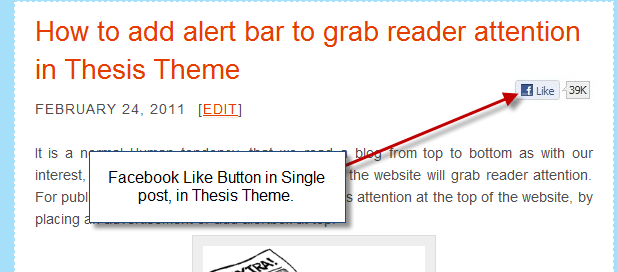
Save the custom_functions.php file, once you are done adding the above code. Now upload the edited file on server using ftp client and when you will refresh website, you will find something like in screenshot below.
Facebook Like button on Single Post
As we have added facebook like button in thesis theme, we come to the end of this article. If you have any queries then you can post comment below as your feedback.
As we know that Thesis Theme is capable of content management and efficient SEO. Though it is a raw wordpress theme but it allows endless customization for your blog. If you don’t have a copy of Thesis Theme then you can download thesis theme here. If you are using an old version of Thesis Theme then I recommend you to safely upgrade thesis theme.
Add Twitter button in Single post
As we are know that Thesis customization is done using thesis hooks which are overriding functions. To show twitter button in single post, copy-paste the code snippet in the custom_functions.php.
Make sure you take full backup of custom_functions.php file using FTP before modifying it.
[php]
function joe_adds_twitter_btn () {
if (is_single()) { ?>
<div style="float:right; margin:0 10px;"><script type="text/javascript">tweetmeme_source = ‘thecreatology’;</script>
<script type="text/javascript" src="http://tweetmeme.com/i/scripts/button.js"></script></div>
Note: Change the ‘twittermeme_source’ which will be your twitter username, in above code.
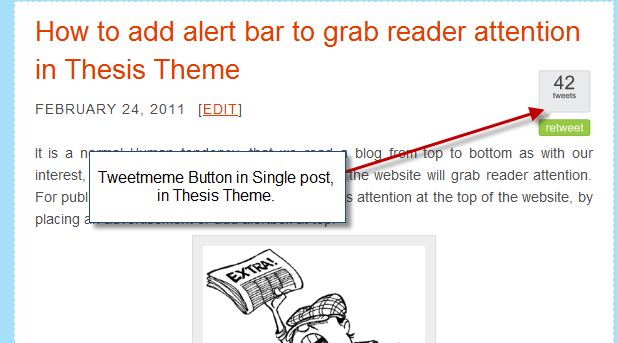
Save the custom_functions.php file, once you are done adding the above code. Now upload the edited file on server using ftp client and when you will refresh website, you will find something like in screenshot below.
Twitter Share button in Single Post
As we have added twitter button in thesis theme, we come to the end of this article. If you have any queries then you can post comment below as your feedback.
As we all are aware of the professional network LinkedIn, which is a business adapted social networking website. With the growing network on social media websites like Twitter and Facebook, LinkedIn has also launched its official share button.
Share on LinkedIn
LinkedIn share button works same as Twitter Share button, Tweetmeme and Facebook Like Button which help bloggers to share articles around the network. In this post we will learn to add official linkedin button for wordpress blog.
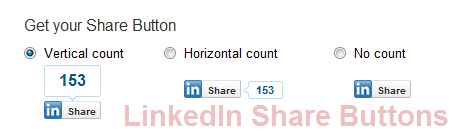
LinkedIn buttons are simple to use and need not require any configurations. There are three types of LinkedIn buttons, developed to fit with different layouts schemes, they are Vertical Count, Horizontal Count and No Count.
Different LinkedIn Buttons
Below are different buttons with the respective code snippets:
Vertical LinkedIn Button
Vertical Count button displays the counter above the button as you can see the image above. The code for vertical button is as under:
Horizontal Count button displays the counter on right of the button, as you can see it in the picture above. The code for horizontal button is as under:
This is a simple linkedin button which doesn’t display any counter. You can see this button in above image preview. The code for simple LinkedIn button is as under:
Make sure you take backup before editing the code.
Choose the appropriate button above for your Theme and simply open up your theme file, for instance Single.php and add linkedin button code within post loop. Once done, upload the file server and refresh the blog to see the effect.
There are also plugins developed for LinkedIn button, but in order avoid plugin dependency, one should prefer adding the codes manually. You can also visit Official LinkedIn resources for Publishers.
This ends a simple tutorial to add linkedin button in wordpress. If you have any query or further assistance is required, post comment as your feedback.
Social market is growing with web major dominants Twitter and Facebook. With increasing traffic on websites around the globe everyday, millions of people are reading and sharing articles on these social markets. Like the tweetmeme button on twitter, Facebook has “Fshare” and “Like” button.
Facebook Like button
Most of the blogs are using “like” and “recommend” button, which helps in increasing blog traffic and social media promotion. In this article, we will learn that by adding facebook like button can increase blog traffic and how to add like button on wordpress blog.
How Facebook Like Button Increase Blog Traffic ?
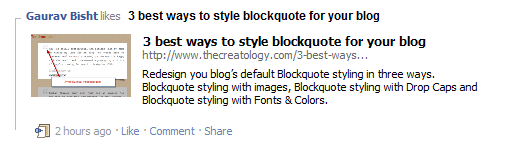
Facebook is the most visited website in the online world where people with age 8-80 exists. Each user has news feed and has ability to see updates of their connections and vice-versa. Now for instance, a user Gaurav with 500 friends, when clicks a “like” button on a blog, its News Feed gets updated. When news feed is updated for a user, it automatically update it for each of the 500 friends News Feed. You can also see a screenshot below of a user Gaurav liking a post.
News feed preview of User liked the post
This cycle continues to function when any friend of 500 connections again clicks the “like” button on its wall. And then it gets updated on its news feed and it goes on. Have you ever heard of free automatic social promotion of blog ? Well, adding like button on blog, is what is the answer to this question. Learn how to integrate like button on wordpress below.
How to add Facebook Button on WordPress Blog ?
I hope now you know the advantages of facebook “like” button and how useful is for your blog. Adding “like” button on post, will require to edit single.php like we did in our article to add Official Twitter Button Count on WordPress Blog. Paste the code snippet below and add it in single.php located in Theme Template Directory.
Make sure you backup file before you paste the code below.
After adding the code in single.php, upload file on server, and you will be done. In order to adhere functionality for facebook like button, configure it using the following parameters:
show_face=true (true/false):- Enable friend icons below like button.
layout=button_count (standard/box_count/button_count):- Choose the layout suits best for your scenario.
Different Facebook button layout
colorscheme=light (light/dark):- You can choose the color scheme as per your blog theme.
action=like (like/recommend):- You can select between “like” and “recommend” button, though functionality is the same.
The above code uses iframe tag, which can be customized further by css styling for width and height.
With this we come to the end of this tutorial, and we have added Facebook Like button on wordpress blog. If you have any queries or need any assistance, post comment as your feedback.