Tag: thesis theme customization

  • New Thesis Update Service: Upgrade Old Thesis 1.x to New Thesis 2.x Theme

    Good News, TheCreatology now adds Upgrade to Thesis 2.0 in the service list, especially for people afraid of updating thesis. Using this service you will be able to restore previous Thesis 1.x design in new Thesis 2.x environment.

    But, before that you should understand why a WordPress website needs Thesis 2 update.

    Thesis 2 Theme Benefits

    No doubt thesis theme has always been a killer WordPress theme. Read below to know why you should upgrade to thesis 2:

    • Code Optimization: Each HTML,PHP & CSS code is efficiently complied and optimized for faster page loading.
    • No FTP: Design and customize skins using Thesis Skin editor.
    • No Coding: Ease of Dragging HTML structure & Built-in CSS Packages.
    • Doggie style: Missieur (Chris’s dog), tips you about SEO, broken links & 404 error pages.

    Wanna Upgrade to Thesis 2.0 Theme?

    It is a tricky process to update old thesis 1.x, but our team is ready to take that challenge. To get started:

    Upgrade to Thesis 2.0
    Upgrade to Thesis 2.0
    • Select Customize Thesis image in yellow box and a Thesis Customization form will appear.
    • Fill in the required details and services you wish to select.
    • If you want to upgrade your old thesis theme, then select “Upgrade Thesis 1.x to 2.x” option and press Submit.
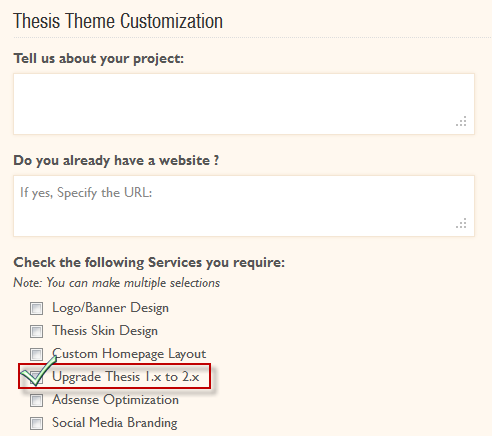
    Upgrade to Thesis 2 Service
    Upgrade to Thesis 2 Service
    • On receiving your inquiry and depending upon the requirement, it shall take us at least 6-18 hours to revert back.

    Why Hire TheCreatology?

    • We understand your concerns and high risks involved in the upgrade process.
    • Our team is testing Thesis 2.0 since day 1 and every project adds a new experience.
    • We are getting familiar to its new architecture and environment.
    • Till date, we have crafted 3 projects using Thesis 2 which will be added in our portfolio shortly.

    So, if you want to upgrade Thesis 2 without any pain, then consider us working on it.

    Confused? Feel free to Consult Us

    If you have questions then direct them to us by using contact form below or email on help [at] thecreatology [.] com

  • Easily Customize Website Header using Thesis Theme Hooks

    Most WordPress themes come with nice header layout design where some theme frameworks, like Thesis Theme have a sketched layout printed on white screen. Such themes allow N number of customizing options totally depending on the need.

    If you are a developer then you can easily customize the website header, but what if it’s not your cuppa tea. Either you will hire a developer or look up online for some WordPress tutorials and try to fix website header. Don’t worry if you are using WordPress Thesis Theme, as in this tutorial you will learn to customize website header using basic thesis hooks.

    Getting Started: Update Thesis Theme

    To make sure that we are sailing on the same ship, I recommend you to update Thesis Theme. No sure about it,  refer to article Safely upgrade to latest version Thesis 1.8. If you don’t have Thesis Theme Copy then you can also Download Thesis Theme.

    Thesis Header Hooks

    Thesis theme framework has been strongly build leaving many options to override default functions, we call these functions as thesis hooks. You can play around with these hooks to customize different blocks (header, content, sidebar or footer) in website . But, be careful while editing custom_functions.php file, as any wrong code can crash your website.

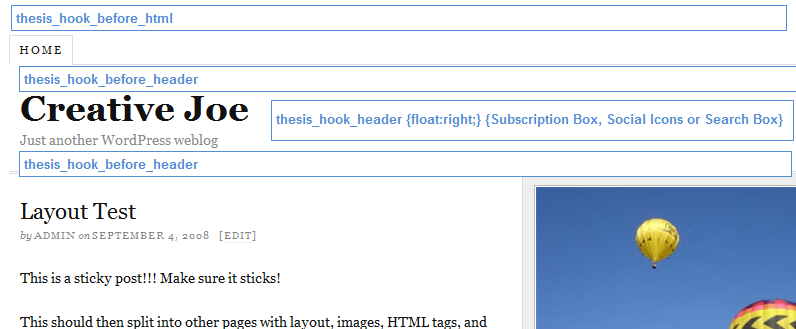
    To customize thesis header you may need the following hooks:

    1. thesis_hook_before_html
    2. thesis_hook_before_header
    3. thesis_hook_header
    4. thesis_hook_after_header

    Here is a quick visual reference of the above mentioned hooks:

    thesis header hook implementation
    Thesis header hooks implementation

    Add Thesis Hook in Custom_Functions.php

    You can take control of your website using Thesis hooks but before that you should know how to implement thesis hooks. Each Thesis installation has a custom directory in Thesis Theme. Custom directory, is where you do all thesis customizations, has the following files:

    1. custom.css (where we style and override default stylesheet)
    2. custom_functions.php (where we define hooks and override default functions)

    To define a basic Thesis header hook, open custom_functions.php in editor use the following code snippet:

    [php]
    function first_hook_before_header() { ?>
    <p style="border:1px solid #ddd;color:#d00; margin:5px; padding:3px;">This is Thesis Hook Before Header</p>
    <?php }
    add_action(‘thesis_hook_before_header’,’first_hook_before_header’);
    [/php]

    The above code adds a paragraph styled in a grey border box before thesis theme header. In similar way you can implement other hooks to define your actions as needed.

    Cool Thesis Header Examples

    Here are few inspiring header designs customized using Thesis theme:

    Cool Website Header Dodography
    Cool Website Header – Dodography
    Cool Website Header ImieBelanger
    Website Header – ImieBelanger
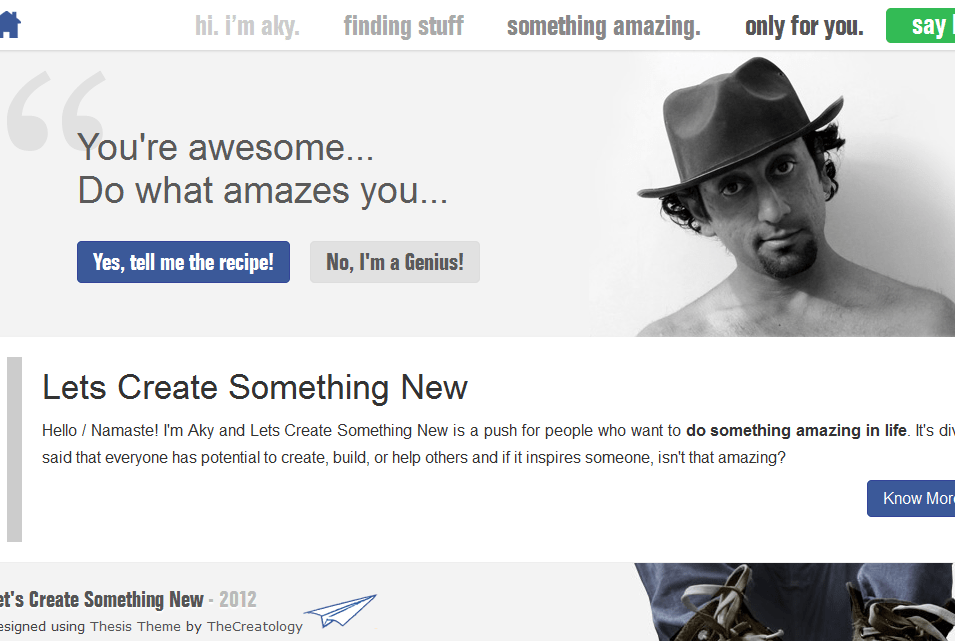
    Cool Website Header LetsCreateSomethingNew
    Website Header – LetsCreateSomethingNew
    Cool Website Header ShoutMeLoud
    Website Header – ShoutMeLoud

    What’s Next?

    You must be excited now to customize your website header after this handy tutorial. If you have any queries or need any assistance,  then post it using comment form below.

  • Add Social Share Count Buttons in Thesis Theme Teaser without Plugin

    Share Count buttons are tires on website, giving its content a smooth ride around the world. If don’t have social share buttons yet on your WordPress Blog, then I strongly recommend you to have them right away. Best way to add social button is either on the Article Landing Page or on the Blog Summary Page which we also call them as post teasers. Check out the screenshot below showing share button on teaser post.

    teaser-share-count-buttons
    Share Button in Thesis Theme Teaser

    I have already written an article about Social Media share buttons for WordPress. If you haven’t read it, then you can check it out here. There are also plugin available for adding share count buttons, but if you are Thesis Theme owner then its far easier and no plugin dependency, ofcourse.

    Here is a quick tutorial which will help you to add share count buttons in without plugin in Thesis Theme.

    Step 1: Update Theme Theme

    Before we begin with the article, I recommend you to safely upgrade thesis theme, whereas if you don’t have a copy of Thesis Theme then you can download thesis theme here. Move to next step, if you already have updated Thesis Theme Version.

    Step 2: Share Button Code

    Already decided which all Share button to add in blog summary page ? If not, then you can visit the link below to do so:

    Social Share Button Code for WordPress Blog

    In this example, we will add Facebook Like button and Twitter Share Button in Thesis Teaser. If you have selected button codes, then move to Step 3.

    Step 3: Add Share Button in Thesis Teaser

    All set for the action, below code will add social button in thesis teaser, copy-paste the code snippet in the custom_functions.php file.

    Make sure you take full backup of custom_functions.php file using FTP before modifying it.

    [php]

    /*
    Code: Share Buttons in Thesis Teaser
    Author: Aky Joe
    URL: cms.thecreatology.com/
    */
    function share_button_joe(){?>
    <?php if(!is_single() || !is_page()){?>
    <div class="share-button">
    <div data-href="<?php the_permalink(); ?>" data-send="false" data-layout="button_count" data-width="100" data-show-faces="false" data-action="like" data-font="verdana"></div>
    <a href="https://twitter.com/share" data-url="<?php the_permalink(); ?>" data-via="thecreatology" data-related="akyjoe">Tweet</a>
    </div>
    <?php }}
    add_action('thesis_hook_after_teaser','share_button_joe');

    function footer_scripts_joe(){ ?>
    <div id="fb-root"></div>
    <script>(function(d, s, id) {
    var js, fjs = d.getElementsByTagName(s)[0];
    if (d.getElementById(id)) return;
    js = d.createElement(s); js.id = id;
    js.src = "//connect.facebook.net/en_GB/all.js#xfbml=1&appId=390363454310194";
    fjs.parentNode.insertBefore(js, fjs);
    }(document, 'script', 'facebook-jssdk'));</script>
    <script>!function(d,s,id){var js,fjs=d.getElementsByTagName(s)[0];if(!d.getElementById(id)){js=d.createElement(s);js.id=id;js.src="//platform.twitter.com/widgets.js";fjs.parentNode.insertBefore(js,fjs);}}(document,"script","twitter-wjs");</script>
    <?php }
    add_action('thesis_hook_after_html','footer_scripts_joe');

    [/php]

    Note: Make sure you replace @thecreatology with your twitter account.

    Function name share_buttons_joe() embeds share buttons in Thesis Teaser whereas the function name footer_scripts_joe() are html5 scripts for share buttons.

    In case you have your own list of share buttons, then simply put the code between the div container class tag share-button.

    We’re Done

    Once done updating custom_functions.php file, refresh your blog page to see the effect. You can also see demo site below.

    Demo Site: Lets Create Something New

    With this we come to end of this quick tutorial to add social share count buttons in Thesis Theme without Plugin. If you have any query, then post your feedback as comments below.

  • Thesis Tutorial: Disable right click to Protect Content Copying on WordPress

    Are you afraid of Content Thieves or your WordPress blog has a lot of copyrighted images and you don’t want just people to copy content. Believe me there is no full proof way to stop stealing stuff, however you can still lock the doors for people. Doesn’t Amaze you ? Here check out this tutorial to disable right click on website.

    disable-right-click-on-wordpress
    Disable Right Click on WordPress

    You must have tried your luck with a lot JavaScript solutions and plugins, but they didn’t work with your WordPress Blog. Hmmm! Don’t worry, follow this 2-step thesis tutorial to disable right click on WP blog:

    Step1: Update WordPress & Thesis Theme

    Before we go ahead with the tutorial, its recommended to update latest version of WordPress and Thesis Theme. Don’t know how to do that ? Well, it is simple, refer to article Safely upgrade to latest version Thesis 1.8 ?

    Already updated? Go to Step2.

    Step2: JavaScript Code to Protect Content

    Below is the working JS code to disable right click on WordPress blog. Add the code snippet in custom_functions.php in Thesis Theme.

    NOTE: Make sure you take full backup of custom_functions.php file using FTP before modifying it or you can also refer to the article about how to safely edit custom_functions.php

    [php]

    /*
    TheCreatology Tutorial – Disable Right Click
    Author: Aky Joe
    Email: help@thecreatology.com
    */
    function joe_disable_right_click(){ ?>
    <script language="Javascript">
    /*<![CDATA[*/
    document.oncontextmenu = function(){return false;};
    /*]]>*/
    </script>
    <script type="text/javascript">
    /*<![CDATA[*/
    document.onselectstart=function(){
    if (event.srcElement.type != "text" && event.srcElement.type != "textarea" && event.srcElement.type != "password") {
    return false;
    }
    else {
    return true;
    }
    };
    if (window.sidebar) {
    document.onmousedown=function(e){
    var obj=e.target;
    if (obj.tagName.toUpperCase() == "INPUT" || obj.tagName.toUpperCase() == "TEXTAREA" || obj.tagName.toUpperCase() == "PASSWORD") {
    return true;
    }
    else {
    return false;
    }
    };
    }
    /*]]>*/
    </script>
    <script type="text/javascript" language="JavaScript1.1">
    /*<![CDATA[*/
    if (parent.frames.length > 0) { top.location.replace(document.location); }
    /*]]>*/
    </script>
    <script language="Javascript">
    /*<![CDATA[*/
    document.ondragstart = function(){return false;};
    /*]]>*/
    </script>
    <?php
    }
    add_action( ‘wp_head’, ‘joe_disable_right_click’ );

    [/php]

    Done adding above code? Save the custom_functions.php file and upload it to server using FTP. The above code will not only disable right click but will also disable highlight text on WordPress Blog.

    Disable Right Click Demo

    I hope you are not waiting for some fireworks, TRY TO RIGHT CLICK anywhere on your WordPress Page. 😉

    Are we done ?

    Yes, I hope the above demo made your mind.

    One of my client’s requirement was to disable right click only on single posts. In such cases, you can use WordPress Conditional Tags with Code above in Step2.

    With this we come to end of this article to disable right click to protect content copying on WordPress blog using Thesis Theme. If you have any query or further assistance is required, post feedback as comment below.

  • How to style Sidebar Widget with different color in Thesis Theme ?

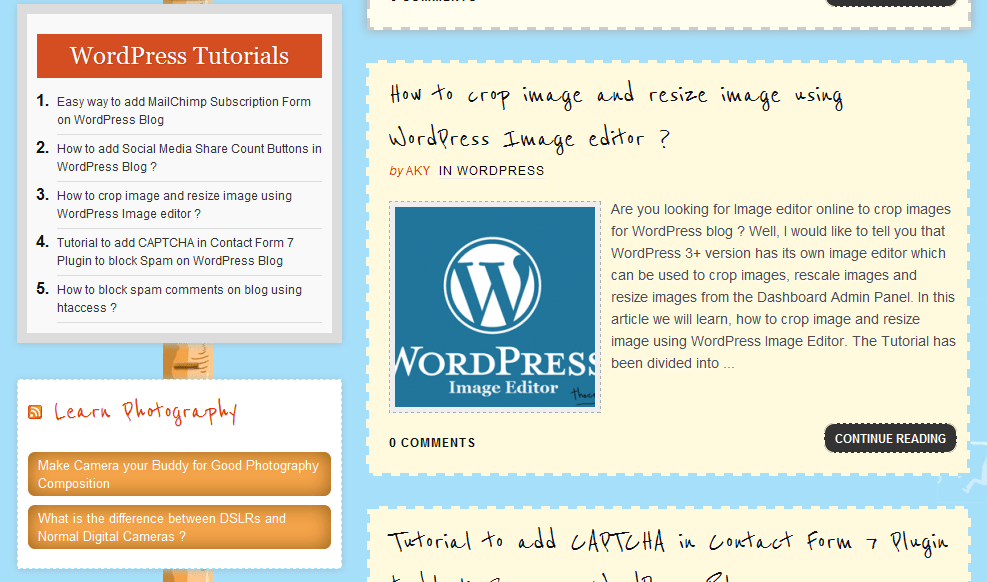
    Couple months back, a blogger friend who is also thecreatology blog follower, requested a Thesis Theme tutorial for styling sidebar widgets. As we all know that sidebar is an important element of blog, where we put advertisements, social media promotions and subscriptions. Hence, by making sidebar widgets eye catchy will increase blog hits and decreases bounce rate. For instance, you can check out the screenshot below (click to enlarge the image):

    thecreatology sidebar widget design
    TheCreatology Widget Styling

    As you can see in the above screenshot, the sidebar is on left side, whereas in most blogs you will find it one on right side. But doesn’t matter if it is on left or right, all what matter is that sidebar should be made eye catchy. In this article you will learn how to style sidebar widget with different color in Thesis Theme.

    Getting Started: Update Thesis Theme

    To make sure that we are sailing on the same ship, I recommend you to update Thesis Theme. Don’t know how to do that ? Well, just refer to article Safely upgrade to latest version Thesis 1.8 ? If you don’t have Thesis Theme Copy then you can also Download Thesis Theme.

    How to style sidebar widget ?

    Thesis Theme is no ghost, so you can always play around with its customization. Customizing sidebar in thesis theme can be done by applying CSS code, rest I leave it on your skills. I know you will not let me down. (Giggle)

    A sidebar may contain different types widgets, for instance a text widget or a recent post list widget and etcetera. So, make sure you analyze your need, before copying the code.

    CSS Code to Style Thesis Sidebar

    Hmm! So we have reached the ammunition, where will not find any armory or magazine, but the CSS code to style sidebar widget. Find the CSS code below:

    Make sure you take full backup of custom.css file using FTP before modifying the original file.

    Sidebar List Widget  CSS Code

    [css]

    .custom .sidebar ul li ul li a{background:#E5ECF9;border: 1px solid #AABCE0;border-radius: 7px; color: #FFF; display: block;font-size: 13px; padding: 4px 10px; margin:2px 0;}

    .custom .sidebar ul li ul li a:hover{background:#D3DCED;}

    [/css]

    Thesis Killer Recent Entries CSS Code

    [css]

    .custom #widget_killer_recent_entries-2{background:#BFE2F2; border:10px solid #77D6FF;}
    .custom #widget_killer_recent_entries-2 h3{padding: 5px 0; margin: 10px 0; font-size: 18px; font-weight: bold; text-align: center; color:#fff;}
    .custom #widget_killer_recent_entries-2 ul { font-size: 14px; font-weight: bold; list-style: decimal; margin: 0 0 0 20px;}
    .custom #widget_killer_recent_entries-2 ul li { border-bottom: 1px solid #ddd;margin: 0; padding: 5px 0;}
    .custom #widget_killer_recent_entries-2 ul li a { color: #333; display:block; font-size: 12px; font-weight: normal; background: transparent; padding: 0;}
    .custom #widget_killer_recent_entries-2 ul li a:hover {color:#e33e00;}

    [/css]

    Did you copy the right code ? This is just to remind you about the code which you analyzed before coming to this step.

    We’re Done!

    After that you have copied the correct code, save custom.css file and upload it on server. And if, you are using custom file editor from your dashboard admin then just hit Big Ass Save Button. Once done, refresh the website and check out sidebar styling and if you are not satisfied then you can play around with CSS code.

    With this we come to the end of tutorial to style sidebar widgets in Thesis Theme. I hope it was easy, if not? you can also hire me to do style sidebar widgets for you. If you have any query or further assistance is required, post your feedback as a comment below.

  • Health Website Design on Thesis WordPress Theme

    Health Website is a clinic dedicated in the treatment of patients to help them improve their health with effective methods and guidance. TheCreatology in partnership with our Project Manager Ms. Imie Belanger was consulted  for the complete redesign of health website and WordPress was best to fit in scenario. Do you Want to know Why you should prefer WordPress for your website ?

    The package included thesis theme design with custom homepage, integrated blog, newsletter subscription. and essential SEO settings. A nature fresh web design was prepared for health website and with few minor changed it got green signal. Website was crafted as per the approved design and soon content was published on it.

    Below you can see a screenshot of the Health WordPress Website:

    Jaconello.com -TheCreatology
    Click to Zoom

    If you want something similar for your health website design, you can either hire me or you can use the contact form below and I will get back to you asap! 😉

  • Tutorial to change Excerpt Length Size of Teaser in Thesis Theme

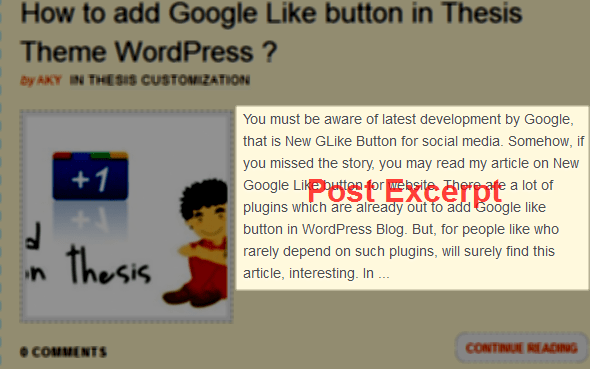
    You must be wondering when Thesis Theme offers great features, why there is no feature to adjust excerpt length on homepage ? Same question knocks my mind too, but I couldn’t find a good reason to it. Instead, I found an alternative to adjust teaser post length and in this article we will learn how to change excerpt length of teaser in thesis theme.

    Change Teaser length in Thesis Theme
    Post Excerpt of Teaser in Thesis Theme

    But before we go ahead with the tutorial, I recommend you to update Thesis Theme. Don’t know how to do that ? Well, it is simple, just refer to article Safely upgrade to latest version Thesis 1.8 ? If you don’t have Thesis Theme Copy then you can also Download Thesis Theme.

    Analogy behind Excerpt Length of Teaser

    One thing I like about customizing WordPress, is its filter feature, with which you can override any default function of WordPress. So, analogy behind adjusting excerpt length is too using WordPress filter and overriding it with another filter with new parameters.

    Change Excerpt Length in Thesis Theme

    To change excerpt length on homepage, add the below code in custom_functions.php in Thesis Theme.

    NOTE: Make sure you take full backup of custom_functions.php file using FTP before modifying it or you can also refer to the article about how to safely edit custom_functions.php

    [php]
    // Teaser Length
    function teaser_length($length) {
    return 70;
    }
    add_filter(‘excerpt_length’, ‘teaser_length’);
    [/php]

    Once you have added above code in custom functions, refresh the website homepage and look for the teaser length. If it doesn’t satisfy you, simply adjust value on line number 3 of above code depending on your need.

    With this we come to end of this simple tutorial where we learned how to adjust excerpt length in Thesis Theme. If you have any query or further assistance is required, post your feedback as comment below.

  • How to add Google Like button in Thesis Theme WordPress ?

    You must be aware of latest development by Google, that is New GLike Button for social media. Somehow, if you missed the story, you may read my article on New Google Like button for website. There are a lot of plugins which are already out to add Google like button in WordPress Blog. But, for people like who rarely depend on such plugins, will surely find this article, interesting. In the following article we will learn to add Google Like button in Thesis Theme WordPress.

    But before we go ahead with the tutorial, I recommend you to update Thesis Theme. Don’t know how to do that ? Well, it is simple, just refer to article Safely upgrade to latest version Thesis 1.8 ? If you don’t have Thesis Theme Copy then you can also Download Thesis Theme.

    Google Like Button for Thesis Theme

    google-like-button-on-thesis theme
    Add Google Like Button On Thesis Theme

    When we talk of the custom coding, there are four variations of Google Like button developed to fit-in every layout of website. Google Like button in Thesis Theme can be added using thesis-hooks, the overriding functions. To show GLike button in single post, simply add  below code snippet in the custom_functions.php.

    NOTE: Make sure you take full backup of custom_functions.php file using FTP before modifying it or you can also refer to the article about how to safely edit custom_functions.php

    [php]

    function joe_adds_glike_btn ()  {
    if (is_single()) { ?>
    <div style="float:right;">
    <script type="text/javascript" src="https://apis.google.com/js/plusone.js"></script>
    <g:plusone></g:plusone>
    </div>
    <div style="clear:both;"></div>
    <?php
    }}
    add_action(‘thesis_hook_before_headline’,’joe_adds_glike_btn’);

    [/php]

    We’re Done

    Once you have added above code in custom functions, you can now refresh your post page, where you will see Google like button in single post similar to screenshot below:

    Google-like-button-on-thesis theme
    Google Like button in Single Post

    For any social media button, I really like this placement and believe me it is effective. Now that we have added Google Like button in Thesis Theme, we are done with the tutorial. If you have any query or further assistance is required, post your feedback as comment below.

  • How to safely edit Custom Functions file in Thesis Theme ?

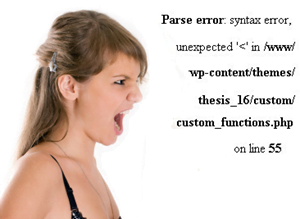
    I have already shared many Thesis Theme Tutorials here, but the most common feedback received is “My website crashed while editing custom functions file, Please help!” which I believe is a Human error. While Acknowledging those comments, sometimes get so redundant and leaving me with no other choice.

    Thesis Custom Function error
    Thesis Custom Function error

    DIY Thesis Theme offers flexibility of customizing to meet your requirements. Editing Custom_Function.php features to customize layout of website and functionality while Custom.css take cares of the look and feel of the website. Custom Functions is very sensitive file of Thesis Theme as any wrong code may result to fatal error, hence crashing your website. In the article we will learn how to safely edit custom_functions.php file in Thesis Theme.

    The tutorial requires updated versions of WordPress and Thesis Theme. If you are using old version of Thesis then you can refer to article Safely upgrade to latest version Thesis 1.8 ?

    Where is Custom Functions file located ?

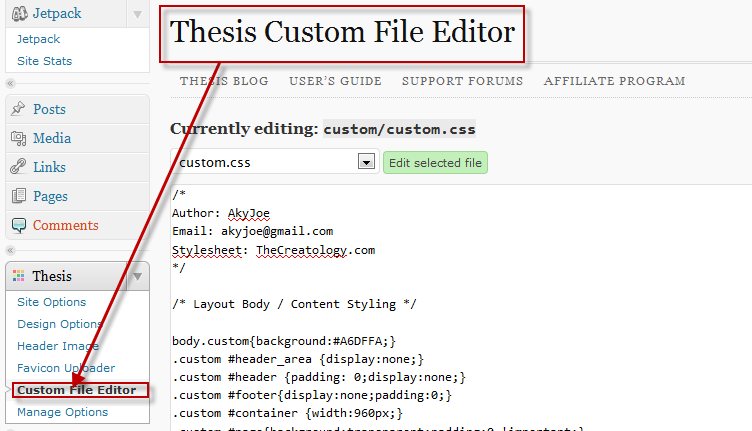
    As mentioned above Thesis Theme is a raw theme and offers flexibility to customize as per your requirements. Custom Functions file is located in Custom Folder of Thesis Theme Directory. You can simply edit custom function file using the Thesis Custom File Editor. Refer to the screenshot below:

    Thesis Custom File Editor
    Thesis Custom File Editor

    How to edit Thesis Custom_Functions.php file ?

    Editing custom functions is easy just like bread-butter with some vegetables and mayonnaise. But if you miss something, it will not taste good, on the complimentary, adding wrong code or missing any operator will lead to fatal error and crashing your website. Below is a handy procedure to safely edit custom functions file:

    • Login to WordPress Dashboard and navigate to Thesis > Custom File Editor.
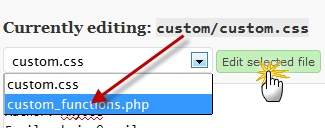
    • In the drop down list under “Current editing text:” Choose custom_functions.php and click Edit Selection button next to it. Refer to screenshot below:
    Edit Custom Functions Thesis
    Edit Custom Functions Thesis
    • After clicking the edit selected button, you will be redirected to edit Custom Function file. Now that was easy, isn’t it ? Play safe. 🙂

    Safely Edit the custom_functions.php

    To be on the safe side, you can refer to below set of points which are regard to avoid common error while editing Custom_Functions.php file.

    • Make sure to take backup of custom folder using FTP before making changes.
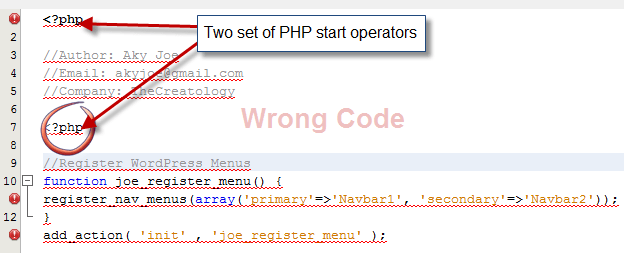
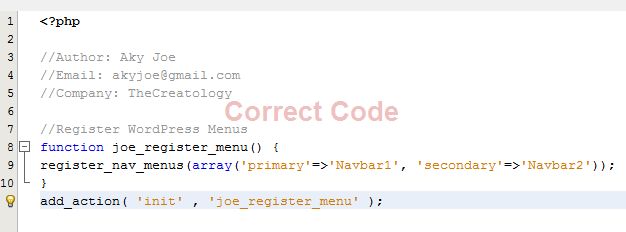
    • Make sure you don’t miss any php operator. Check out the screenshot below:
    Wrong PHP Code
    Wrong PHP Code
    Correct PHP Code
    Correct PHP Code
    • Make sure you don’t use redundant function names or thesis hooks.

    These are some common mistakes which we commit and that you are aware, it can be taken care of. With this, we come to the end of tutorial How to safely edit Custom Functions file in Thesis.

    If you think I missed any point here, you can share here with us by posting a comment below. Sharing knowledge can only make you and me perfect. 😉

  • Auto Blog Website Designed for Steeroids using Thesis Theme on WordPress

    Steeroids is an Auto Blog designed on Thesis Theme powered by WordPress. Steeroids is for Auto enthusiastic people, around NCR and India. The blog covers news and information about Automotive happening, Automotive Reviews, Modified Cars and Latest Trends in Car Industry. The Founder of Steeroids contacted thecreatology for the website design services. The project package included customization of  thesis theme, configuring  social media plugins and other basic SEO settings.

    Automotive blog design reflects sporty and modern touch, so keeping that in mind a rough sketch was prepared. After couple of refinements, blog design was finalized. In the below screenshot you can see Steeroids Blog Design:

    STEEROIDS-auto-blog
    Mockup Design for Steeroids

    Featured Content Slider for auto blog was an extra advantage for showcasing various Car Modifications. Thesis Design options, made everything so easy and less time-consuming and with no further delays, Auto blog thesis skin was developed and published online.

    Click here to visit Steeroids website live in action and let us know your perspective, about the design, by posting a comment below. If you want something similar for your company website design, you can contact us, by filling the contact form below.