Tag: thesis theme customization

  • Style post tags in single post WordPress to decrease bounce rate of blog

    I have already covered few articles to decrease bounce rate of blog, like by creating 404 error pages or styling previous next links in WordPress. In the following article I will explain how beneficial Post Tags are in WordPress and how we can style tags in single posts to decrease bounce rate of blog.

    Why WordPress Tags are useful ?

    TheCreatology Post Tags
    Image Credit: AkyJoe

    Post Tags play a vital role in WordPress as they group similar articles together. Tags works as multiple categories for a blog entry which can be reused in future as an archive of articles. Another reason why I say why WordPress tags are important, is that they describe a visitor, what the article is about.

    How to Style Post Tags in WordPress?

    Usually every WordPress Theme like Thesis Theme has Post Tags enabled in Single Post Entries. You can always style Post Tags using CSS to increase Call to Action. For Instance, you can see the screenshot below, where you can see the post tags in blue.

    TheCreatology Post Styling on WordPress
    TheCreatology Post Styling on WordPress

    Below is the post tags style code which you can add it in style.css or custom.css in case of Thesis Theme.

    Make sure you take backup of style.css or custom.css using FTP, before adding the code in it.

    [css]

    .custom .post_tags a {
    background-color: #e33e00 !important; /*Change Background Color*/
    color: #FFFFFF; /*Change Text Color*/
    line-height: 40px;
    margin: 2px;
    padding: 7px !important;
    text-decoration: none !important;
    }

    [/css]

    The above code is for Thesis Theme Post Tags Styling only. In case of custom WordPress Theme you can simply replace the class according to your Theme. You can play around with the background color and text color, as I have mentioned in the code.

    We’re Done!

    Once you have added the code, refresh on any single post entry to see the effect and you will find something like the screenshot below:

    Style Post Tags for WordPress
    Demo: Post Tags

    WordPress post tags though are optional, but I would recommend people to use WordPress to its best. Winking smile Do you use Post Tags ? Let us know with a simple feedback, by posting comment below.

  • How to add Facebook Send Button in Thesis Theme ?

    You must be aware of latest development from Facebook, that is New Send Button. The Send button allows user to directly share favorite link with friend/s on Email. Recently I explained in the article to add Facebook Send button on WordPress Blog. In the following article we will learn to add Facebook Send Button in Thesis WordPress Theme.

    Facebook Send Button for Thesis Theme

    new-facebook-send-button-on-thesis
    Add Send Button on Thesis

    As we all know about Thesis Theme and its content management with SEO capabilities. Though it is a raw wordpress theme, allowing endless customization for wordpress blog. If you don’t have a copy of Thesis Theme then you can download thesis theme here.  If you are using an old version of Thesis Theme then I recommend you to safely upgrade thesis theme.

    Standalone Send Button in Single Post

    As we all know that Thesis customization is done using thesis hooks which are the overriding functions. To show send button in single post, copy-paste the code snippet in the custom_functions.php.

    Make sure you take full backup of custom_functions.php file using FTP before modifying it.

    [php]
    function joe_adds_send_btn ()  {
    if (is_single()) { ?>
    <div style="float:right; margin:0 10px;">
    <div id="fb-root"></div><script src="http://connect.facebook.net/en_US/all.js#xfbml=1"></script>
    <fb:send href="<?php echo get_permalink(); ?>" font=""></fb:send>
    </div>
    <?php
    }}
    add_action(‘thesis_hook_before_headline’,’joe_adds_send_btn’);
    [/php]

    Facebook Like with Send Button Code

    As mentioned in article add Facebook Send button on WordPress Blog standalone placement for Facebook send button is not that effective. Below is the code to add like with send button in thesis, copy-paste the code snippet in the custom_functions.php.

    Make sure you take full backup of custom_functions.php file using FTP before modifying it.

    [php]
    function joe_adds_send_btn ()  {
    if (is_single()) { ?>
    <div style="float:right; margin:0 10px;">
    <div id="fb-root"></div><script src="http://connect.facebook.net/en_US/all.js#xfbml=1"></script>
    <fb:like href="<?php echo get_permalink(); ?>" send="true" layout="button_count" width="300" show_faces="true" font=""></fb:like></div>
    <?php
    }}
    add_action(‘thesis_hook_before_headline’,’joe_adds_send_btn’);
    [/php]

    We’re Done

    Once we have added the code, now you can refresh any single page entry and you will find it similar to screenshot below:

    Facebook Send button on Thesis
    Facebook Send Button Demo on Single Post

    You can now test the new facebook send button on your Thesis Theme, like playing with different hooks in Thesis Theme and let us know your opinion, which placement is effective for facebook send button, by posting a comment below.

  • How to add Pagination in WordPress Blog using Thesis Theme

    Does your blog show Previous-Next Links on home page ? The reason behind the question is the missing swift feature on blog. As we know that, Previous-Next links in Thesis Theme is less prominent, hence they increase bounce rate and pagination is not that effective too. In my previous article, I mentioned about how we can Style Previous Next Links in WordPress to decrease bounce rate. In the following article we will learn to add Pagination on blog to increase efficient paging.

    how to add pagination in wordpress blog
    Efficient Paging

    How to add Pagination in WordPress Blog ?

    Pagination adds an advantage in a blog as making smart navigation on website. In this article we will use WordPress Plugin WP-PageNavi to add pagination on WordPress. But, before we proceed to add pagination in Thesis Theme,  I recommend you to safely upgrade thesis theme.

    Below is a simple 2-Step procedure to add Pagnavi in WordPress blog:

    Step 1: Install PageNavi Plugin

    • Navigate to WordPress Admin Panel > Plugins > Add New.
    • Search for plugin “wp-pagenavi” and install the plugin. Or you can also download the plugin here.
    • Once the plugin is installed, activate it.

    Step 2: Add PageNavi in Thesis Theme

    In order to add pagination on blog page, edit custom_functions.php file and copy-paste the below code snippet.

    Make sure you take full backup of custom_functions.php file using FTP before modifying it.

    [php]

    // Page Navigation
    function joe_adds_page_navi(){
    if (!is_single() && !is_page()){ ?>
    <div id="pagenavi"><?php if(function_exists(‘wp_pagenavi’)) { wp_pagenavi(); } ?></div>
    <?php }}
    add_action(‘thesis_hook_after_content’,’joe_adds_page_navi’);

    [/php]

    We Are Done!

    After adding the code, we are done with the adding pagination to blog page. Once done, refresh the blog page and you will find it similar to screenshot below.

    pagination demo screenshot
    Page Navigation Demo

    Thesis WordPress is a great theme and adding Pagination, just makes it perfect. It is believed that the next version of Thesis Theme will have Pagination preinstalled. Since there is no exact date when it will going to happen, but by that time we can add Pagination manually to Thesis Theme.

    If you have any query or any further assistance is required, you can post comment as your feedback.

  • Community Website Redesign using Thesis Theme WordPress

    A community website consists of photo galleries, events, newsletter subscriptions and blog.  To make website efficient & productive, TheCreatology in partnership with our Project Manager Ms. Imie Belanger was contacted for designing community website using Thesis Theme with SEO advantage. The package included customizing thesis theme, featured content slider and other essential SEO settings.

    Website was redesigned as per the approved mockup and thereafter was developed and made live. Few references like Thesis Design options and Featured Content Slider for Thesis Theme made it look easy and quite knowledgeable too.

    Below you can see a screenshot of the Community Website:

    PIDCToronto-Screenshot
    Click to Zoom

    If you want something similar for your community website design, you can either hire me or you can use the contact form below and I will get back to you asap!

  • Style Previous Next Links in WordPress to decrease bounce rate

    Everyone is digging deep for blogs tips and WordPress tutorials, on internet, to improve blog performance and efficiency. Most of the Search engine traffic, lands on Single Post of blog and mostly a visitor escapes, if it couldn’t find anything relevance after reading the article. This is annoying for a blogger as it increases Bounce Rate of blog.

    Bounce-Rate-TheCreatology
    Bounce Rate

    In my previous article I explained about how 404 error page helps to decrease bounce rate. But, as mentioned above, that the search engine traffic redirects visitors on single page entries of the blog, hence by styling single post entry will lower bounce rate of blog. In the article we will learn to style Previous Next Links in Thesis Theme. Previous-Next Links adds single post entry pages a navigation so that flow of reading is not affected.

    Previous-Next-Single-Post-Tutorial
    Previous Next Post Links

    Previous Next Links in Thesis Theme

    In thesis theme design options allows to enable and disable previous next on single entry pages. Since in this article we are manually customizing previous next links so we will be using Thesis Hook to configure it. But before we proceed further I recommend you to safely upgrade thesis theme.

    Below is a simple procedure to add and style previous next post in WordPress.

    Add Previous Next Links in WordPress

    In order to add custom previous next links in single entry pages, edit custom_functions.php file and copy-paste the below code snippet.

    Make sure you take full backup of custom_functions.php file using FTP before modifying it.

    [php]
    //Author: AkyJoe
    // Custom Previous Next Links
    function show_previous_next_links() {
    if (is_single()) { ?>
    <div id="prev-next">
    <div class="previous-post"><?php previous_post_link(‘%link’, ‘Previous Post’, TRUE); ?></div>
    <div class="next-post"><?php next_post_link(‘%link’, ‘Next Post’, TRUE); ?></div>
    <div style="clear:both;"></div>
    </div>
    <?php } }
    add_action(‘thesis_hook_after_post’, ‘show_previous_next_links’);
    [/php]

    Style Previous Next Links on Single Post

    Now as we have added the previous next links using the Thesis Hook in single entry page, but in order to make it eye catchy and prominent, we will have to style it by adding the below CSS code snippet in custom.css file.

    [css]
    /*Previous Next Post*/
    #prev-next{font-size:40px; font-family:Arial;border-top: 2px dotted #EEE;}
    #prev-next a{color:#5d9800; display:block;}
    #prev-next a:hover{ text-decoration:underline;}
    .previous-post{background:url(‘images/previous-post-arrow.png’) no-repeat left center; float:left; padding:30px 0 30px 70px;}
    .next-post{background:url(‘images/next-post-arrow.png’) no-repeat right center;float:right; padding:30px 70px 30px 0;}
    [/css]

    Add Image to Previous Next Links

    To make the navigation look more prominent, we can add the below images. Download the images and save upload them under the Thesis Theme custom/images folder.

    next-post-arrow previous-post-arrow

    We Are Done!

    After adding the code and the images, we are done with the styling of next previous links. Once done, refresh any single entry post and you will find it similar to screenshot below.

    Previous-Next-Single-Post-Tutorial
    Final Output: Previous Next Links

    Here we come to the end of this tutorial, where we learned to Style Previous Next Links in WordPress. If you have any query or any assistance is required, feel free to post comment as your feedback.

  • Advertising Website Design using Thesis Theme on WordPress

    Advertisement Website has an amazing portfolio work, crafted for many other company brands. TheCreatology in partnership with our Project Manager Ms. Imie Belanger was contacted for the redesign of advertisement website using thesis theme. The package included customizing thesis theme, featured content slider and essential SEO settings.

    As mentioned above the company has portfolio work which they wanted to showcase on homepage. Mockup for the advertising website design was prepared and soon was approved by the client. In no time, website was redesigned as per the prototype and thereafter was published online. Few references like Ease with Thesis Design options, Scrolling Text in Header and Featured Content Slider for Thesis Theme made it look easy and the project was wrapped very soon.

    Below you can see a screenshot of the Advertising Website Design:

    toronto-advertising-website-design-thesis
    Advertising Website Design

    If you want something similar for your advertisement website design, you can either hire me or you can use the contact form below and I will get back to you asap!

  • Add featured content slider to showcase Portfolio Work in Thesis Theme

    In my recent work on advertising website design, client being a flyer designer had an amazing portfolio on automotive flyer design. In order to show portfolio work, client demanded for a presentation or a slide show of work on landing page. A featured content slider was added on the homepage using thesis theme. A screenshot below will clear you about the featured content slider.

    Featured content slider in Thesis Theme
    Featured Slider on Client Site

    Featured content slider uses JavaScript which takes your blog to next level along with SEO advantage. In this article, we will learn to add image slider in wordpress thesis theme. But before we proceed with this article I recommend you to safely upgrade thesis theme.

    Step 1: Add Content Slider Plugin in WordPress

    In order to add featured slider in wordpress we will have to install a plugin. Below is a simple procedure to add slider plugin:

    • Login to Dashboard Admin of WordPress site.
    • Navigate to Plugins > Add new Plugin.
    • Type “Content Slide Plugin” in search box and click on the submit button.
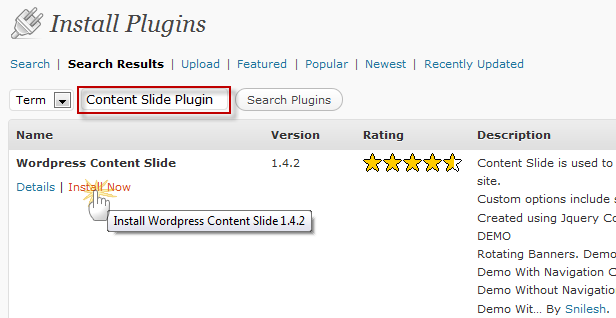
    • In the listed result, click Install Now link under WordPress Content Slide Plugin by Snilesh. (Refer to the screenshot below)
    Step1-Add Featured content slider in Thesis Theme
    Step 1: Install Plugin
    • Install the plugin by clicking on install link underneath it and further Activate it.

    Step 2: Configure Content Slider Settings

    On activating the plugin, a left pane menu item “Content Slide” is added. In order to customize content slider, we will have to configure its settings for width height and content. Below is a simple procedure to configure slider.

    • Navigate to Dashboard > Content Slide.
    • Content Slide options are divided into three sections General Settings, Effects & Animation Settings and Image Source Settings.
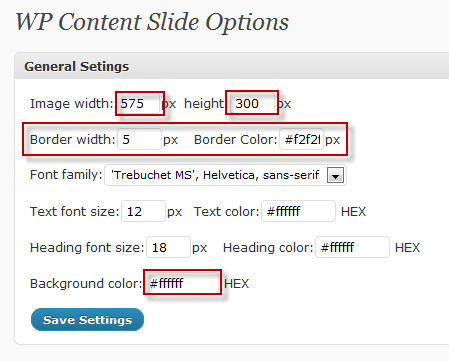
    • General Settings for content slider can be configured by referring the screenshot below:
    Step2-1-Configure Featured content slider in Thesis Theme
    Step 2: General Settings
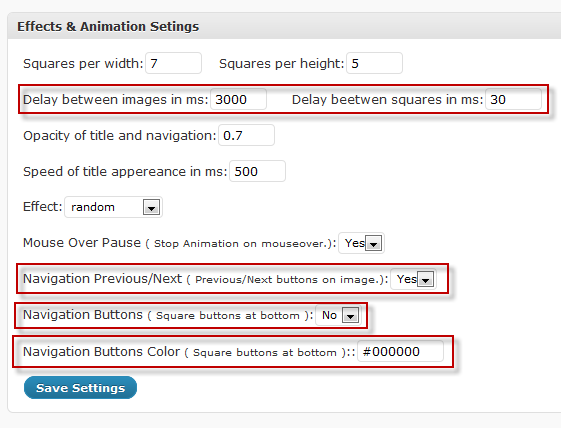
    • Effect & Animation Settings can be configured by referring the screenshot below:
    Step2-2-Configure Featured content slider in Thesis Theme
    Step 2: Effect & Animation Settings
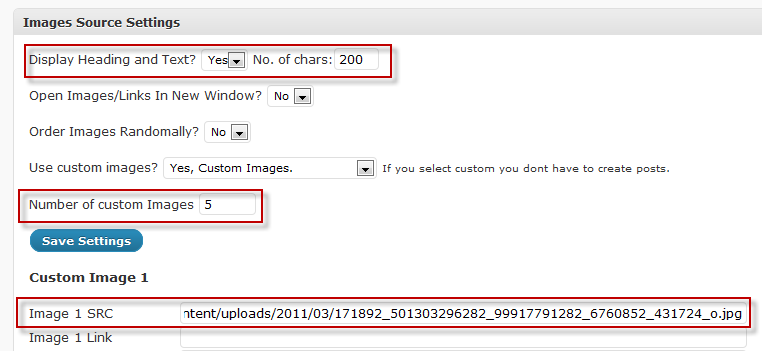
    • Image Source Settings can be configured by referring the screenshot below:
    Step2-3-Configure Featured content slider in Thesis Theme
    Step 2: Image Source Settings
    • Once you are done with the settings click the update button to save the configurations.

    Step 3: Show Featured Slider in Thesis Theme

    Now that we are done with the configuration of featured slider, we are left with to display slider on homepage template. Copy-paste the code snippet in the custom_functions.php, below:

    Make sure you take full backup of custom_functions.php file using FTP before modifying it.

    [php]
    //Author: AkyJoe
    //Email: akyjoe@gmail.com
    function content_slider() {
    if (is_home())
    { ?&gt;
    &lt;div id=&quot;slider&quot;&gt;&lt;?php if(function_exists(‘wp_content_slider’)) { wp_content_slider(); } ?&gt;
    &lt;/div&gt;
    &lt;?php }
    }
    add_action(‘thesis_hook_before_content’, ‘content_slider’);
    [/php]

    We are Done!

    Now, that we have added the code, you can refresh the website and see the slider in homepage. If you find the slider not adjusting the layout, you can repeat Step 2, above to change width, height and color settings for slider, till you are satisfied.

    We  come to the end of this tutorial to add featured content slider in thesis theme. If you have any query or further assistance is required, post comment below as your feedback.

  • Add Author Bio below single post in Thesis WordPress Theme

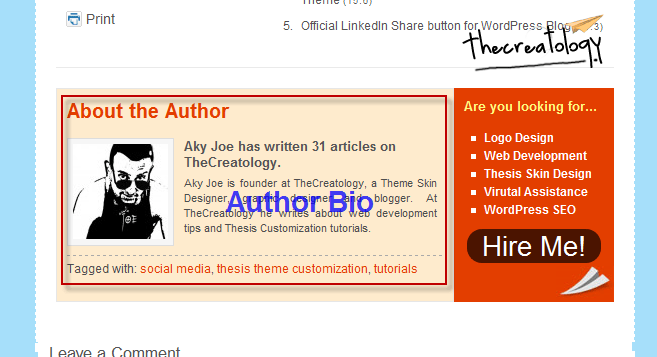
    With the increasing number of people writing articles on web, blogs are working hard to present them in best way. Being a blogger, I always get excited when I see my name published on web, for instance, a short bio explaining about you after each article you publish. By Blogs presenting its Author, I mean that a self-respect, delights a blogger and make them more enthusiastic towards their blogging. This is can be done, by adding an image of the author add adding a short bio about author, like you can see in the screenshot below.

    Author Bio example TheCreatology
    Author Bio on TheCreatology

    In this article we will learn to add author bio in Thesis Theme. As we all know about the DIY thesis theme and its SEO optimization and design customizations. Thesis being a simple wordpress theme, is incomplete with few options like  Author Bio, share buttons, etc. But since thesis theme does allows customization, so we will add author bio after post on wordpress blog. But before we proceed with this article I recommend you to safely upgrade thesis theme.

    Author BIO after post in Thesis

    As we are know that Thesis customization is done using thesis hooks which are overriding functions. To show author bio in single post, copy-paste the code snippet in the custom_functions.php.

    Make sure you take full backup of custom_functions.php file using FTP before modifying it.

    [php]
    //Author: AkyJoe
    //Email: akyjoe@gmail.com

    function add_author_bio() {
    if (is_single())
    { ?>
    <div class="postauthor">
    <?php echo get_avatar( get_the_author_id() , 120 ); ?>
    <h4>Article by <a href="<?php the_author_url(); ?>">
    <?php the_author_firstname(); ?> <?php the_author_lastname(); ?></a></h4>
    <p><?php the_author_firstname(); ?> has written <strong><?php the_author_posts(); ?></strong>  articles for us. <br/><br/><?php the_author_description(); ?></p>
    </div>
    <?php }
    }
    add_action(‘thesis_hook_after_post_box’, ‘add_author_bio’);

    [/php]

    • Now that we have added the author bio code, next we will have to style author bio by CSS code.
    • Navigate to Thesis > Custom File Editor, select custom.css file and copy paste the below code snippet very carefully in Custom.CSS file.

    [css]

    .postauthor {background: #F5F5F5; border-top: 1px solid #e1e1e0; border-bottom: 1px solid #e1e1e0; overflow: hidden; padding: 1.5em; }
    .postauthor img { border: 5px solid #e2dede; float: left; margin-right: 1.5em; }
    .postauthor h4 { color: #666; font-size: 2em; margin-bottom: 5px; }
    .postauthor p { color: #515151; font-size: 13px; margin-bottom: 12px; }

    [/css]

    • Above code will style author bio for single post and you can change color of box background and font color accordingly in the above code to match the theme.
    • Now, that we have added the code, you can refresh the website and see the author bio after post detailed page.

    I’m sure by adding author bio in single post, will increase blog rating and a check plus to boost your author’s enthusiasm. Do let us know the after effects of adding Author Bio in your blog, by a simple feedback.

    If you have any query or further assistance is required, then you can post comment below.

  • How to add facebook like button on post page in Thesis Theme ?

    I have already mentioned about facebook like button for wordpress and in this article we will learn to add like button in thesis theme.

    thesis-theme-facebook-like-button
    Get Thesis Theme Now

    As we all know about Thesis Theme and its content management as well SEO capabilities. Though it is a simple wordpress theme allowing endless customization for wordpress blog. If you don’t have a copy of Thesis Theme then you can download thesis theme here.  If you are using an old version of Thesis Theme then I recommend you to safely upgrade thesis theme.

    Add Facebook Like button in Single post

    As we all know that Thesis customization is done using thesis hooks which are overriding functions. To show like button in single post, copy-paste the code snippet in the custom_functions.php.

    Make sure you take full backup of custom_functions.php file using FTP before modifying it.

    [php]

    function joe_adds_like_btn ()  {
    if (is_single()) { ?>
    <div style="float:right; margin:0 10px;">
    <iframe src="http://www.facebook.com/plugins/like.php?href=<?php echo urlencode(get_permalink($post->ID));?>&amp;layout=button_count&amp;show_faces=false&amp;width=90&amp;action=like&amp;colorscheme=light" scrolling="no" frameborder="0" allowTransparency="true" style="border:none; overflow:hidden; width:90px; height:25px;"></iframe>
    </div>
    <?php
    }}
    add_action(‘thesis_hook_before_headline’,’joe_adds_like_btn’);

    [/php]

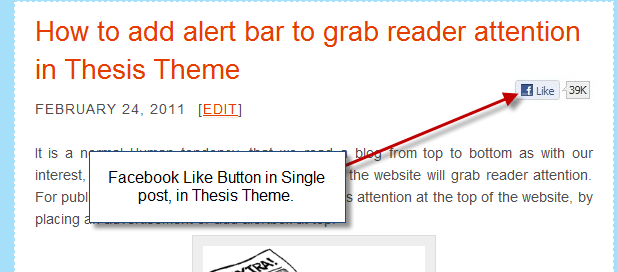
    Save the custom_functions.php file, once you are done adding the above code. Now upload the edited file on server using ftp client and when you will refresh website, you will find something like in screenshot below.

    add-facebook-like-button-in-single-post-thesis-theme
    Facebook Like button on Single Post

    As we have added facebook like button in thesis theme, we come to the end of this article. If you have any queries then you can post comment below as your feedback.

  • How to add tweetmeme button on post page in Thesis Theme ?

    I have already mentioned about twitter share count button for wordpress and in this article we will learn to add twitter button in thesis theme.

    thesis-theme-twitter-button
    Get Thesis Theme Now

    As we know that Thesis Theme is capable of content management and efficient SEO. Though it is a raw wordpress theme but it allows endless customization for your blog. If you don’t have a copy of Thesis Theme then you can download thesis theme here.  If you are using an old version of Thesis Theme then I recommend you to safely upgrade thesis theme.

    Add Twitter button in Single post

    As we are know that Thesis customization is done using thesis hooks which are overriding functions. To show twitter button in single post, copy-paste the code snippet in the custom_functions.php.

    Make sure you take full backup of custom_functions.php file using FTP before modifying it.

    [php]

    function joe_adds_twitter_btn ()  {
    if (is_single()) { ?>
    <div style="float:right; margin:0 10px;"><script type="text/javascript">tweetmeme_source = ‘thecreatology’;</script>
    <script type="text/javascript" src="http://tweetmeme.com/i/scripts/button.js"></script></div>

    <?php
    }
    }
    add_action(‘thesis_hook_before_headline’,’joe_adds_twitter_btn’);

    [/php]

    Note: Change the ‘twittermeme_source’ which will be your twitter username, in above code.

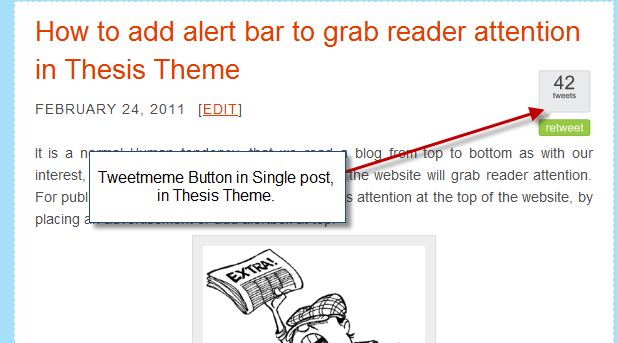
    Save the custom_functions.php file, once you are done adding the above code. Now upload the edited file on server using ftp client and when you will refresh website, you will find something like in screenshot below.

    add-twitter-button-in-single-post-thesis-theme
    Twitter Share button in Single Post

    As we have added twitter button in thesis theme, we come to the end of this article. If you have any queries then you can post comment below as your feedback.