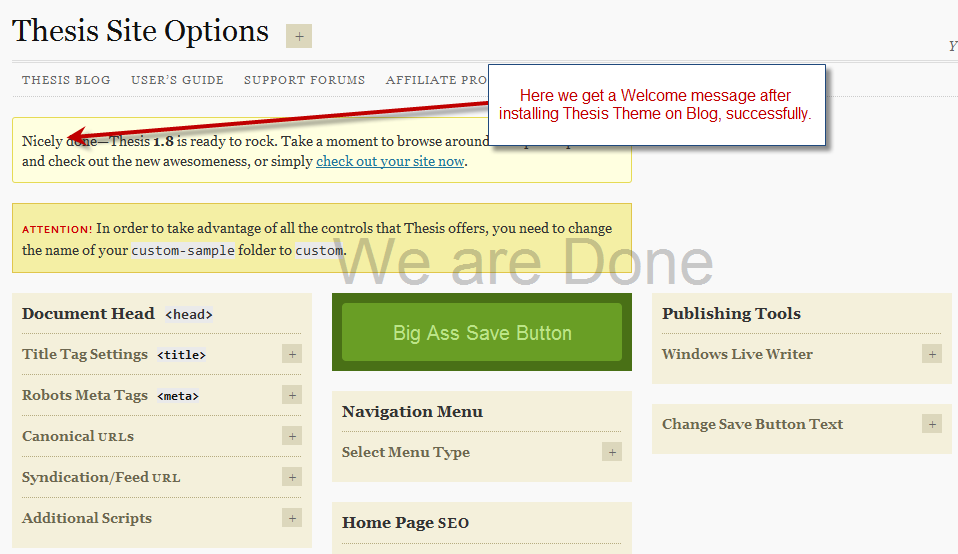
Thesis v1.8 is so far the best version up till now and waiting for the next update of thesis theme, that is Thesis v2.0. If you haven’t bought the copy of Thesis yet, click on the link here to Download Thesis Theme.
About thesis wordpress theme, great SEO and flexibility is not all, Thesis has a lot of inbuilt design options panel for enhancing the typography as well as the layout of the blog. In this article, I will give you a quick overview of the Thesis WordPress Theme Design options panel. Thesis Design options are sorted into different sections like layout, typography, Scripts and other Miscellaneous options. You can also refer to the screen shot below:
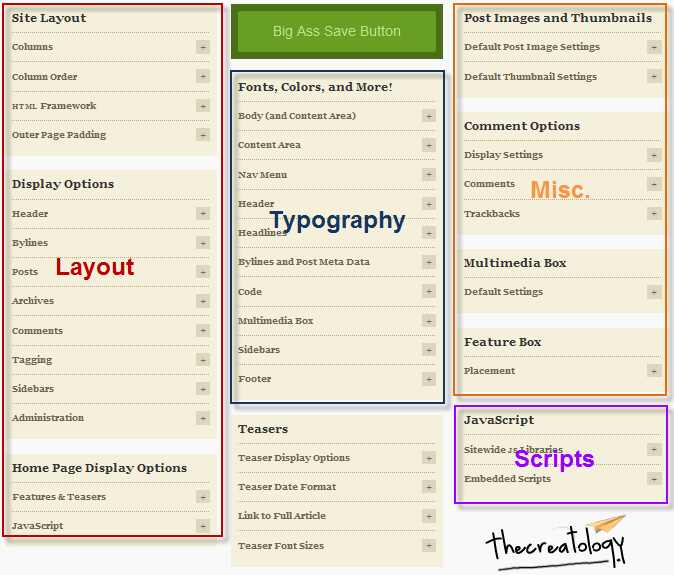
Thesis theme design options panel will ease you in organizing the website content in an efficient way. Here under, I will explain you about the Layout, Typography, Scripts and Misc. options.
Layout
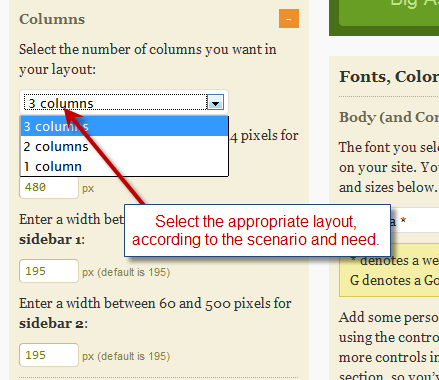
Layout of the website is what matters the most, and it depends upon the nature of the website. For instance a 3 column layout website is effective where there is more of content to be published, like a magazine style WordPress theme has. Thesis Theme has an option to switch between 3-column, 2-column or 1-column. Below is a screenshot which shows the layout selection in Thesis Theme.
Typography
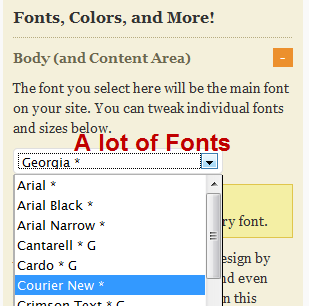
Fonts play a vital role in presentation of the content on website. Thesis Theme has variety of options to enhance and customize Typography of a blog. There are a lot of fonts, comprising the Gothic, Typewriter, Old english style etc… We can also vary the different fonts in different parts of the website, for instance assigning Arial to Navigation Menu, Georgia to Post Title and Verdana to Body content. Below is a screenshot for selecting the fonts in thesis theme.
Scripts
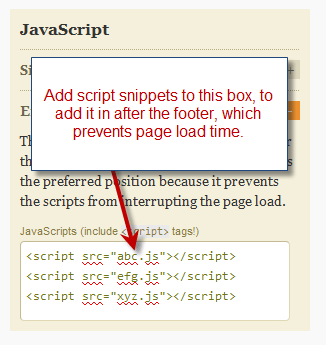
Everyone of us are aware of JavaScript and jQuery codes which enhances the usability of the websites. There is a drawback of using these scripts as they take time to load in browser depending upon the network and system. Usually scripts snippets were added in header which on parsing by browser increases load time of the website. Yet another benefit of Thesis Theme is that it allows you add scripts in a preferred position, so that it doesn’t affect the page load time. Refer to the screenshot below:
Miscellaneous
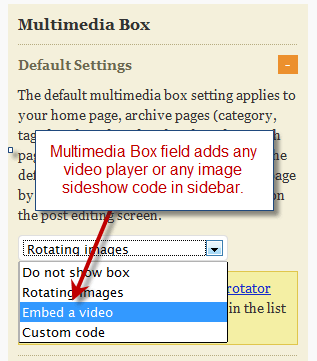
A website is incomplete without multimedia presentation or a content slider or may be a video in it. Thesis Theme has a multimedia box widget for sidebar, which can embed video player, image sideshow or any other multimedia content. It also has a custom code option in the list, which can add any code snippet likely a flash or a Javascript. Refer the screenshot below:
There are still a lot of options in Thesis Design Options, as I chose to brief you about essential ones. I will summarize the essential points discussed above for the ease of Thesis WordPress Theme Design options panel, before ending this article.
Summary of Thesis Design options:
- Select Layout Option depending upon the need (3-column, 2-column or 1-column).
- Select fonts and vary fonts in different parts of website to enhance Typography.
- Add code snippet in order to prevent page load time.
- Add multimedia content for effective presentation in website.
For any queries or assistance required, post comment as your feedback. If your WordPress blog is currently using a custom theme, then you can also redesign it using the Thesis Theme Services.