How to auto generate thumbnail in Thesis Theme without Plugin

Written by

in

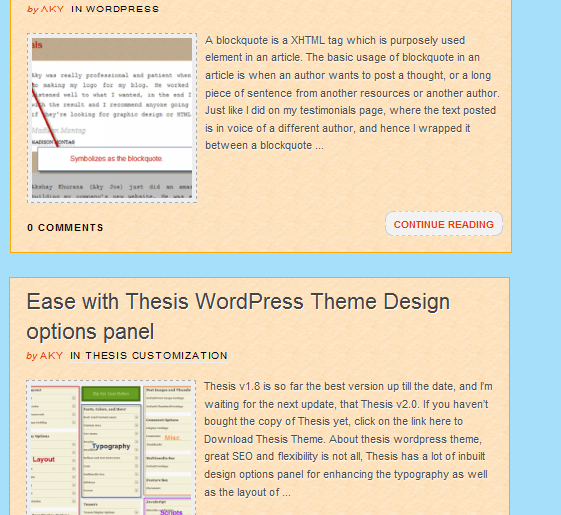
A Thumbnail on a blog page makes it alive and increase more visits on articles.
add-thumbnail-thesis-theme-thecreatology
Thumbnail Preview on Blog Page

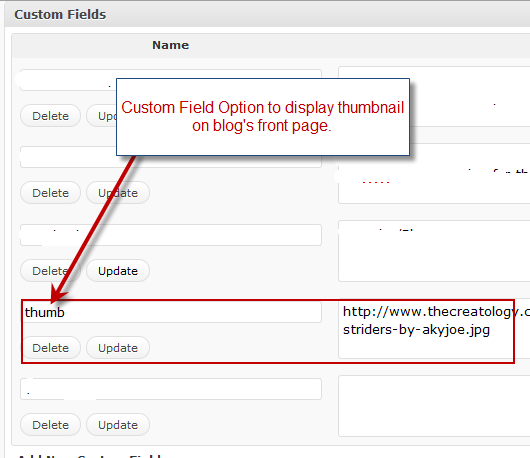
Some premium themes features to add thumbnail using the custom field, like in Thesis WordPress theme you can customize a thumbnail and add it on blog page. But, custom field option can be complicated and time consuming process from bloggers.
add-thumbnail-thesis-theme-custom-field
Custom Field Option in themes

At present, most of the blogs are using plugins like thumbnail-for-excerpts to show thumbnail on front page, which saves time & complexity. But the only issue I find using plugins is that it increases more of php calls, hence increasing server load and slow page loading. This post will guide to auto generate thumbnail in Thesis Theme without using any Plugin or custom fields.

This article is only for blogs using Thesis WordPress theme, and if you are interested in thesis theme you can Download Thesis Theme here.

The analogy behind the tutorial will integrate a function to get the first image from the post content, and further that image will be resized using the TimThumb open source script, to generate a thumbnail. Below is the procedure in detail to add thumbnails in Thesis Theme without Plugin:

Step 1: Get TimThumb.php open source script

TimThumb.php is an open source script and you can download it and place it in the custom folder of the Thesis theme directory. You can also open the script in the web browser and copy-paste the code in a text file and save is as TimThumb.php

Step 2: Add code in Custom_Functions.php

Once we have placed the TimThumb.php file, we now have to add code in custom_functions.php file located in custom folder. The code is divided in to two sets of functions. One will get the first image from the content, and will be initialized using init function to invoke default values. Other part contains code to show Thumbnail before post.

Code to get first image from the content:

[php]

//Get Image Function
function get_image_joe(){
global $post, $posts;
$first_img = ”;
ob_start();
ob_end_clean();
$output = preg_match_all(‘/<img.+src=[\’"]([^\’"]+)[\’"].*>/i’, $post->post_content, $matches);
$first_img = $matches [1] [0];
if(empty($first_img))
{     //Default Image Path
return $first_img= "/images/default.jpg";
}
else
{
return $first_img;
}
}
add_action(‘init’, ‘get_image_joe’);

[/php]

Code to show thumbnail before post:

[php]

//Auto Generate Thumbnail
function auto_thumb_joe(){?>
<?php if(!is_single() || !is_page()){?>
<div class="thumbnail">
<?php $values = get_post_custom_values("thesis_thumb");
if ($values) { ?>
<a href="<?php the_permalink() ?>" title="Click to read more on<?php the_title(); ?>"><img alt="<?php the_title(); ?>" src="<?php $values = get_post_custom_values("thesis_thumb"); echo $values[0]; ?>" /></a>
<?php }
else {?>
<a href="<?php the_permalink() ?>" title="Click to read more on<?php the_title(); ?>" ><img src="<?php bloginfo(‘template_directory’); ?>/custom/scripts/timthumb.php?src=<?php echo get_image_joe(); ?>&h=150&w=150&zc=1" alt="<?php the_title(); ?>" width="150" height="150" /></a>
<?php }?>
</div>
<?php }}
add_action(‘thesis_hook_before_teaser’,’auto_thumb_joe’);

[/php]

Place the above code in custom_functions.php file in Thesis folder make sure you do it precisely, else it might crash your access to WordPress Dashboard.

In above code you can specify width and height of the image as well according to your requirement, for instance I have specified 150 x 150 as a standard thumbnail size.

Step 3: Thumbnail CSS Styling

Everything needs a finishing touch, and here we do it by adding some styling to the thumbnail generated. Below is the code which will float thumbnail on left of the content excerpt. If you want the thumbnail to float on right, you can simply change the below code with float property. Here is the CSS code:

[css]

.thumbnail {
float:left;
background:#EEE;
border: 1px dashed #aaa;
margin: 3px 10px 0 20px;
padding: 5px;
}

[/css]

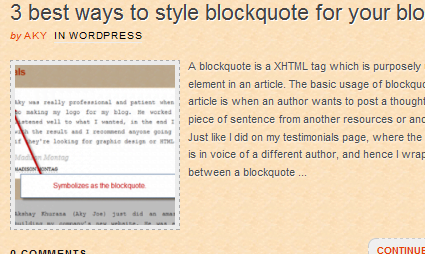
Place the code in the custom.css file located in custom folder of Thesis theme directory, and refresh to result something like this in the screenshot below:
add-thumbnail-thesis-theme
Auto Generated Thumbnail Demo

With this we come to end of this tutorial, with no more pain uploading images or depending upon the plugins. If you have any query or require any further assistance, post your feedback as comments below.

If your WordPress blog is currently using a custom theme, then you can redesign it using the Thesis Theme Services.

Comments

22 responses to “How to auto generate thumbnail in Thesis Theme without Plugin”

  1. ed avatar
    ed

    hey,
    thank a lot for article. Unfortunatelly got error ”
    Parse error: syntax error, unexpected T_RETURN in /home/xxxxxxx/domains/domain.com/public_html/wp-content/themes/ww/custom/custom_functions.php on line 18″ and all system crashed. Do you think its because of timthumb on server or something else? tried to set permissions 777 on script,place it different foldersbut none helped 🙁

    1. Aky avatar

      Hey Ed,

      I appreciated your praise regarding the article. I would like to tell you that, this is a syntax error, hence you will have to look-up in your custom_functions.php file on line number 18, for missing operator, or statement.

      If problem persists, you contact me using the contact form below with the code snippet you are using in custom_functions.php

      Cheers! 😉

  2. Brian Robinson avatar
    Brian Robinson

    I use godaddy hosting and I can’t using timthumb.php , how can i resolve it ?

    1. Aky avatar

      Well, timthumb generates new thumbnail files on server, hence most of the hosting server blacklist such files. So in order to get it working, you will have to ask your hosting (GoDaddy) to whitelist timthumb file.

      Refer: http://www.thecreatology.com/unable-to-generate-thumbnail-using-timthumb-issue-with-hostgator.html

  3. Karri Avinash avatar
    Karri Avinash

    Hi,
    I did exactly the same with Thesis 1.8.3. But the thumbnail previews are not showing as intended on my site.
    My site is windows7port.com Please suggest!

    1. Aky avatar

      Greetings!
      It seem you are using Featured Teasers on your website.Disable it by Navigating to Design Options and select ‘0’ in drop down list under Featured Teasers. I hope that works! 😉

      1. Karri Avinash avatar
        Karri Avinash

        Hi,
        Thanks for the response. But your suggestion didn’t help. Actually, for featured posts to be there , it should be kept max ( for me 10). How can i make this workout?

        1. Aky avatar

          Thesis Hook used in above tutorial can be implemented only on Normal Teasers and not on Featured Teaser. Though you will have to add extra css code to make a normal teaser look like featured teaser.

  4. Marcelo avatar
    Marcelo

    Aky,
    The code has an error.
    On the second snippet you call (on line 10) to “echo joe_auto_thumb();”. There you need to change that to “get_image_joe();” or rename the function on snippet 1 to joe_auto_thumb
    Hope this helps!

    1. Aky avatar

      Appreciate your kind concern, the code has been revised now. Cheers! 🙂

  5. Ehmud avatar
    Ehmud

    very useful code, I have been searching it for long. I used the code but getting little error, can you help me please? Image box appears with teasers but image does not appear. Please have look at blogearnt.com

    1. Aky Joe avatar

      Dude, it seem timthumb.php file location hasn’t been specified correctly on line number 10 to show thumbnail before post. Thumbnail will be generated, once timbthumb file is executed on the server.

      Hope this resolves the issue for you. 😉

      1. Ehmud avatar
        Ehmud

        Thanks a lot 🙂
        Done with it…

  6. Slide avatar
    Slide

    Hi Aky

    Thanks for useful article. It works, but I have one problem:

    How to prevent showing the thumbnail boxes for posts that don’t have images?

  7. sebastianus avatar
    sebastianus

    Hi,
    Thanks, this is really great. However, my thumbnail does not appear perfectly. I can see the imgae space there, but no real image shown.
    Please help on what is the issue here.

    Thanks

  8. Ernest avatar
    Ernest

    Thank you very much ! 🙂
    With some corrections in file paths it works perfect !

  9. Derleit avatar
    Derleit

    How can i do this in thesis 2.0? I dont have theme custom i need to create one?

    1. Aky Joe avatar

      [First]You will have to prepare a custom hook using skin editor. [Second] Place the above code in custom.php in accordance to the newly created hook.

  10. huy avatar
    huy

    I use thesis 1.8.5+market delight 2.1
    I ‘ve done all tutorials but it doesn’t show
    my website is kiemtientientrenmang.info
    would you please help me ?
    Thanks

  11. TL Movement avatar
    TL Movement

    Ran across your blog through http://www.thecreatology.com/how-to-auto-generate-thumbnail-in-thesis-theme-without-plugin.
    html. Do you have any kind of advice on methods to get indexed on http://www.
    thecreatology.com/how-to-auto-generate-thumbnail-in-thesis-theme-without-plugin.
    html? I’ve been trying to for a while but I never seem to make it. Appreciate it

    1. Aky Joe avatar

      [Advice 1]: Optimize your website as per the Search Engine Standards.
      [Advice 2]: Use Search engine guidelines to index your website.
      [Advice 3]: Hire Us for Miscellaneous services.

  12. Lesatkan avatar
    Lesatkan

    Thanks :). worked for me ;D 😀
    old but gold..

Leave a Reply

Your email address will not be published. Required fields are marked *