How to increase upload media file size limit in WordPress

Written by

in

Are you unable to upload media file in wordpress ? Well, you don’t have to worry about this common limitation set by wordpress. Usually, upload file size error occur when we try to upload a heavy file like a video, or a PDF file, or any other media, exceeding the upload file limit. WordPress throws an exception saying “This file exceeds the maximum upload size for this site”, a similar can be seen in screenshot below.
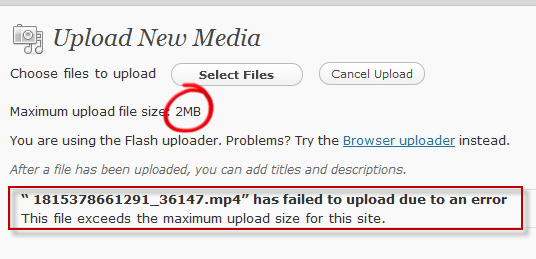
Error increase upload media file size limit in WordPress
Error Media file size exceeds limit

For different web hosting like hostgator or bluehost , WordPress sets different upload file size limit depending upon the PHP configuration on server. For instance, hostgator sets the default limit to 64MB. But there are many more web hosting, which set default limit to only 2MB. In this article we will learn to increase upload media file size limit in wordpress.

How to increase file upload limit in wordpress?

  • Login to CPanel of your website hosting, for instance hostgator or bluehost etc…
  • Navigate to /public_html/wp-admin using the file manager.
  • In the wp-admin directory look for php.ini file and if found then right-click to edit php.ini file in text editor. But if not found, then create a new file and name it as “php.ini” and then open it in the code editor.
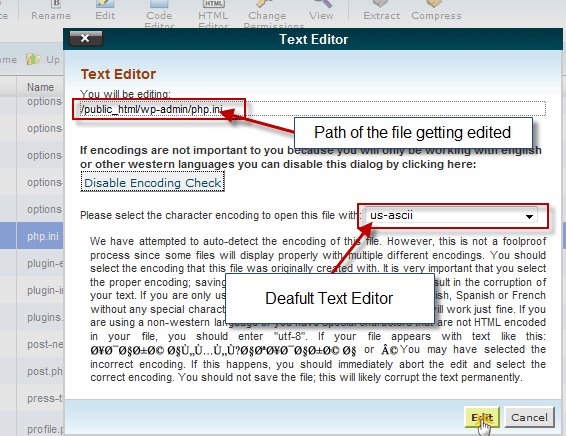
Edit increase upload media file size limit in WordPress
Edit Php.ini File
  • When you click the edit button, as in the screenshot above, it will open the php.ini file in text editor. If you have just created new a file php.ini file, then simply copy-paste the below code and save it.

[php]

upload_max_filesize = 32M
post_max_size = 32M

[/php]

  • But if you have edited the already existing php.ini file then, search for “upload_max_filesize” line and change the numeric value to 32M, or as desired, 64M, 128M etc…
  • Click save button and close the file.
  • Now login to WordPress Admin panel and navigate to Media > Add new media.
  • Now you will notice the maximum upload file size has been increased to the value we just set in the php.ini file, just like in the screenshot below.
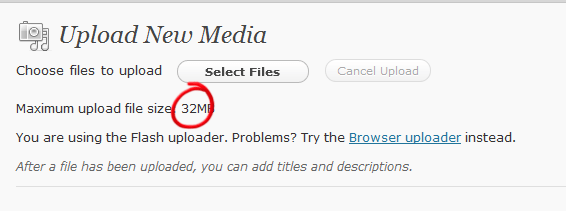
Increase upload media file size limit in WordPress
Upload Media Size Increased
  • Now you can upload your media with file size up to 32MB, but if you want to increase the limit then you again edit php.ini file and change its desired value.

I hope this tutorial was not that complex as it seemed initially, but all’s well, that ends well. If you have any query or any further assistance required, then you can post comments as your feedback.

Comments

50 responses to “How to increase upload media file size limit in WordPress”

  1. Sarah avatar
    Sarah

    Awesome, thank you. Worked great! Appreciated the clear instructions.

    1. Asad Khan avatar
      Asad Khan

      Hi Joe, Awesome! Thanks a lot ….thanks thanks.

  2. Tidy Design avatar
    Tidy Design

    AWESOME!!!! Many thanks, just what I was looking for 😀

    1. Aky avatar

      I am glad, that it worked for you. 😉

  3. Ed Seward avatar
    Ed Seward

    Thank you. After reading several solutions you gave one that actually worked.

    Ed

    1. Aky avatar

      Your comment post is appreciated. 🙂

  4. Newer avatar
    Newer

    Hi,
    I have added a php.ini file and code is
    memory_limit = 200M
    upload_max_filesize = 200M
    post_max_size = 200M
    file_uploads = On
    but this code does not work.
    plz help me

    1. Aky avatar

      Well, I have reviewed the post again and the code is working fine. I am sure, you must have skipped some step.
      Rest, if problem still persists, then you can get my assistance via contact form below, and I will be happy to help you. 😉

  5. Newer avatar
    Newer

    Hi,
    In my wordpress site, their is no any php.ini file and if i created new php.ini file and added above code but it it didn’t increase uploading size.Even I added new uploading size in wp-config file.Not working
    So please tell me all procedure for increasing uploading file size

    1. Jen avatar
      Jen

      I’m having the same problem as above my theme doesn’t have a php.ini file and can’t increase my file size

      1. Aky avatar

        @Jen: php.in file doesn’t exist in Theme directory, instead go to directory where WordPress is installed and look for WP-Admin directory and find php.in file.

    2. Aky avatar

      Well, there must some hosting issue, why don’t you create ticket for hosting people, I am sure they will look after it. 😉

  6. Den avatar
    Den

    I have the same problem as Newer and Jen.

    1. Aky avatar

      I have discussed their cases above, I guess you might get solution from one of the above. 😉

  7. Seth M. Baker avatar
    Seth M. Baker

    Thanks for posting this. Your info is dead-on accurate, but due to the way I’ve installed my several domains, I had a little trouble with this. The domain I wanted to modify lives in a subdirectory below my primary domain.

    I first tried to increase the max-upload on the php.ini in the top-level domain, but that didn’t work, so (as you said) I simply had to create a new php.ini file in the wp-admin folder of the site I was working on.

    Cheers!

  8. Mary K Gill avatar
    Mary K Gill

    Easy to follow instructions but I tried editing my php.ini file and kept getting ‘fatal error/timeout’ message. Tried creating another php.ini file (wouldn’t let me of course) so I created one php.ini1 – still no luck.
    Any suggestions? Don’t want to have to write to my host company, if I can help it as they are slow in replying.

  9. Mary K Gill avatar
    Mary K Gill

    Update on previous comment: Have got the coding to work in my php.ini file in cpanel but not showing any increase in wp despite logging out/reloading the page. Any suggestions on this.

  10. Nishit Manvar avatar
    Nishit Manvar

    Thank you Very Very much… it Works for me..!!

  11. Jeff Cabel avatar
    Jeff Cabel

    I use godaddy.com as my host. Located the wp-admin in the ctrl panel and the php.ini did not exist. added the file and included the recommended perameters and still received the 8MB limitation error message when returning to WP and uploading larger file.

    Any suggestions or experience with godaddy?

    Thank you

  12. vapour avatar
    vapour

    this post really realy helped me…thank you alot…is there anyway I can donate? to keep you going?

  13. Patrick avatar
    Patrick

    Hey I did this, and am still having the same issue – cannot upload a 13meg file .– however when I run my phpinfo test file it says:

    upload_max_filesize = 32M
    post_max_size = 32M

    could it be a caching issue that the uploader hasn’t changed?

    1. Ed avatar
      Ed

      Hi Patrick,

      Did you ever get this sorted? I’m having the same issue.

      Both are set at 32M. I’m still only getting 11mb in the WordPress media uploader.

      Any help would be greatly appreciated.

      Thanks

      ed

  14. salem avatar
    salem

    Thanks it’s work very perfect

  15. Chris avatar
    Chris

    I actually found this article on how to make it work using MediaTemple hosting.

    http://readymadewebdesign.com/blog/2010/03/question-how-do-i-change-the-upload-limit-for-my-wordpress-site/

    Inserted your snippet and Voila! Works perfectly! Thanks!

    1. Aky Joe avatar

      Chris,
      Good to hear about the issue getting resolved for you and the song Resonate. Cheers! 😉

  16. Jason avatar
    Jason

    It does not seem to work with the latest version of WP!

    1. Sanjay Humania avatar
      Sanjay Humania

      Its working………
      I have used it in my wordpress

  17. Sherry avatar
    Sherry

    Hello,

    I have hostgator as a hosting service. I followed all of your steps. First I went into /public_html/wp-admin. I did not have a php.ini file so I created one and added the content you suggested. I then went back to wordpress and clicked on media and my file size had not changed at all. Do I follow different steps if I have multiple sites being hosted at hostgator, or is this step suppose to fix all of the WP sites on hostgator? Please help.

    1. Aky Joe avatar

      I am using Hostgator hosting and my max. upload limit is 64M. You should contact Hostgator Support via chat or call and ask them to diagnose this problem for you.

      P.S. => As this tutorial is WordPress specific, hence you will have to follow this procedure for all your WordPress websites hosted at hostgator.

  18. Bren Murrell avatar
    Bren Murrell

    Hay just wanted to stop and say thanks! This code was just what I was looking for!

  19. Casey Helmick avatar
    Casey Helmick

    Thanks a lot! Been trying to figure out how to do this and your post lead me in the right direction.

  20. Website Design avatar
    Website Design

    Thank you. I was stuck on this for a while. Most blogs had the same recommendation but did not specify it was the php.ini file within the wp-admin folder. You saved me from going crazy lol

  21. Geri horsley avatar
    Geri horsley

    If some one wishes expert view about blogging and site-building then i
    advise him/her to pay a visit this website, Keep up the pleasant work.

  22. sam avatar
    sam

    I want to say THANK YOU for your explanation in everyday English, It helped me to solve my problem )

  23. tazo avatar
    tazo

    This may help, if you add this into your .htacess

    php_value post_max_size 40M
    php_value upload_max_filesize 40M
    php_value memory_limit 500M

    1. Mike avatar
      Mike

      I tried this & my wordpress instance had a server error500.

      1. Aky Joe avatar

        Internal server Error 500 depicts that there is some erroneous snippet in htaccess file. Make sure you copied the right code in your htaccess file.

  24. popmusicmix.com avatar
    popmusicmix.com

    I also added tazo’s codes in the .htacess and that worked for me. I changed the size up to 128M and it’s all okay.

  25. BULLBOYKENNELS avatar
    BULLBOYKENNELS

    I just wanted to add, that with Bluehost even though the php.ini is set to be used by all subfolders, it is not used by WordPress for some reason. So if you make changes to the php.ini file and it is in your root folder, then just copy it to /public_html/wp-admin and it should now show up correctly for you.

    Nice post by the way.

  26. Mike avatar
    Mike

    Hey -simple & easy to follow. Thanks buddy.

    Most of the other stuff I googled, had either out of date or overly complex instructions that had little relevance to my problem.

    Keep up the great work.

  27. jamie avatar
    jamie

    Hi,

    Ive read your post about changing the upload limit for wordpress. I created a php.ino and added the coding as instructed. When i get to the uplaod screen the limit is at 270MB as set ( my file is 268.14MB). However the uplaod bar reaches 100% but does not crunch or upload etc. It just stays with 100% uploaded bar but does nothing else. could you give me and ideas on how to fix this?

    Thank you

  28. Kim avatar
    Kim

    Thanks so much! Worked great!

  29. Francisco avatar
    Francisco

    Thanks for the easy steps, I found other pages but they were not as easy and well explained as yours, keep up the good work!!

  30. patrick avatar
    patrick

    the best option to use is php.ini but many coder or developer just don`t know how to teach other people very simple way of doing it, this is my second time of doing it and I can tell you where you are making the mistake.
    Log into your root server where wordpress is installed and navigate to wp-admin folder and make sure to delete any php.ini file in that folder if any, then open your NOTE-PAD and paste the code below

    memory_limit = 200M
    upload_max_filesize = 200M
    post_max_size = 200M
    file_uploads = On

    now save it as php.ini and upload it to your wp-admin folder, now you can check your wordpress to see the size limit

    important note: php.ini must be in small letters like abcd and not ABCD that is you must save it with php.ini and not PHP.ini that is where most people where having problem, and if you which to change your size again, delete the file and create another one with the same process.

  31. Sonja avatar
    Sonja

    YES This was the answer: put the php.ini file in the public, not the wp-admin if using Blue Host (I have it in both spots just in case actually) Works great.

    1. Michael B avatar
      Michael B

      Dear, Dear, Sonja,
      Thank you, you wonderful lady. I was up all night redoing videos, trying plug ins, etc. Thought I would really mess things up trying the code thing but couldn’t find the files where everyone kept telling me to look. After reading your post, 10 minutes later I was uploading my 50m file. I love you! Thank you so much.

  32. Nowsath avatar
    Nowsath

    Thank you very much!!!! Works like Charm. Saves my time!!!

  33. Uploading WordPress Files To Godaddy – Cyber Sun

    […] How to increase upload media file size limit in WordPress – Hi, Ive read your post about changing the upload limit for wordpress. I created a php.ino and added the coding as instructed. When i get to the uplaod screen the … […]

  34. Godaddy Change Upload_max_filesize – Cyber Sun

    […] How to increase upload media file size limit in WordPress – For different web hosting like hostgator or bluehost, WordPress sets different upload file size limit depending upon the PHP configuration on server. […]

  35. 18 Error Messages Every Designer Dreads | CodeGrape Community Blog

    […] thecreatology.com […]

Leave a Reply

Your email address will not be published. Required fields are marked *