Tutorial to add CAPTCHA in Contact Form 7 Plugin to block Spam on WordPress Blog

Written by

in

Spamming on WordPress blogs has become vital, just kidding, increasing day-by-day. You must be here looking up for solution to stop spam on your blog as well. To stop spam comments,  I have covered two articles on How to Block Spam using HTACCESS and using Akismet Plugin. But these tutorials will only help you to stop spam commenting on your blog but not on contact forms. For a spammer, it’s just a Submit button required to do all the action.
Spam MessageIf your WordPress Blog is using Contact Form 7 plugin, then beware that you can be spammer’s next target. Recently, I received few spam comments on my Email via Contact form 7 on thecreatology and it got worst with count of 50+. Annoying! Below is screenshot of the Inbox:
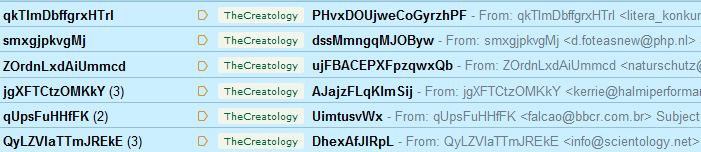
Spam Messages from Contact Form 7

I tried tracking IP Address of all emails and the origin, but it was hard to block spammer access because they used a random IP Address every time. So, I had to install CAPTCHA in Contact Form 7 settings. In this tutorial, you will learn how to add CAPTCHA in Contact Form 7 Plugin to block Spam on Website.

Block Spam using CAPTCHA

CAPTCHA is an automated scripts made to validate forms submission. CAPTCHA reforms a word every time it refreshes. This makes it complex for spam bot to read CAPTCHA letters and auto submit form. To add CAPTCHA in WordPress Contact form, you will be required to install Really Simple CAPTCHA plugin. Below is stepwise procedure to add CAPTCHA in Contact form 7.

Step 1: Install Really Simple CAPTCHA Plugin

To install WordPress CAPTCHA plugin, login to WordPress dashboard:

  • Navigate to Dashboard > Plugins > Add new Plugin.
  • Search for Really Simple CAPTCHA plugin and click to install it. Refer to screenshot below.
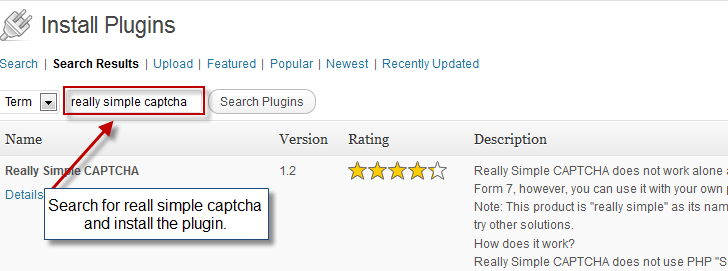
install really simple captcha plugin
Install CAPTCHA plugin
  • One the plugin is installed, activate it.

Are done with installation of plugin? Move on to configure Contact Form 7.

Step 2: Add CAPTCHA to Contact Form 7

You can add CAPTCHA in contact form in few easy clicks. Follow the procedure below:

  • Login to WordPress Dashboard and navigate to Dashboard > Contact.
  • Select the contact form to edit it, refer to the screenshot below.
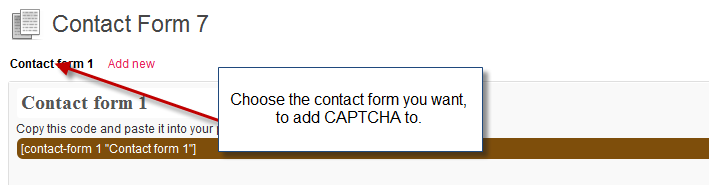
Select Contact Form To add CAPTCHA
  • To add CAPTCHA, click on the Generate Tag drop down list on right, and select CAPTCHA option in the list, just like in the screenshot below:
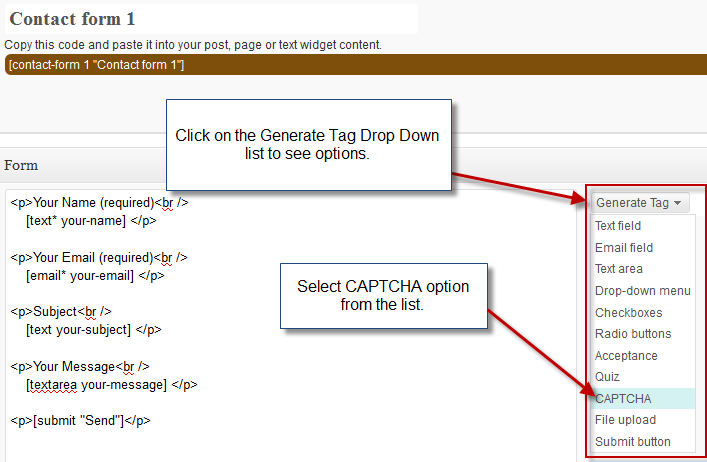
Generate CAPTCHA Tag for Contact Form
  • After you click on the CAPTCHA option, CPATCHA setting options will appear under the Generate Tag drop down list. Now, configure the options and copy-paste the code on the left side of the window. Refer to screenshot below:
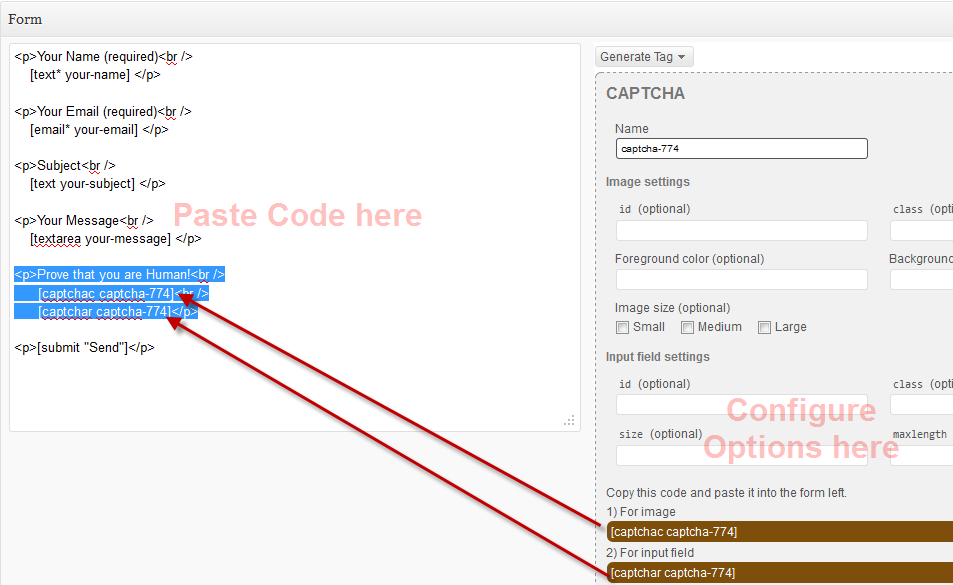
Add CAPTCHA to contact form code
  • Once done, hit the Save button on top right and We’re Done! 😉

We’re Done

Now that you have added the code, refresh the contact form page and check it out, it will look similar to screenshot below:
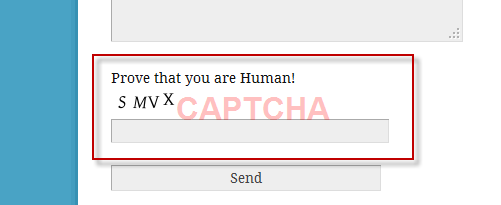
CAPTCHA on WordPress Blog
Demo: CAPTCHA on WordPress Blog

Adding CAPTCHA will violate bots to submit spam on website. In a way you can focus more on blogging rather administering your blog.

In this article, we learned to add CAPTCHA in Contact Form 7 WordPress Plugin to block spam. If you have any queries or require any assistance, you can post a feedback using  comment form below.

Comments

44 responses to “Tutorial to add CAPTCHA in Contact Form 7 Plugin to block Spam on WordPress Blog”

  1. shabooty avatar
    shabooty

    thanks i needed that tutorial !

  2. Glen Woodfin SEO avatar
    Glen Woodfin SEO

    Aky,

    Thanks so much for this tutorial. I used the Contact Form 7 on a website that was getting spammed to death. I’d been dreading figuring out how to solve the problem.

    I did a search for: add a captcha code to contact form 7, and there you were.

    Awesome Tutorial,
    Glen

    1. Aky avatar

      I am glad you liked it, I hope it was easy and effective. 😉

  3. jondoe avatar
    jondoe

    thx man, appreciate the info, got it working now !!!!

  4. Paramveer avatar
    Paramveer

    hi need to redirect the contact form page to thanks you page after submission

    what i can do ..

  5. Jenifer avatar
    Jenifer

    This is the best description I’ve seen, unfortunately it didn’t work for me 🙁 Any suggestions??

  6. Martin avatar
    Martin

    Really nice but still receiving spam any suggestion?

    1. Aky avatar

      Well if the spam is still troubling you, then probably you should contact thecreatology support team. I am sure you will find a resolution with them. 😉

  7. Natalya avatar
    Natalya

    Unfortunately CAPTCHA on my screen is really light yellow. It is basically unreadable. I am trying to change the foreground color but nothing seems to work:

    1. Changing “Foreground color” through “Contact Form 7” did not work.
    2. $this->fg = array( 0, 0, 0 ); – changing this value did not do anything either.

    Any other suggestions? Please help!

  8. Pallavi avatar
    Pallavi

    I have added simple captcha but showing warning permissions denied to really-simple-captch.php

    1. Aky Joe avatar

      Oh, that is a weird of an Error! I hope you followed above steps precisely? Also, it would be great if you can copy/paste the exact error code here (in your comment reply).

  9. Krys avatar
    Krys

    Aky,

    Thanks very much!! Works like a charm!

    Great tutorial

    Krys

  10. Chuck avatar
    Chuck

    Thanks so much for this tutorial! Been looking all over for a way to add a simple CAPTCHA to Contact Form 7 .. good job.

    Chuck

  11. Jim avatar
    Jim

    Great tutorial – very easy to follow and implement! Thank you…

  12. Jen avatar
    Jen

    Thanks for your tutorial. It was most helpful.
    For those having problems with the captcha code not being visible, try making the foreground color black, 000000 or some other darker color. This helped me.

  13. Stephen avatar
    Stephen

    Perfect – Just what I needed!!

  14. Boston Appliance avatar
    Boston Appliance

    Very useful to us, thank you. We are experimenting with a few different anti-spam measures for the contact forms on our site – have you had better luck with CAPTCHA, or the built-in quiz option in Contact Form 7? (Or both? Or something else?)

  15. marco avatar
    marco

    hi,
    i’ve some problem with captcha, i’ll try to explain, if i create the form without the captcha field and every things are right (all the control and message for missing filed are displayed correctly).
    with captcha field, it doesn’t, if i click on submit with all the fields blanks, it seem to start to send anyway (all the field are compulsory).

    i don’t receive any error message.
    below the code of the form:
    Il tuo nome (richiesto)
    [text 1=”your-name” language=”*”][/text]

    La tua email (richiesto)
    [email* your-email]

    Oggetto
    [text 1=”your-subject” language=”*”][/text]

    Il tuo messaggio
    [textarea* your-message]

    Inseririsci il codice di verifica:
    [captchar captcha-686 4/4 ][captchac captcha-686 size:m]

    [submit “Invia”]

  16. Suresh Kumar avatar
    Suresh Kumar

    I also use your contact form that is really very nice. Thanks!

  17. Kilo avatar
    Kilo

    Completely useless guide how to use CAPTCHA, because the way how it is explained here – doesn’t matter if you will use it or not! The message could be sent without the verification letters!!!

  18. Grace avatar
    Grace

    Thanks so much for this – I’ve been agonizing over the complicated guide on the Contact Form 7 homepage for about an hour. With your simple tutorial, I was able to get everything set up in just a moment. Really appreciate it.

  19. Mary avatar
    Mary

    Thank you so much! You saved me so much time googling ways to add Captcha to Contact Form 7.

  20. Baruch avatar
    Baruch

    I used your very good Tutorila and added CAPCHA to my contact form 7.
    I tried to do the same with my order form but it did not work. Is there any way to add CAPCHA to custom order form ?
    Many thanks
    Baruch

  21. Baruch avatar
    Baruch

    Thank you !!!
    I just managed to to it also with my order form !!

    You are the best !!!

    1. Aky Joe avatar

      Glad the recipe worked for you. 🙂

  22. J Middya avatar
    J Middya

    After activating this plugin (Really Simple CAPTCHA Plugin), validation on Contact Form 7 stopped working. Please help.

  23. Nidhi avatar
    Nidhi

    Hello,

    Thank you for the tutorial, actually can we customize the captacha text to only small aplhabets

    Thanks & Regards
    Nidhi

  24. Luke avatar
    Luke

    Follow this guide step by step but no captcha form shows up at all? Doesn’t seem to do anything, any ideas what i might be doing wrong?

  25. Why I Chose Contact Form 7 For This Blog | Brain Bucket Marketing

    […] I posted this problem in our members area and was directed to a tutorial on how to install a captchas on CF7. […]

  26. M avatar
    M

    Hi great tutorial. Having had a problem with the form I have been informed by my web host that many spam emails have passed through in the night and I have exceeded my limit. They now tell me that GD and FreeType PHP libraries are not supported? what am I to do? Any help appreciated.

    1. Aky Joe avatar

      Well, you got two options. [Option 1] is to change the hosting to a one supporting GD library. [Option 2] is to design a custom contact form and use a jQuery based Slider Captcha to fight spam.

    2. June avatar
      June

      Use WP-SpamShield they don’t need GD and FreeType PHP libraries.

  27. Hopie avatar
    Hopie

    Thank you for these very simple instructions. I too was getting spammed by my organizations website. I’m hoping this will resolve the issue. I will update to let you know, but instructions were perfect!

  28. Rudi Nazar avatar
    Rudi Nazar

    thank you so much this tutorial is really clear and concise brief

  29. June avatar
    June

    You guys can try WP-SpamShield Anti-Spam contact form…
    Go to the WP-SpamShield option the option page is self explanatory

    To add contact form use this
    [spamshieldcontact]

    I have good success stopping spam comments with this.

  30. fizzo avatar
    fizzo

    thank you so much!!

  31. Yennicq avatar
    Yennicq

    Very usefull, exactly what I was looking for, thank you!

  32. Bryan Whatley avatar
    Bryan Whatley

    Thank you so much for the explanation and pictures! It really helped!
    Bryan Lee Whatley

  33. Khushboo avatar
    Khushboo

    Captcha validation not working

  34. Arunava avatar
    Arunava

    Hey,
    Your explanation was truly very helpful. In 10 minutes it was all done.

    Many thanks!

  35. Mike avatar
    Mike

    Thanks for the clear and simple explanation! As a tech writer I appreciate your detail and step-by-step approach. So many others, too smart for me, make a simple task more complex by explaining processes in wordpress-developer-speak. Thanks for helping this non-expert out!

  36. Jennifer avatar
    Jennifer

    Hello, I added the contact form 7 to my website and I included the Solved Media Captcha inside the form. The form works and appears just fine, but people are still able to submit the form without actually having to solve the Solve Media Captcha. Any ideas on why this is?

    1. Aky Joe avatar

      Can you provide URL of the contact form or the code used for “Media Captcha” used?

  37. chittibabu avatar
    chittibabu

    Thank you very much for your simple explanation but this not supporting case sensitive.
    Is there any option to work with case sensitive or can we display the letter in small letters.

    Please help me on this

    Thanks
    Chittibabu M

Leave a Reply

Your email address will not be published. Required fields are marked *